Setting up autofill
PasswordEpic fills logins through Android's own autofill framework. It does not watch your screen, and the basic setup does not need an accessibility permission.
Autofill needs Android 8.0 or newer. On anything older the option will not appear at all — that is Android, not the app.
The short version
The app can take you straight there: Settings → Autofill Management → Enable Autofill. That opens the right system screen on most phones.
If it opens the wrong screen, or nothing happens, use the manual path for your brand below. This is worth knowing anyway, because Android moved this setting several times and every manufacturer renamed it.
Where the setting actually lives
Wherever the menu path leads, the screen you are looking for is this one — a list of every app that can fill passwords, with a single dot to award:
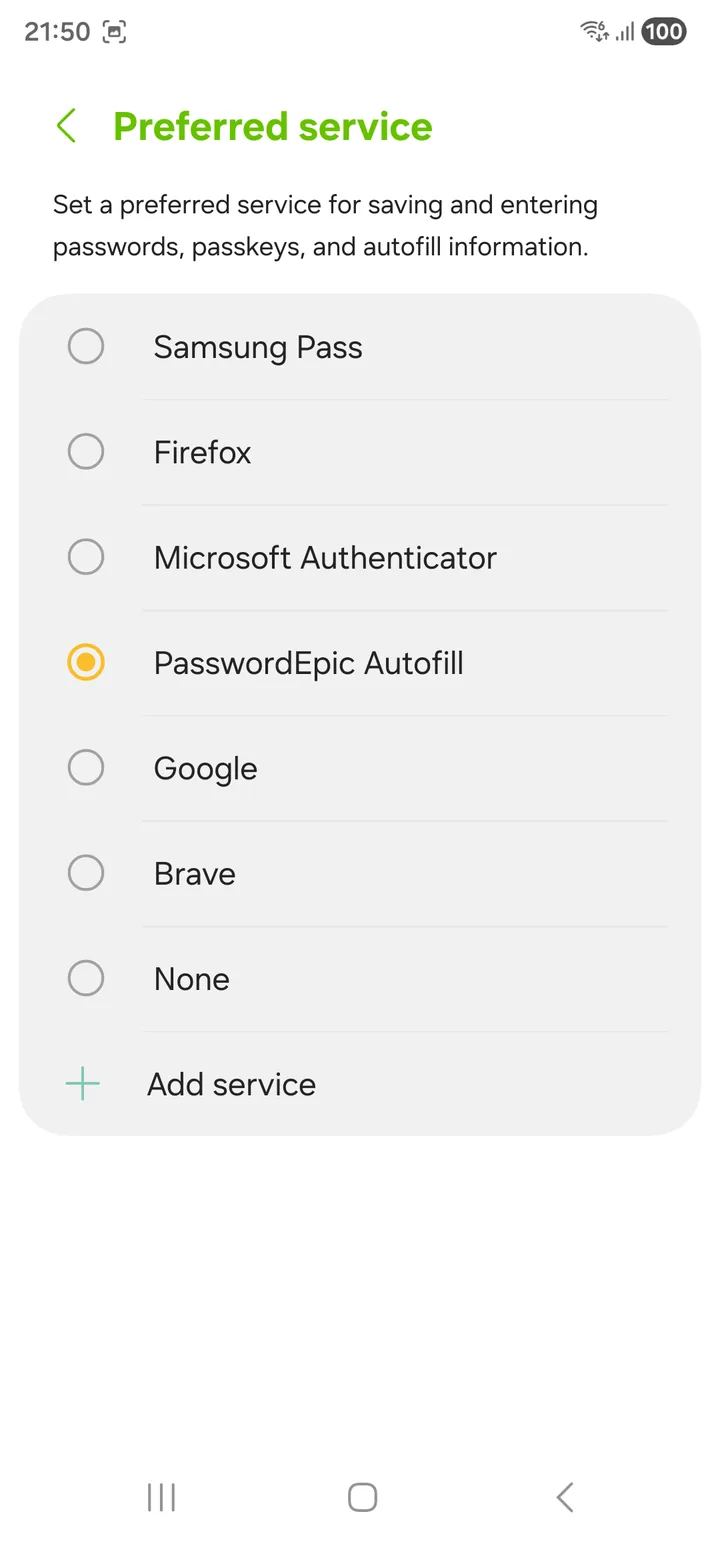
Note what else is on that list. Only one service can be preferred at a time, so choosing PasswordEpic means un-choosing Samsung Pass or Google.
Samsung
Settings → General management → Language and input → Autofill service → PasswordEpic
Samsung phones ship with Samsung Pass set as the autofill service. You may have to select None first, then choose PasswordEpic. If PasswordEpic does not appear in the list, back out to the previous screen and go in again.
Huawei and Honor
Settings → System → Languages & input → More input settings → Autofill service → PasswordEpic
Pixel and stock Android
Settings → Passwords & accounts → Autofill service → PasswordEpic
On Android 14 and newer this is often Settings → Passwords, passkeys & accounts → Additional providers.
Xiaomi, Oppo, Vivo, and anything else
The name of the screen changes, the words "Autofill service" do not. Open
Settings, use the search box at the top, and type autofill. That is far
faster than guessing the menu tree.
If you would rather navigate, one of these two usually works:
- Settings → System → Languages & input → Autofill service
- Settings → Apps → Default apps → Autofill service
Making it work in Chrome
This is the step most people miss, and the reason autofill often works in apps but not on websites.
Chrome has its own password manager, and by default it will not hand web forms to anyone else. Setting PasswordEpic as your phone's autofill service is not enough on its own.
- Set PasswordEpic as the system autofill service first, using the steps above.
- Open Chrome → ⋮ (three dots) → Settings.
- Find Autofill services and turn on "Autofill using another service".
- Confirm, then fully close Chrome and reopen it. Chrome only picks the change up on a restart.
Depending on your Chrome version this setting sits under Autofill services, under Passwords, or inside Autofill and passwords. The wording to look for is "Autofill using another service" or "Use another service".
If you cannot find it anywhere, Chrome is on a version that keeps web forms to Google Password Manager, and no third-party manager will be offered on websites.
Other browsers — Firefox, Samsung Internet, Brave — mostly use the system autofill service directly and need no extra step.
When an app refuses autofill entirely
Some apps opt out of the autofill framework. That is their decision and no password manager can override it.
There is no way around it, and you should be suspicious of any password manager that claims otherwise.
The usual trick is an accessibility service — the Android permission that lets an app read every field on screen. It would work, and PasswordEpic deliberately does not ship one.
Google does not permit the accessibility API to be used this way, and the reason is sound: it is the single most abused permission on Android, which is why this site warns you about it elsewhere. A password manager asking for it is asking you to grant the exact capability that credential-stealing malware needs.
For an app that refuses autofill, open PasswordEpic, copy the password, and paste it. Slower, and honest.
The notice you see the first time
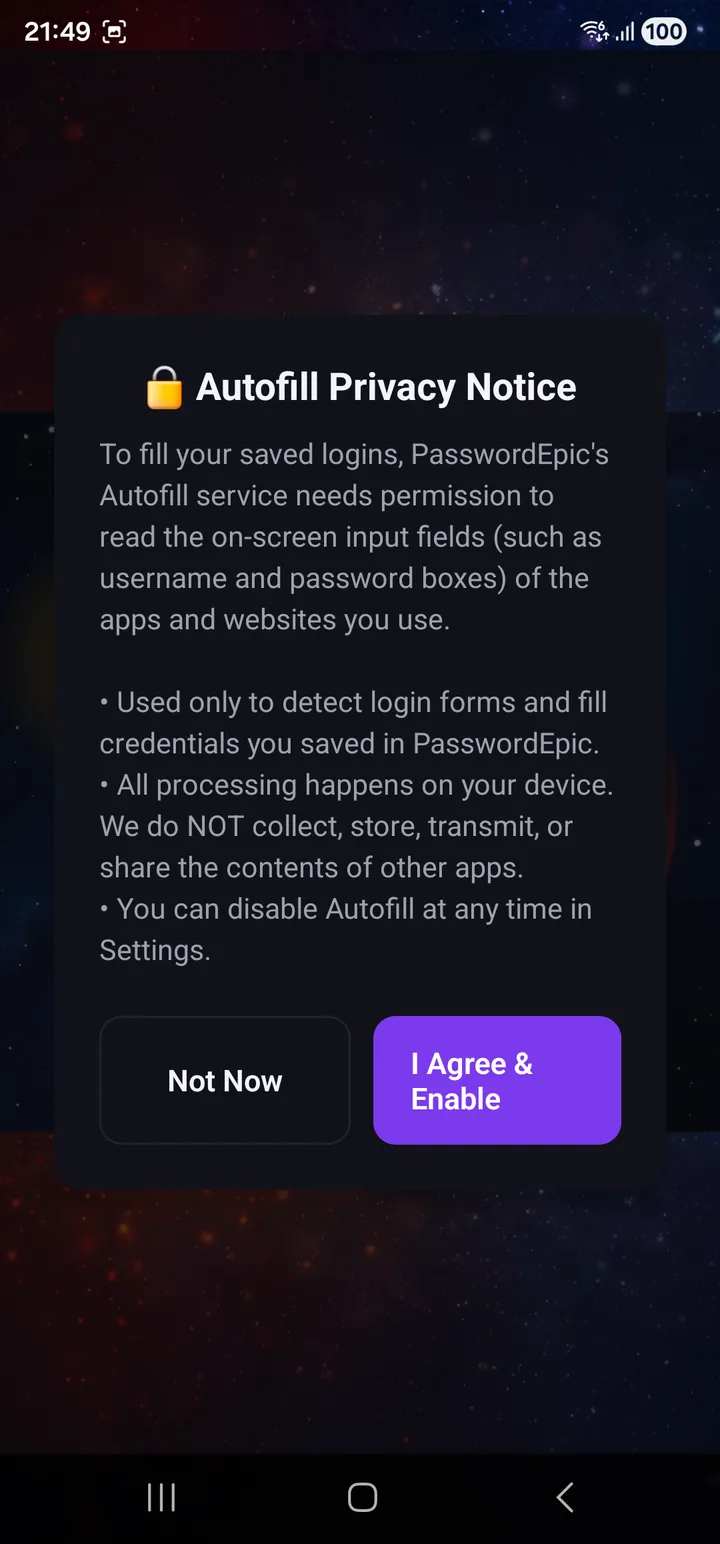
Before autofill starts, the app tells you what the permission actually grants: the ability to read the input fields on screen. It also tells you the limits — processing stays on the device, and nothing from other apps is collected, stored or transmitted.
Read it rather than tapping past it. It is the one permission in this app that touches other apps, and you should know what you are agreeing to.
What happens each time it fires
- You tap a login field in another app or a website.
- Android — not PasswordEpic — notices the field and asks the selected autofill service for suggestions.
- PasswordEpic asks you to confirm with a fingerprint or your passcode. Every time, without exception.
- The one entry being filled is decrypted, for that fill only. The rest of the vault stays encrypted.
- The decrypted password and the key are released as soon as the field is filled.
There is no window during which fills happen unattended, and no "unlock for five minutes" mode.
The same three steps, on a real login
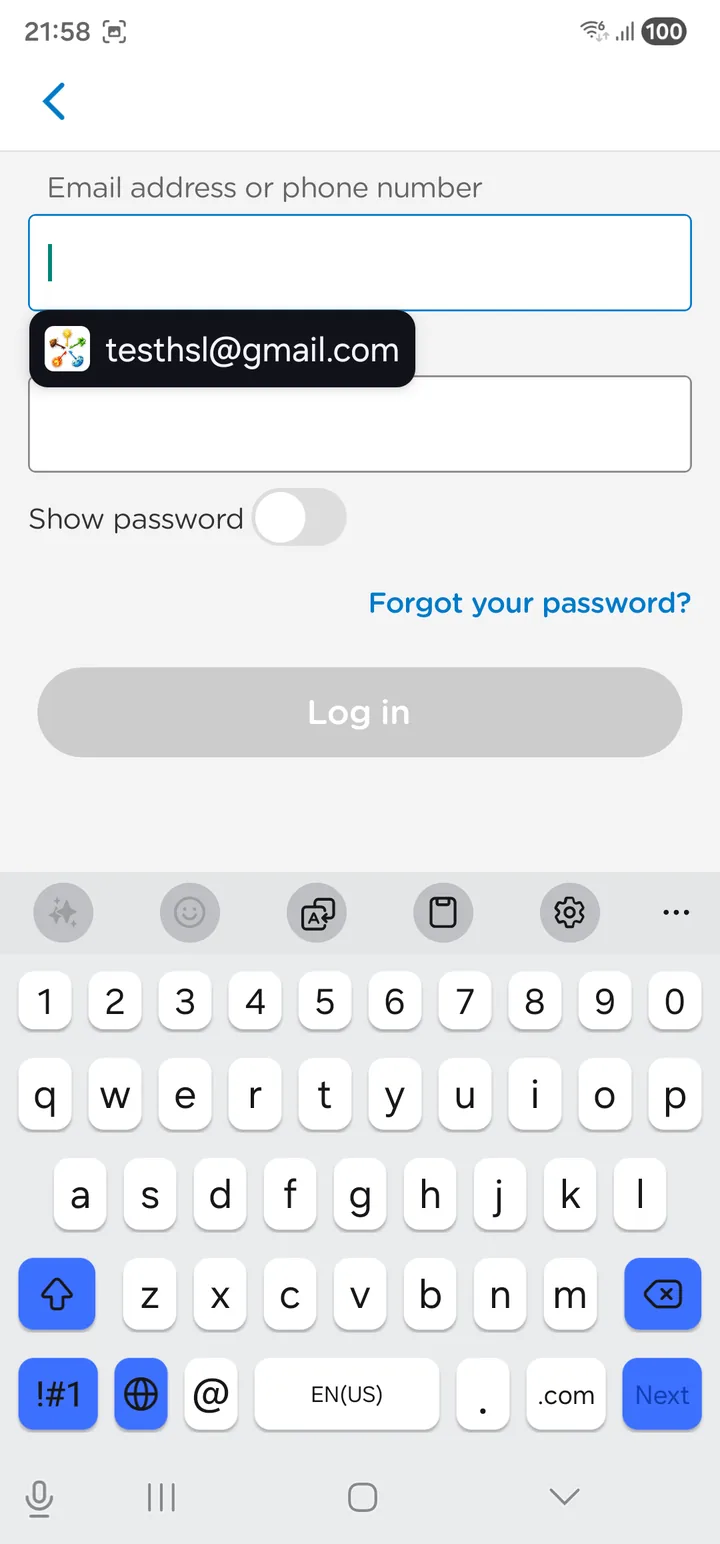
You tap the field; the saved username appears above the keyboard with the PasswordEpic icon beside it. Nothing has been decrypted yet — that row is a label, not a password.
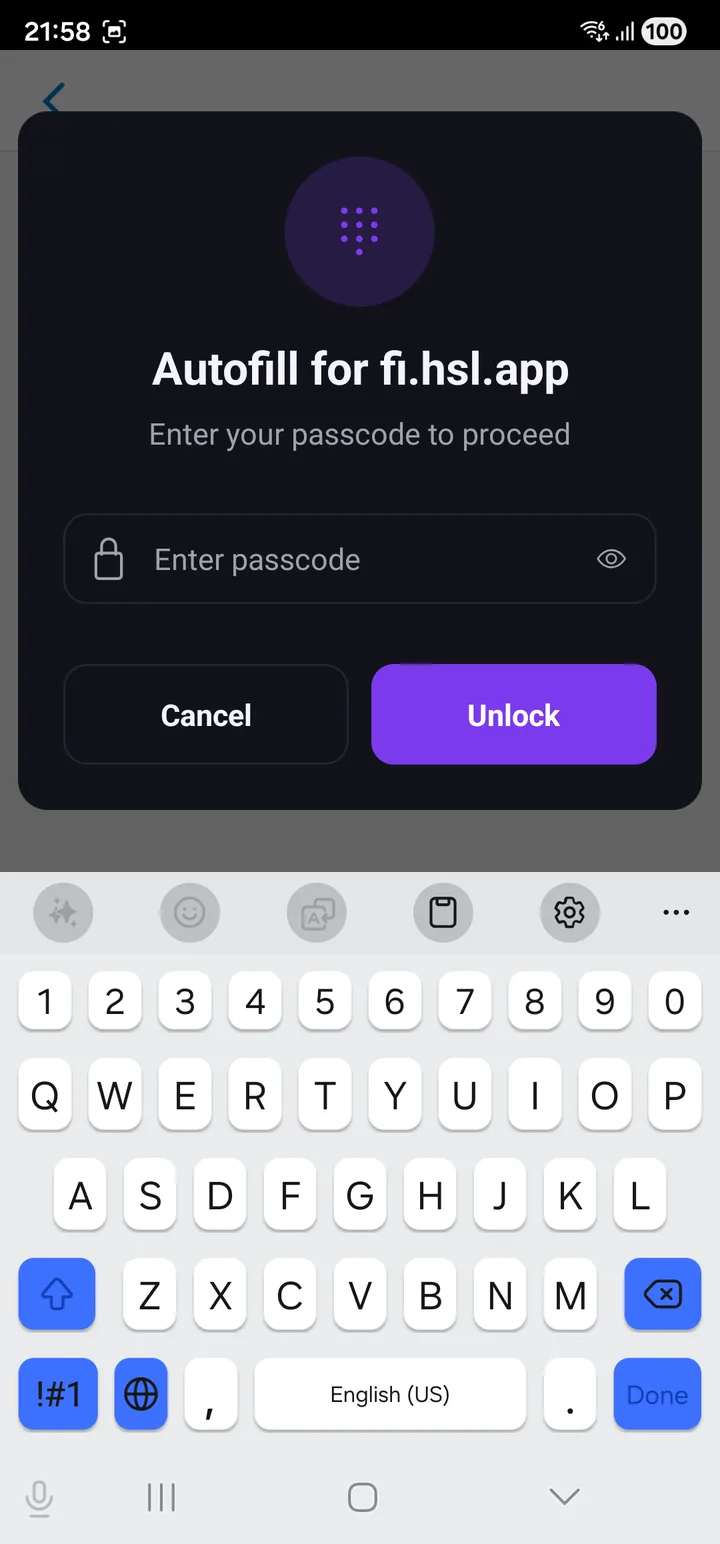
Choosing it asks for your passcode, and names the app it is about to fill —
Autofill for fi.hsl.app. Check that name. It is how you catch a fill aimed
at something that only looks like the app you wanted.
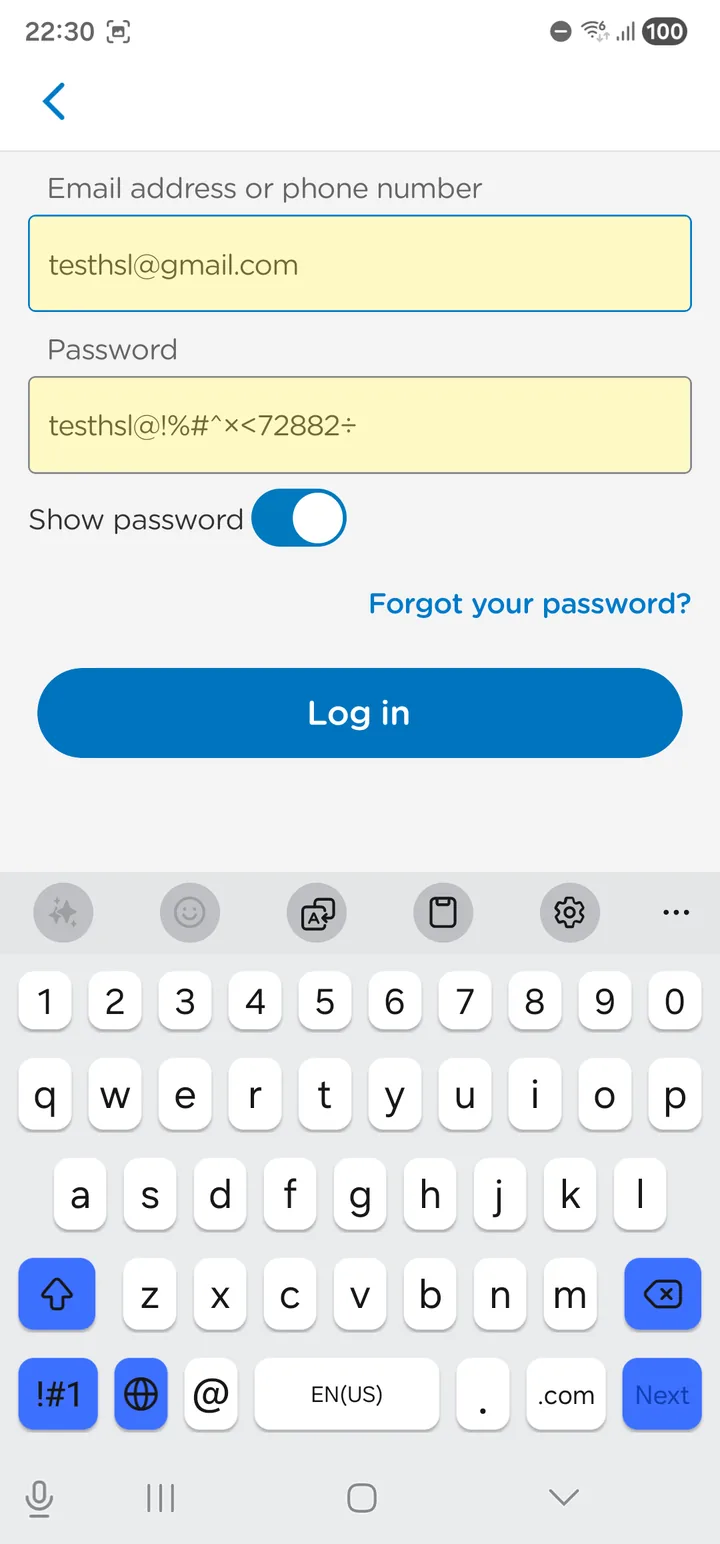
Then both fields are filled at once, and the key is gone again.
What a screenshot or a recording can capture
These are two different things and Android treats them differently. One is fully handled; the other is not, and that difference is the whole reason the app behaves the way it does.
Screenshots are refused outright
While a PasswordEpic screen is in front of you — the app itself, or the autofill dialog over another app — Android will not take a screenshot at all. You get "Couldn't capture screenshot due to app policy" and no image: not of the app, not of the keyboard, not of anything else on screen at that moment.
Recordings of the app come out black
A screen recording is not refused outright. What it captures while PasswordEpic is in front of you is black — the app itself and the keyboard over it. There is nothing in the frame to read.
The autofill dialog is the case that needs more
That dialog appears over a different app, and that app is being recorded normally. So this is where a recording could catch something.
On Android 15 and newer the app detects that a recording is running and refuses passcode entry entirely: the field is cleared and disabled, the keyboard is dismissed, and everything comes back when the recording stops.
Detection alone would achieve nothing. Refusing input is the part that helps — by the time you have finished typing, it is too late.
Below Android 15 there is no reliable way to detect a recording, and the app does not pretend there is. If that matters to you, fill from inside the app on an older phone rather than through the autofill dialog.
Two more things are worth knowing about that older-Android gap:
- Key-preview bubbles would be the leak. Keyboards suppress the little letter that pops up above each key only for password fields — so the passcode field stays in password mode permanently, even when you tap the eye to reveal what you typed. Revealing the text inside a protected window is safe; taking the keyboard out of password mode would not be.
- Touch positions are not recorded unless you have turned on the "Show taps" developer option.
So even in that case there is little to read. It is not nothing, though, which is why the refusal exists on the versions that can support it.
This is true in every app, not just this one. A keyboard you install sees every keystroke you give it.
If that matters to you, use the keyboard that shipped with your phone. PasswordEpic warns you when the active keyboard did not.
Inside Autofill Management
Settings → Autofill Management has three tabs.
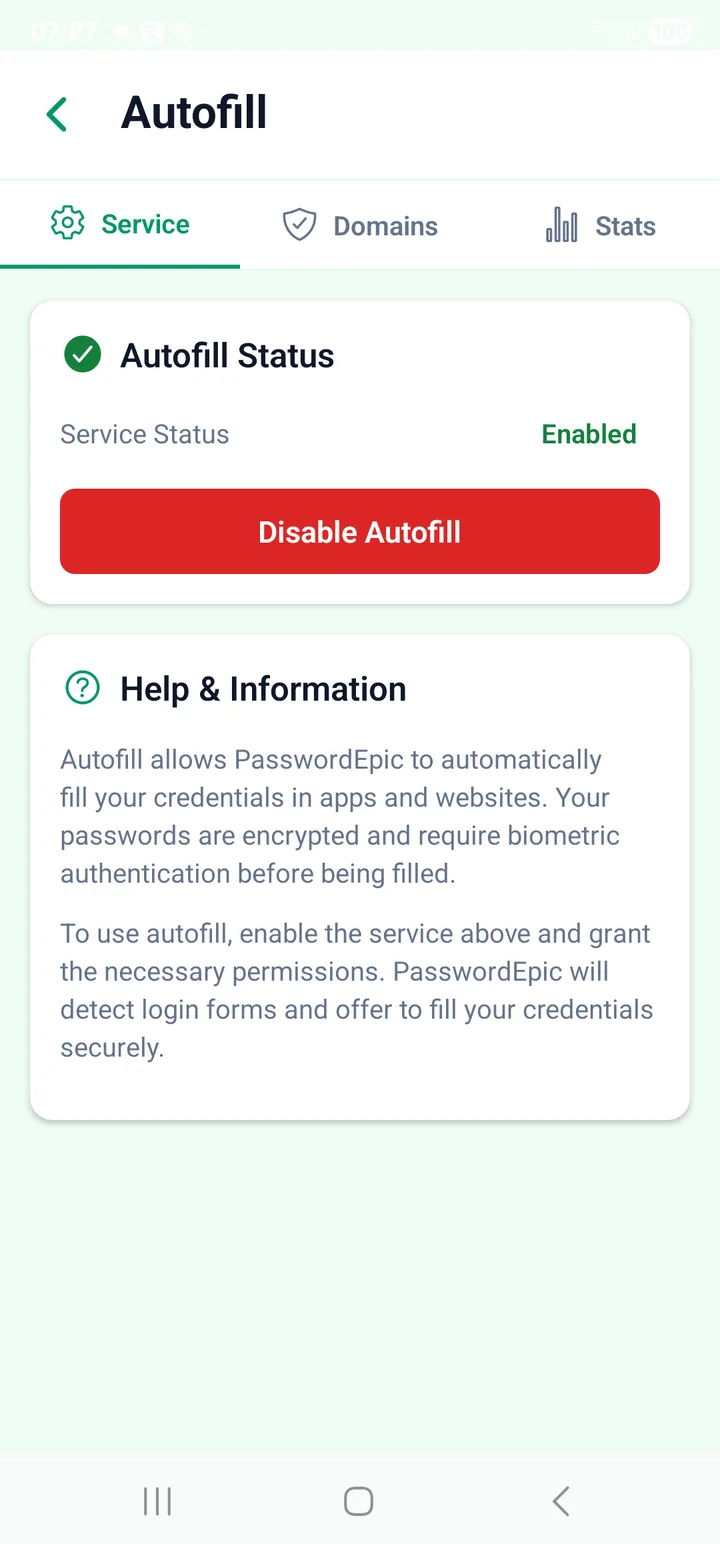
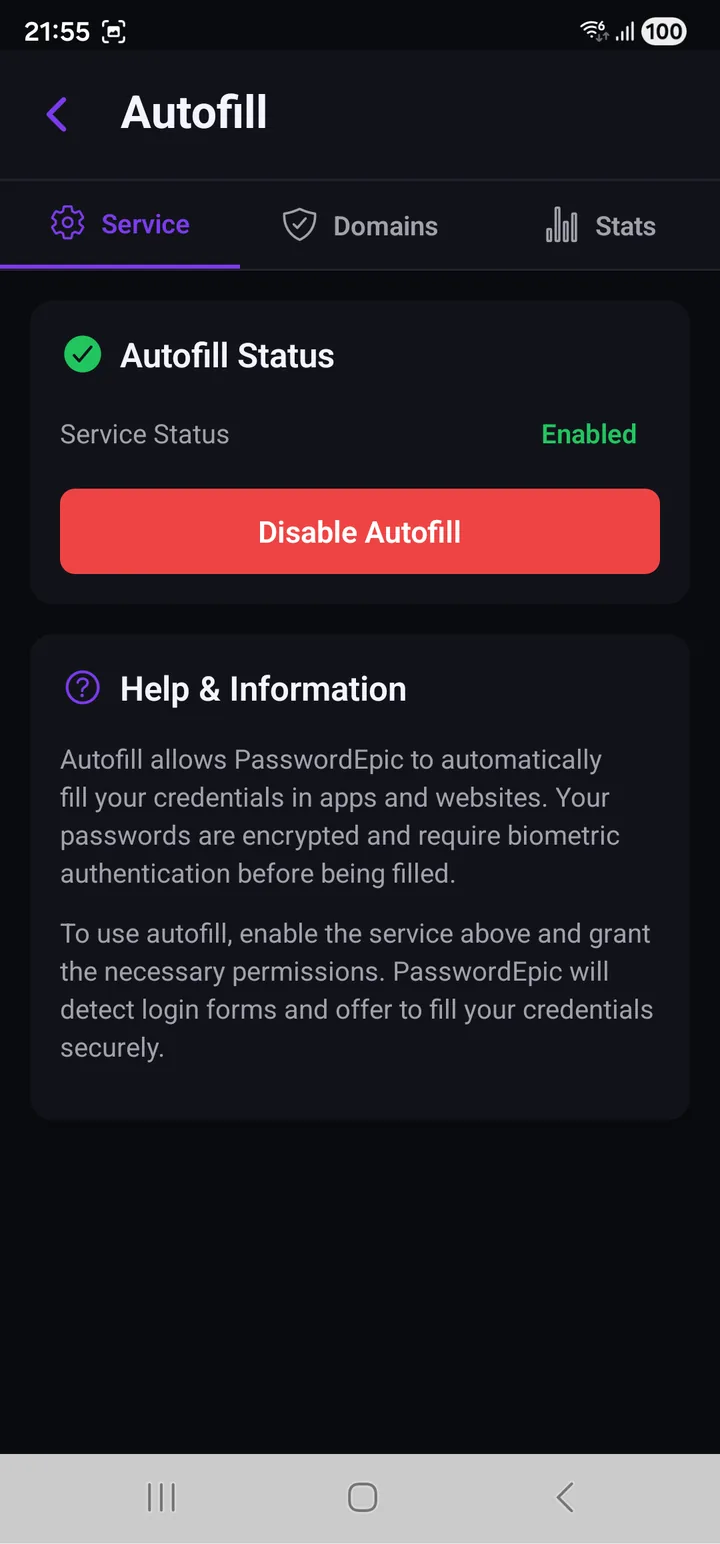
Service is the on/off switch and a plain-language explanation. The one line worth carrying away: your passwords are encrypted and require biometric authentication before being filled.
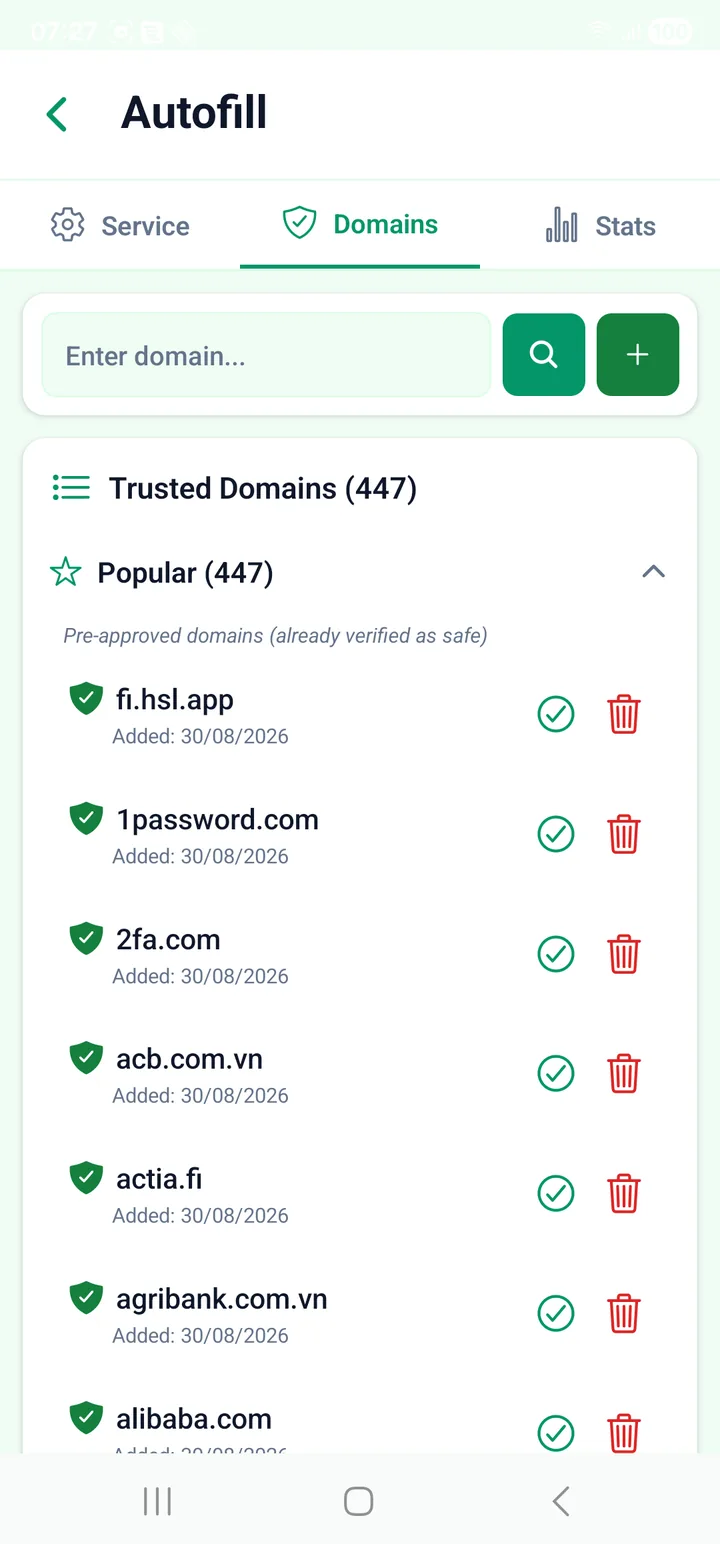
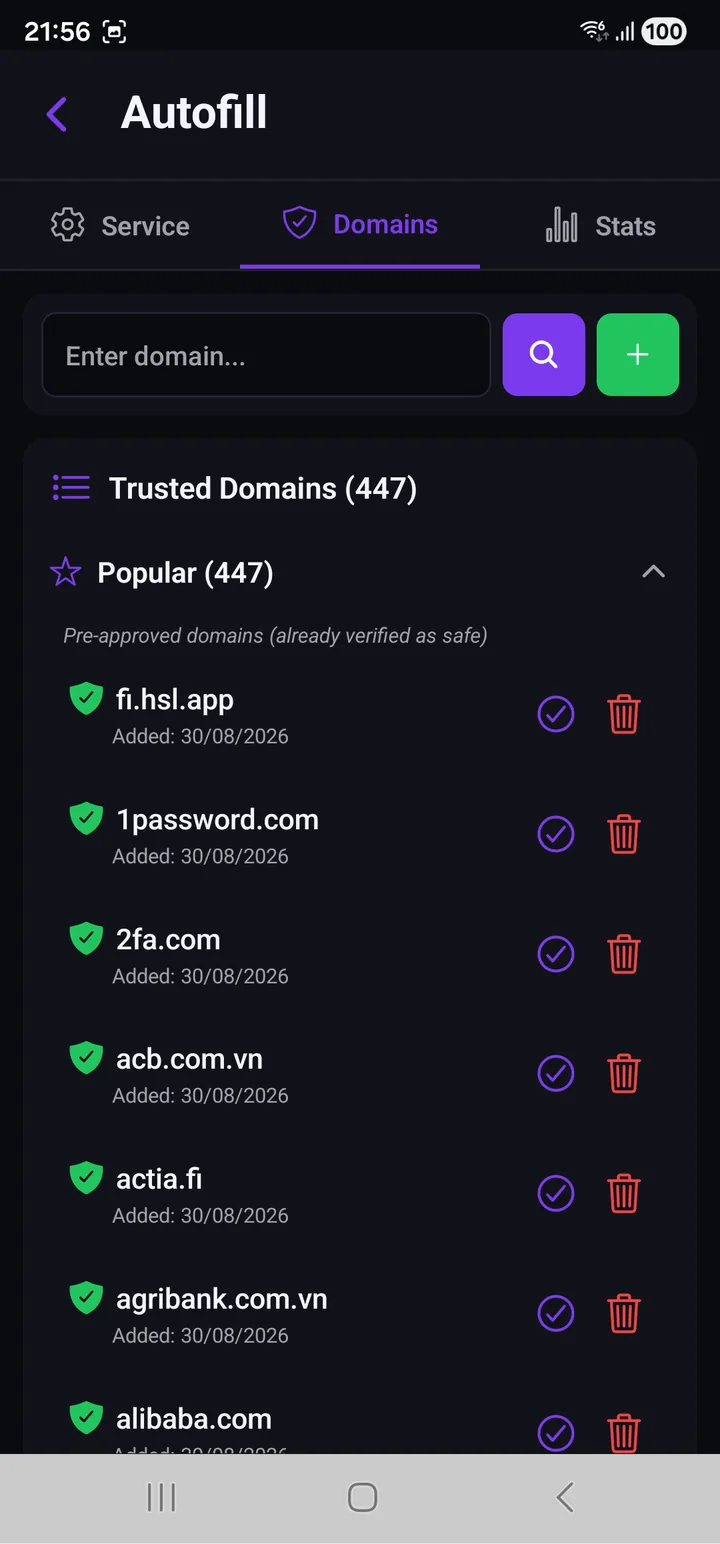
Domains is the trusted-domain list, and it does not start empty — the app ships with several hundred pre-approved domains already verified as safe, so common sites work on day one. You can search it, add your own, and remove any of them.
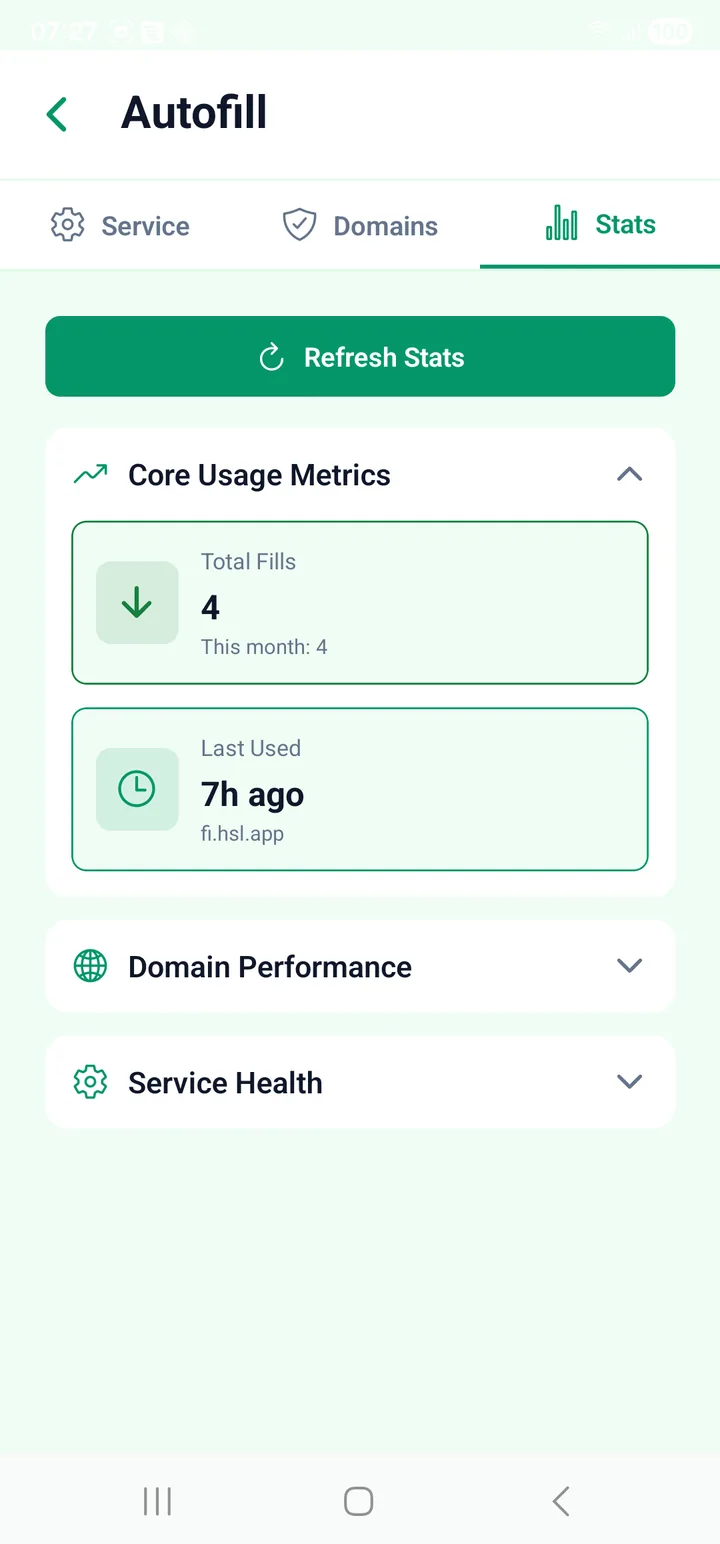
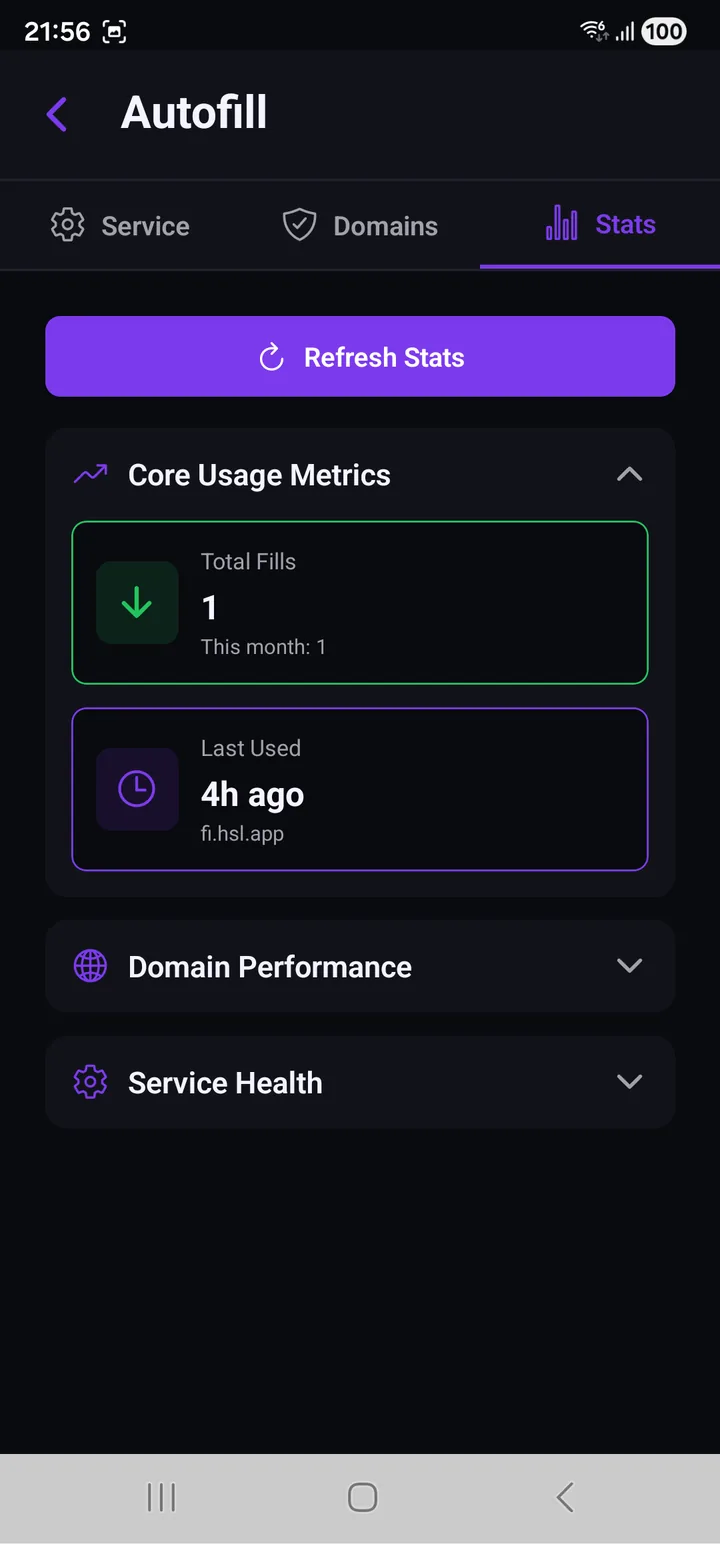
Stats counts what has actually happened: total fills, when it last fired and for which app, plus per-domain performance and service health.
This is more useful than it sounds. Autofill is a feature you stop noticing when it works, so a count that stays at zero is the fastest way to find out it never started.
Turning it off
Settings → Autofill Management → Disable Autofill, or go back to the same system screen you used above and choose None or another service.
Signing out of PasswordEpic also revokes autofill immediately — the service stops answering requests rather than continuing with a stale session.
Read next
- Common problems — autofill not appearing, error messages, and what they mean
- Your passcode — what you will be asked for on each fill
- How it works — what has to happen before an entry can be decrypted