Generating passwords
The Generate tab makes passwords you do not have to remember — which is the whole reason a password manager is worth having. You only ever remember one secret, and it is not any of these.
The screen
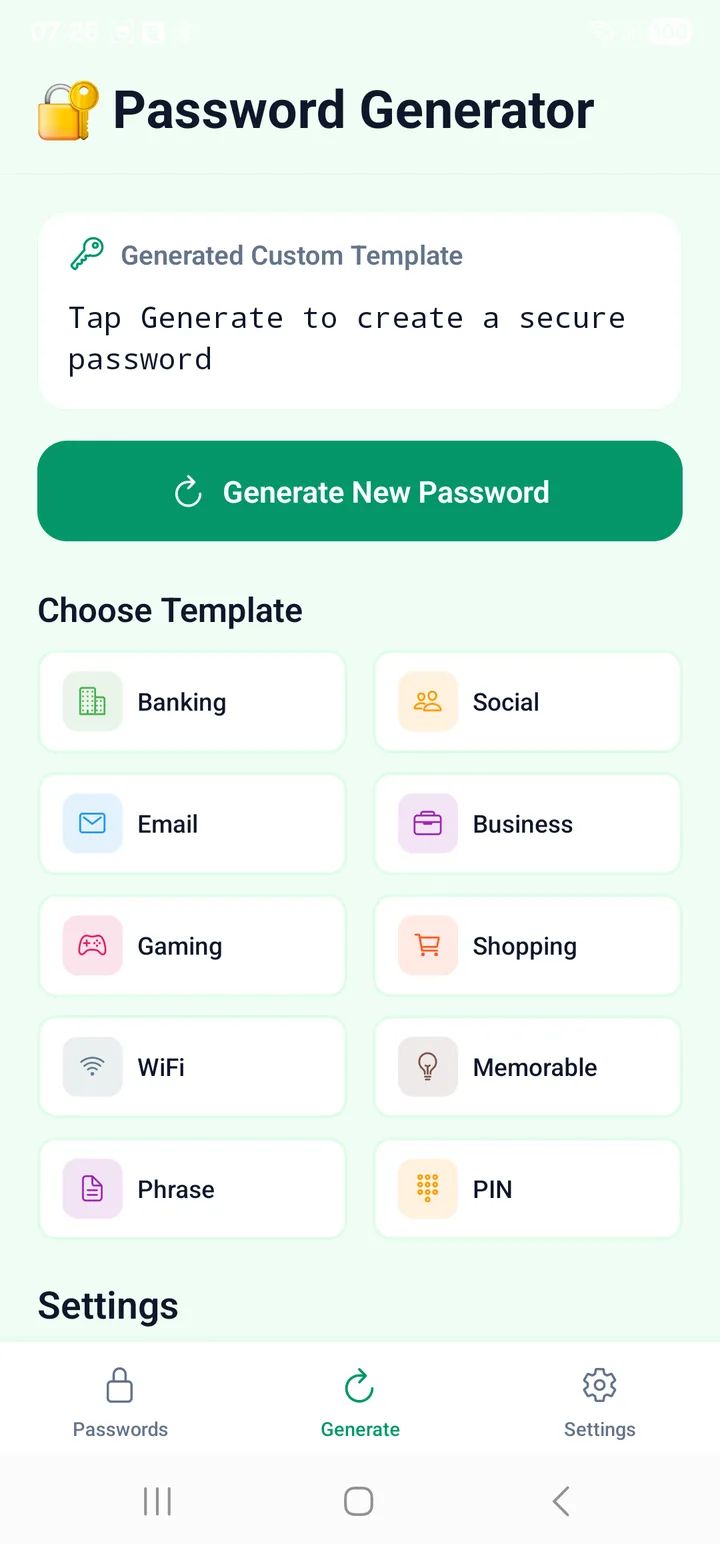
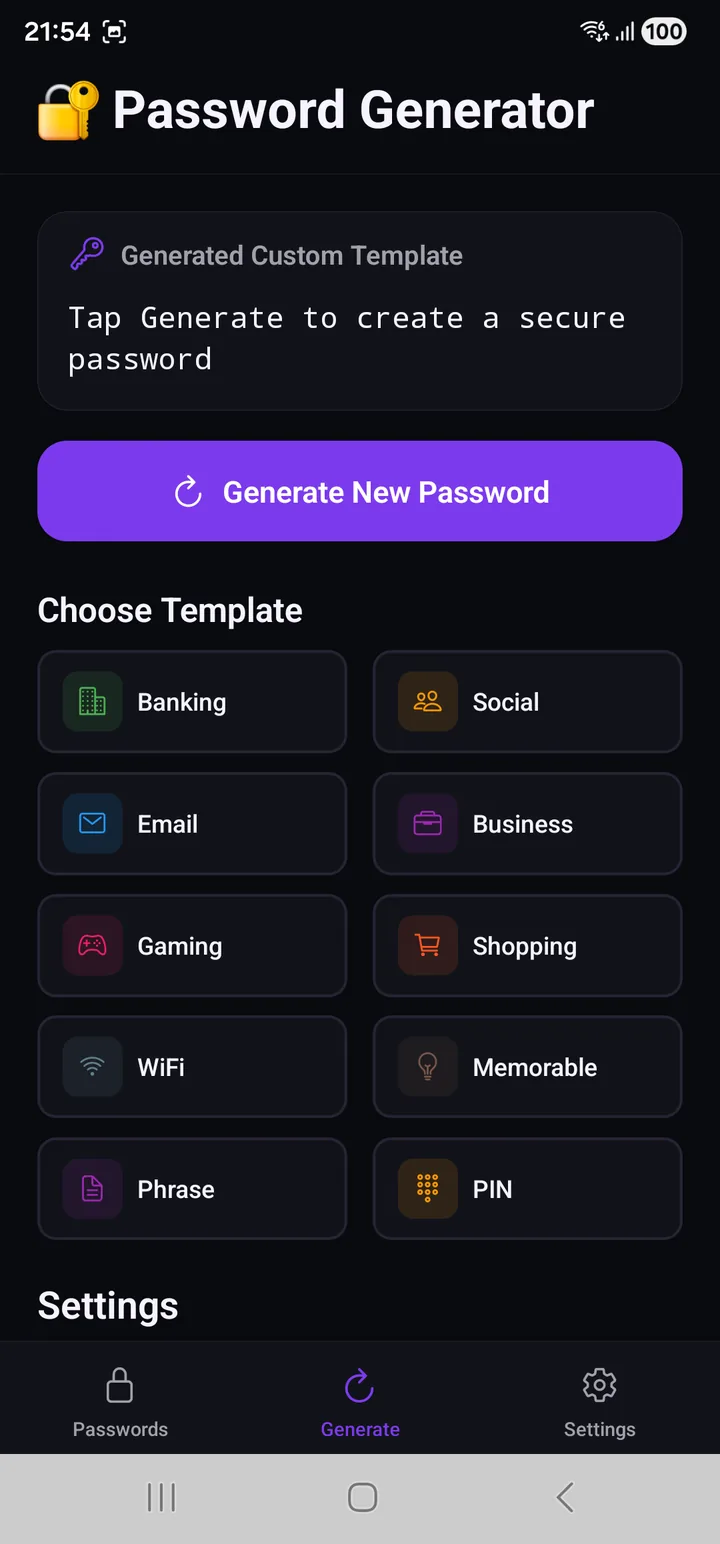
Three parts, top to bottom:
- The preview box. Before you press anything it says Tap Generate to create a secure password, and its heading names the template in force — Generated Custom Template until you pick one.
- Generate New Password. Press it as often as you like. Each press is a fresh draw, and nothing is kept unless you save it.
- Choose Template, then Settings.
The ten templates
A template is not a different generator. It is a saved set of the settings below it — length and which character types are in play — chosen for a particular kind of account.
| Template | Length | A–Z | a–z | 0–9 | !@# | Notes |
|---|---|---|---|---|---|---|
| 🏦 Banking | 50 | ✓ | ✓ | ✓ | ✓ | Look-alike characters removed |
| 💼 Business | 46 | ✓ | ✓ | ✓ | ✓ | Look-alike characters removed |
| 👥 Social | 40 | ✓ | ✓ | ✓ | — | Pronounceable |
| 38 | ✓ | ✓ | ✓ | ✓ | Look-alike characters removed | |
| 💡 Memorable | 36 | ✓ | ✓ | ✓ | — | Word combinations |
| 📶 WiFi | 34 | ✓ | ✓ | ✓ | ✓ | Look-alike characters removed |
| 📄 Phrase | 34 | ✓ | ✓ | ✓ | — | Like BlueSky2024Fast |
| 🛒 Shopping | 30 | ✓ | ✓ | ✓ | ✓ | |
| 🎮 Gaming | 24 | ✓ | ✓ | ✓ | — | |
| 🔢 PIN | 6 | — | — | ✓ | — | Digits only |
Read that table as a ladder rather than a menu. The length is the real difference, and it runs from 50 down to 6.
How to choose without thinking about it
The names are about what has to happen to the password, not about how precious the account is:
- Nobody ever types it → Banking, Business, Email, Shopping. Symbols on, long. Autofill does not care how ugly it is.
- A human has to read or say it → WiFi, Phrase, Memorable, Social. These drop symbols or use words, because a guest typing your Wi-Fi key into a television has to get it right first time.
- A keypad, not a keyboard → PIN. Six digits, because that is what a card or a SIM will accept.
Where the two pull in different directions, pick the longer one. A password you never type has no cost.
Banking, Business, Email and WiFi drop the characters people misread —
l 1 I, 0 O. It costs a little entropy and buys back much more the
first time somebody has to read one aloud or copy it off a screen.
Note the naming: the PIN template makes a numeric PIN for a bank card or a SIM. It is not related to your PasswordEpic passcode, which is a different thing entirely and is not limited to digits.
Settings
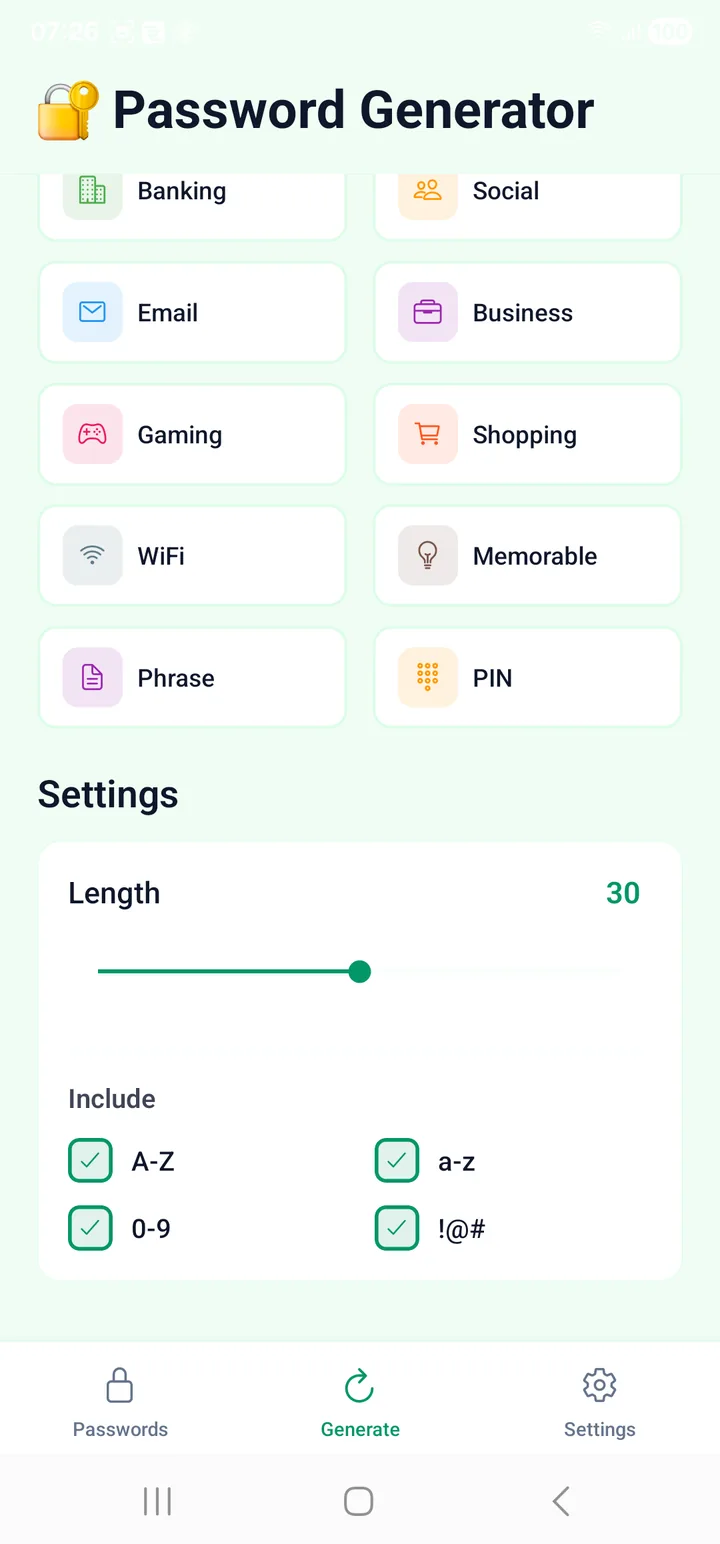
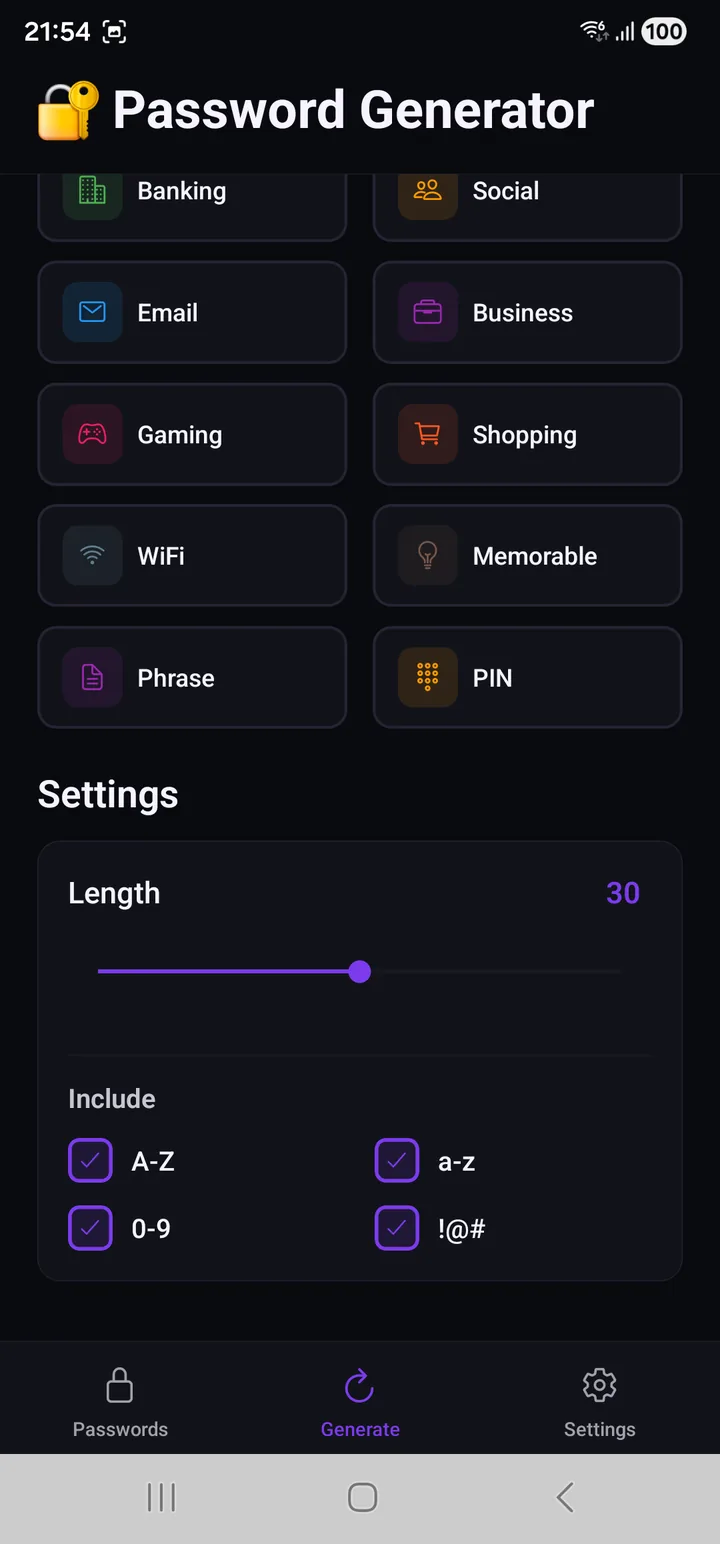
Picking a template fills these in. You can then move them, which is what makes the preview heading say Custom.
| Control | What it does |
|---|---|
| Length | The slider. Longer is better, and costs you nothing when you never type it. |
| A–Z · a–z · 0–9 · !@# | Which character sets are drawn from. |
When to turn a character type off
Almost never — every box you clear makes the password weaker. There is one
honest exception: a site that rejects symbols. Some still do. Clear !@#
and push the length slider up to compensate.
That trade is close to fair. Dropping symbols costs roughly the same as shortening the password by four characters, so add five and you are ahead.
After you generate
The generated password is not saved anywhere on its own. What you do with it:
- Copy — onto the clipboard, for pasting into a sign-up form.
- Save to Vault — creates an entry with the password already filled in.
- History — everything you have generated, newest first, with Favorites and Recent, and a Use button on each. Clear History empties it and cannot be undone.
History exists for one specific moment: you generated a password, pasted it into a sign-up form, and the form failed. Without history that password is gone and the account is in limbo. With it, you tap Use and carry on.
The habit worth building
Save it before you submit the form, not after. It takes the same number of taps, and it is the difference between a password you have and a password you had.
Read next
- Your vault — where the generated password ends up
- Your passcode — the one secret you do remember
- Settings — every switch in the app