Your vault
Vault is the first screen you land on, and one of three tabs along the bottom: Passwords, Generate, Settings. Everything you have saved lives here.
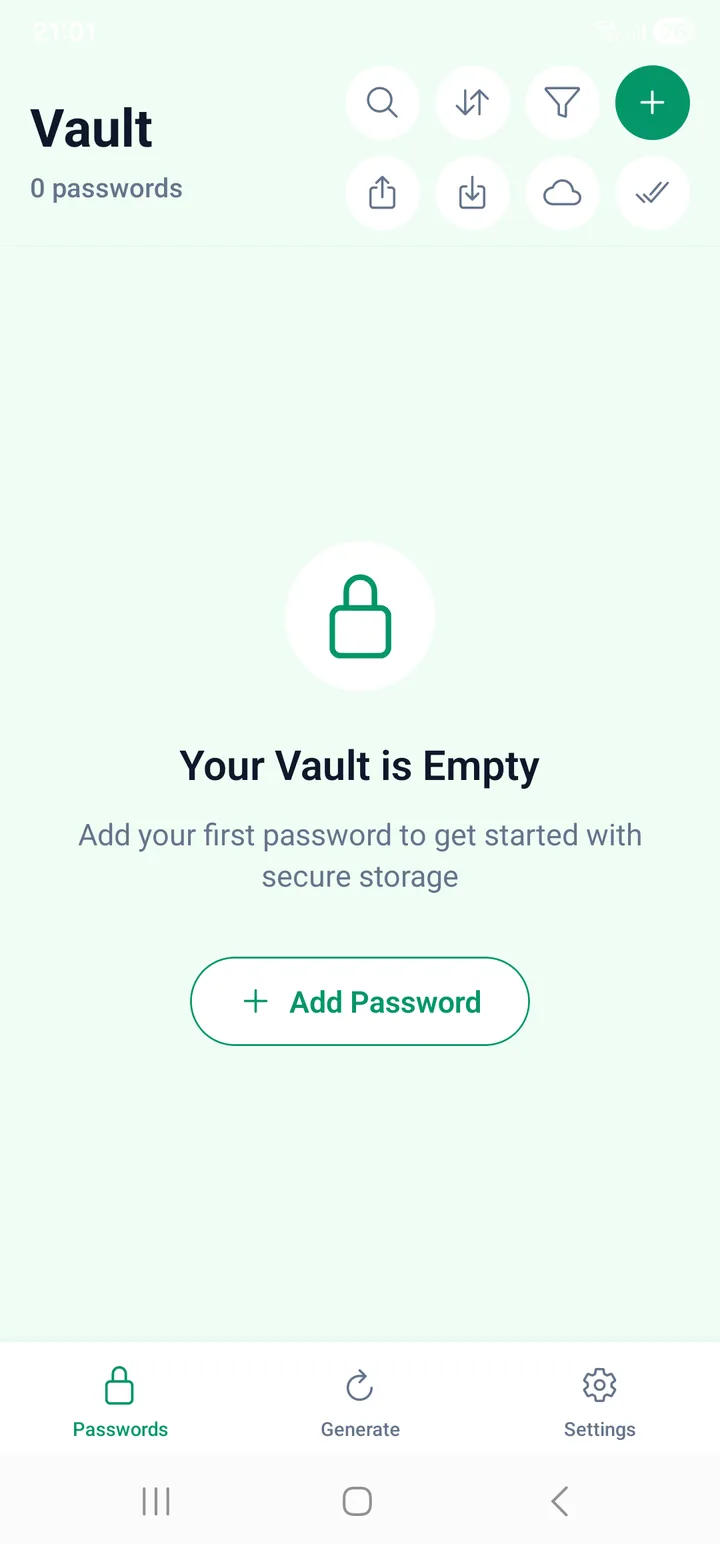
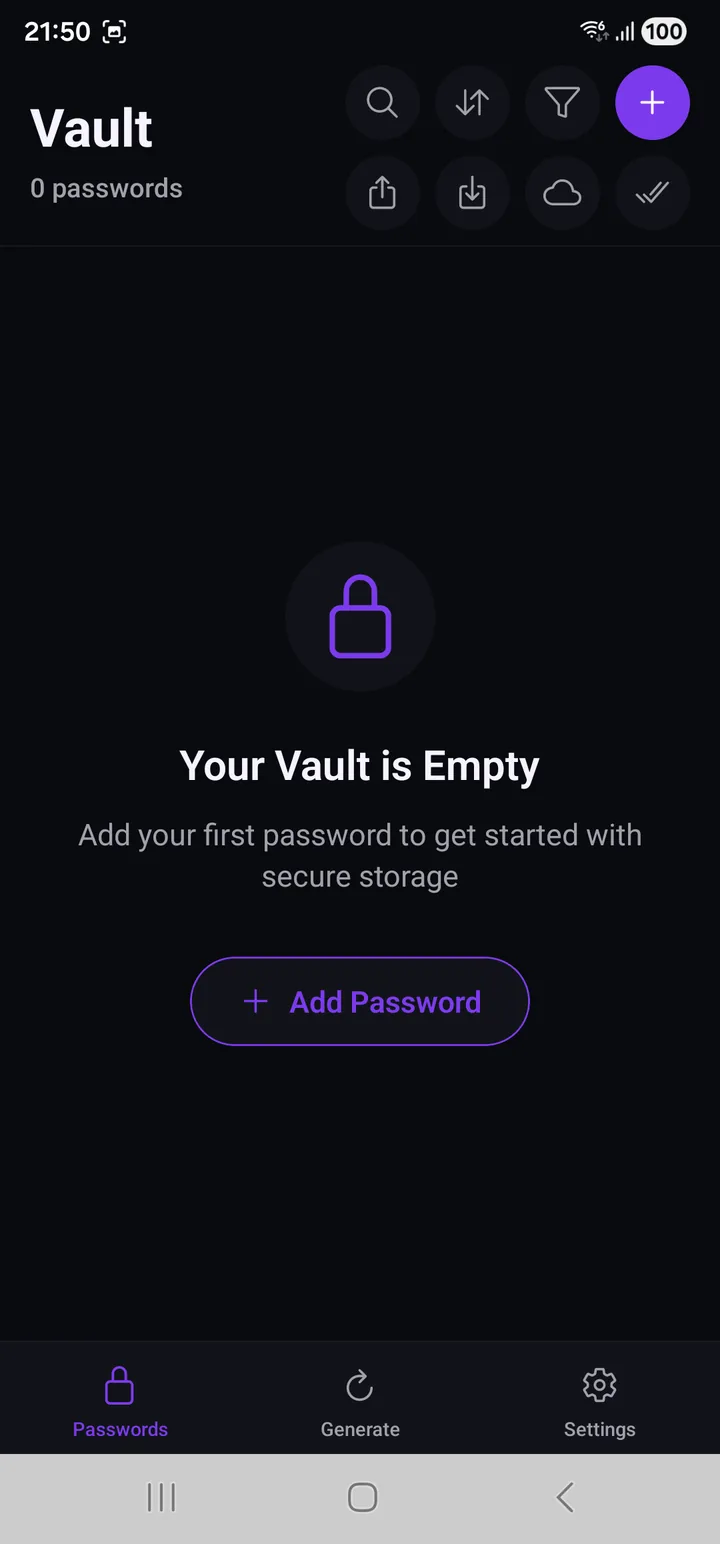
Before you add anything it says so plainly, with the one button worth pressing.
The eight buttons
They sit at the top right in two rows of four, and the order is the order you will use them in.
| Row | ||||
|---|---|---|---|---|
| Top | 🔍 Search | ⇅ Sort | ▽ Filter | ➕ Add |
| Bottom | ↗ Export | ⭳ Import | ☁ Backup | ✓✓ Select |
Add is the only one drawn in solid purple. That is deliberate: it is the button you want on your first visit, and the other seven only start to matter once there is something in the list.
| # | Button | What it does |
|---|---|---|
| 1 | 🔍 Search | Opens a search box above the list. |
| 2 | ⇅ Sort | Changes the order of the list. |
| 3 | ▽ Filter | Narrows the list to weak, favourite, or a category. |
| 4 | ➕ Add | Creates a new entry. |
| 5 | ↗ Export | Writes your entries to a file — on the phone, or to your Drive. |
| 6 | ⭳ Import | Reads entries back in, from any of the same three places. |
| 7 | ☁ Backup | Backs up to, or restores from, a private area of your own Drive. |
| 8 | ✓✓ Select | Selection mode, for deleting several entries at once. |
Two of them deserve a warning before you use them, and it is at the end of this page: export and backup files never open on another phone.
An entry in the list
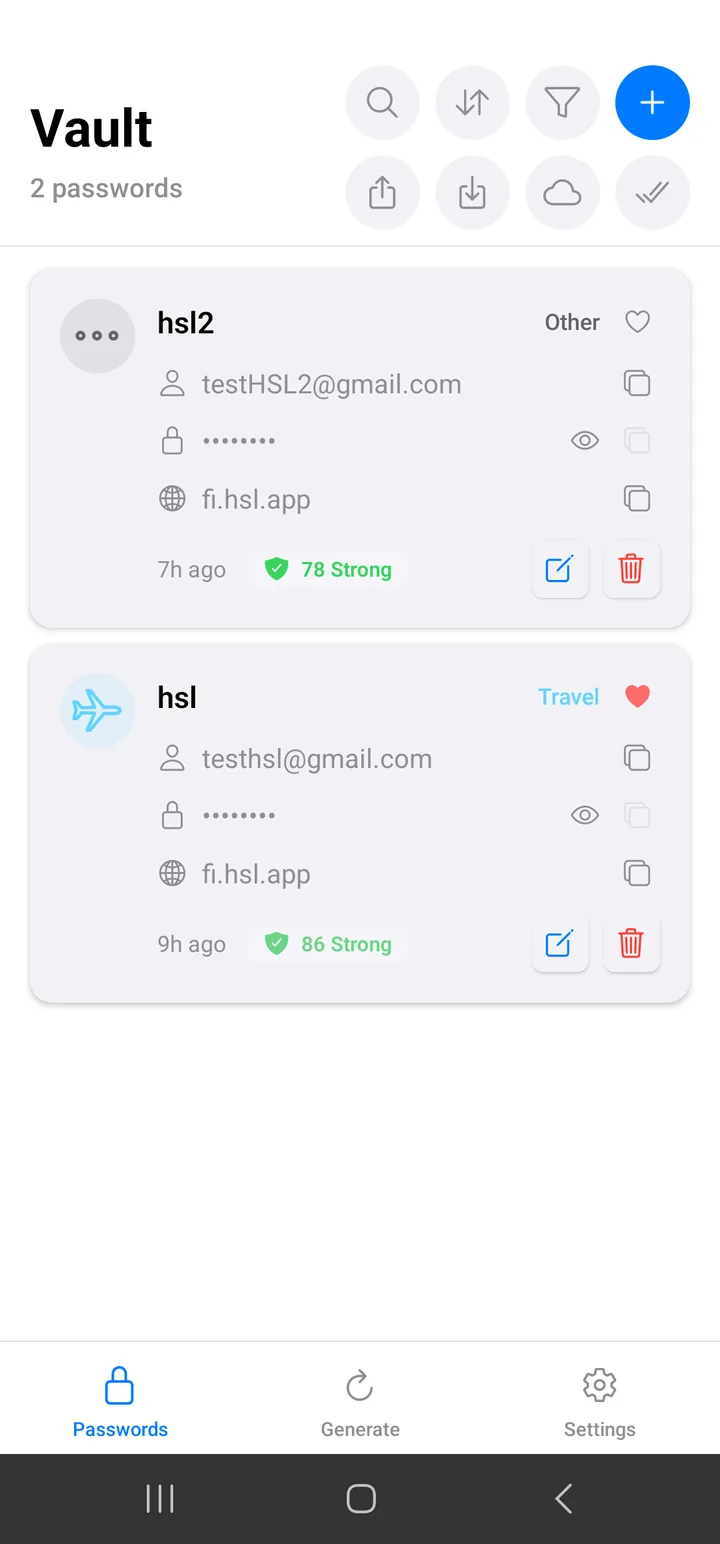
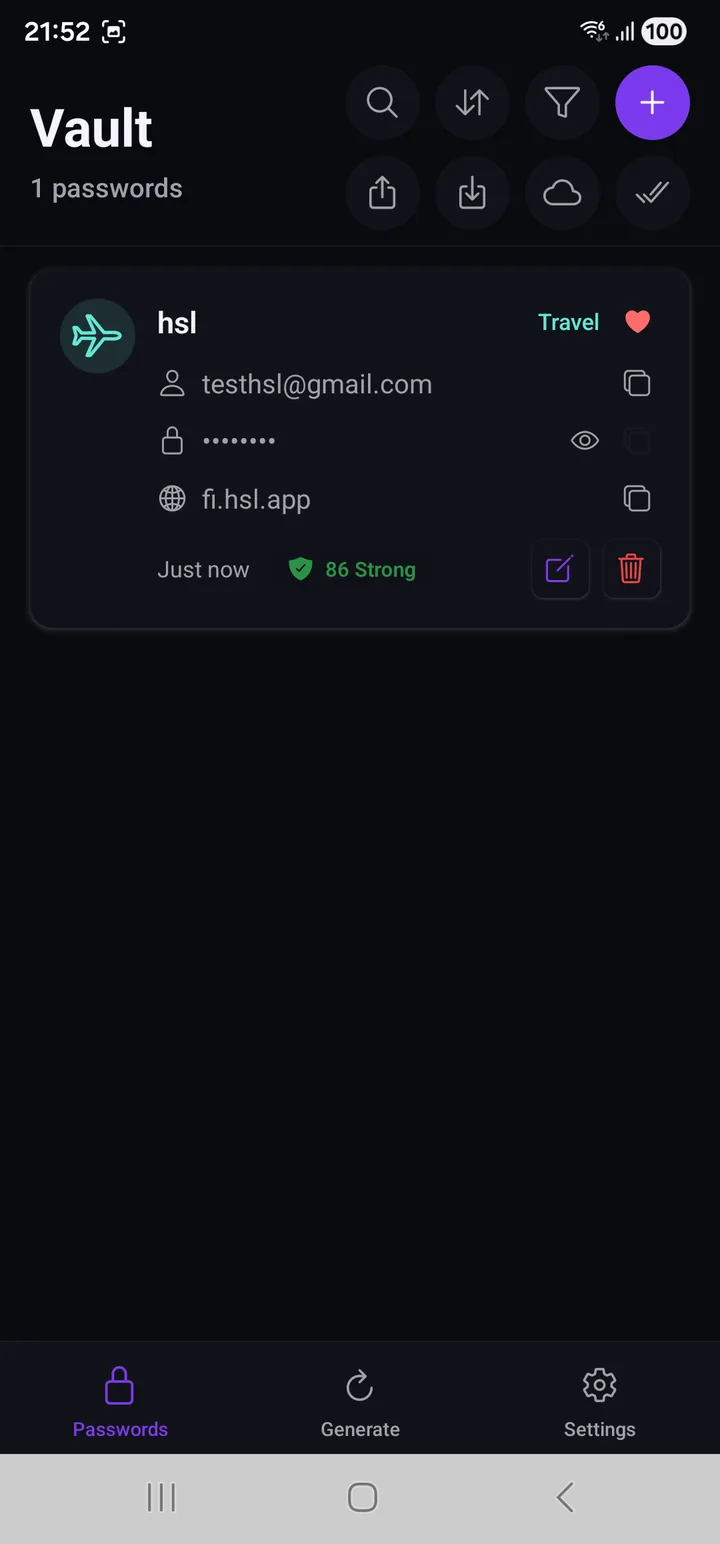
Everything is on the card — there is no separate detail screen to open.
| On the card | |
|---|---|
| Category icon and name | Set when you created the entry |
| ❤️ Heart | Filled if you marked it a favourite |
| 👤 Username, 🌐 domain | Each with its own copy button |
| 🔒 Password | Masked, with an eye to reveal and a copy button |
| Time | When it last changed — "Just now" |
| Strength badge | A score out of 100 and a word: 86 Strong |
| ✏️ / 🗑️ | Edit and delete |
The strength badge is a number, not a five-step word scale. It judges the password itself, not how important the account is — that part is yours to weigh.
Search
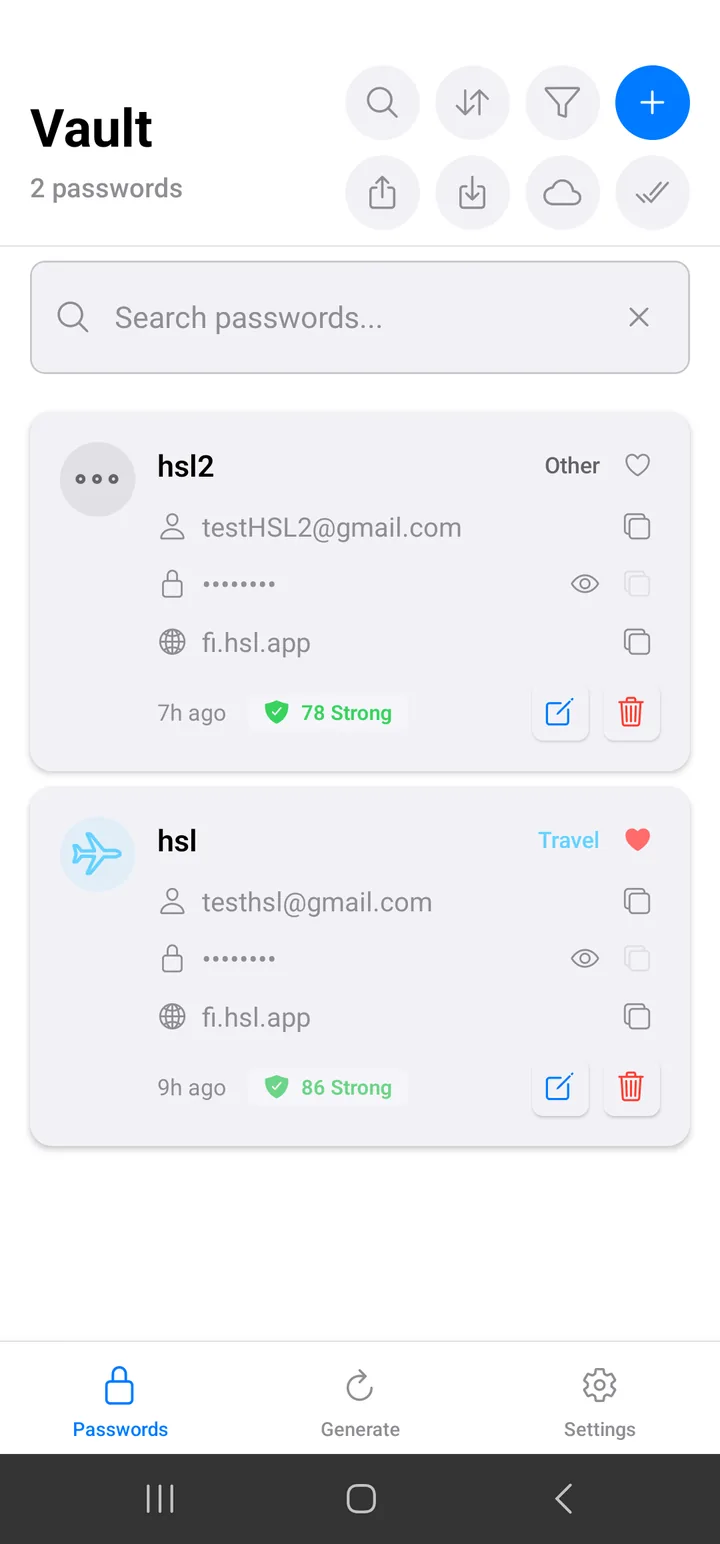
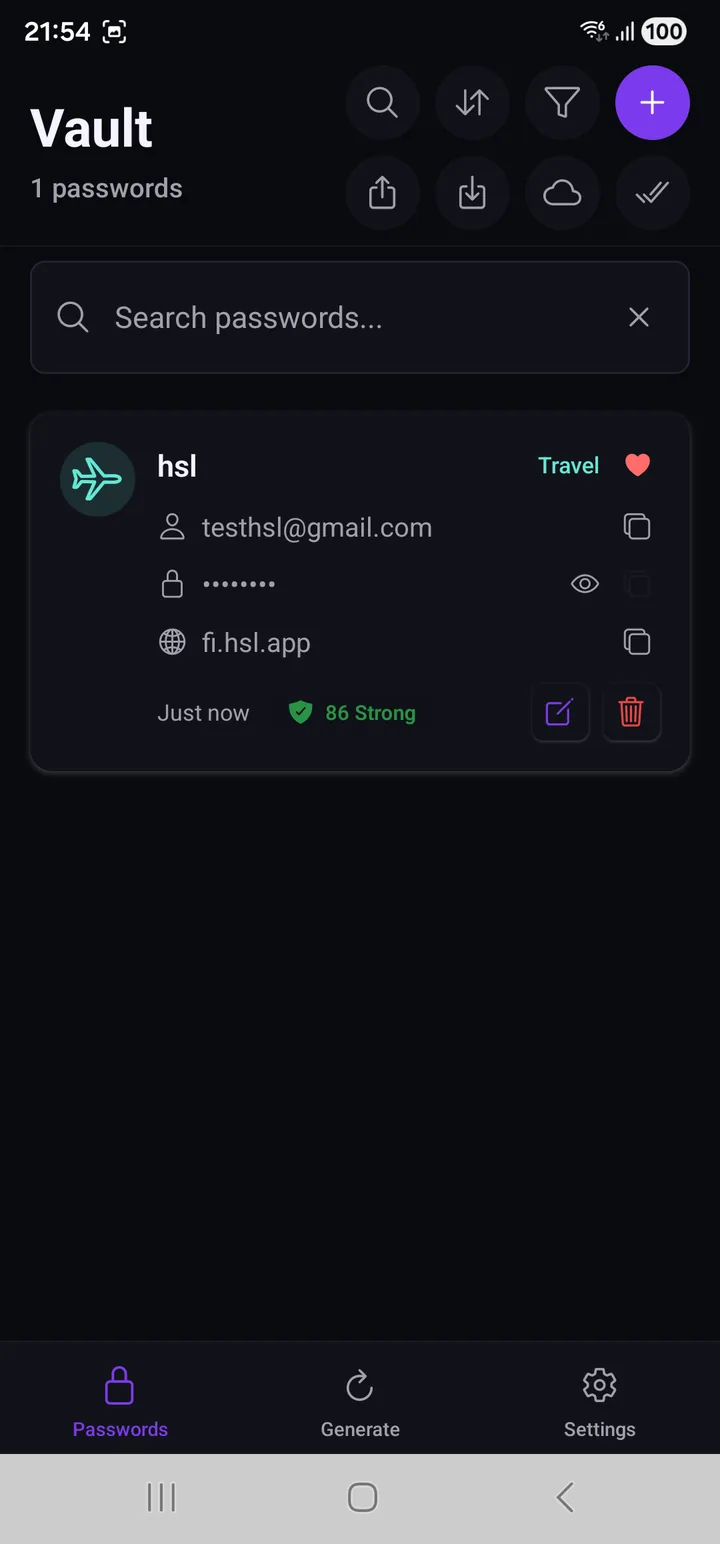
Button 1 opens a box above the list. It matches titles, usernames and domains as you type, and the ✕ clears it.
Sort
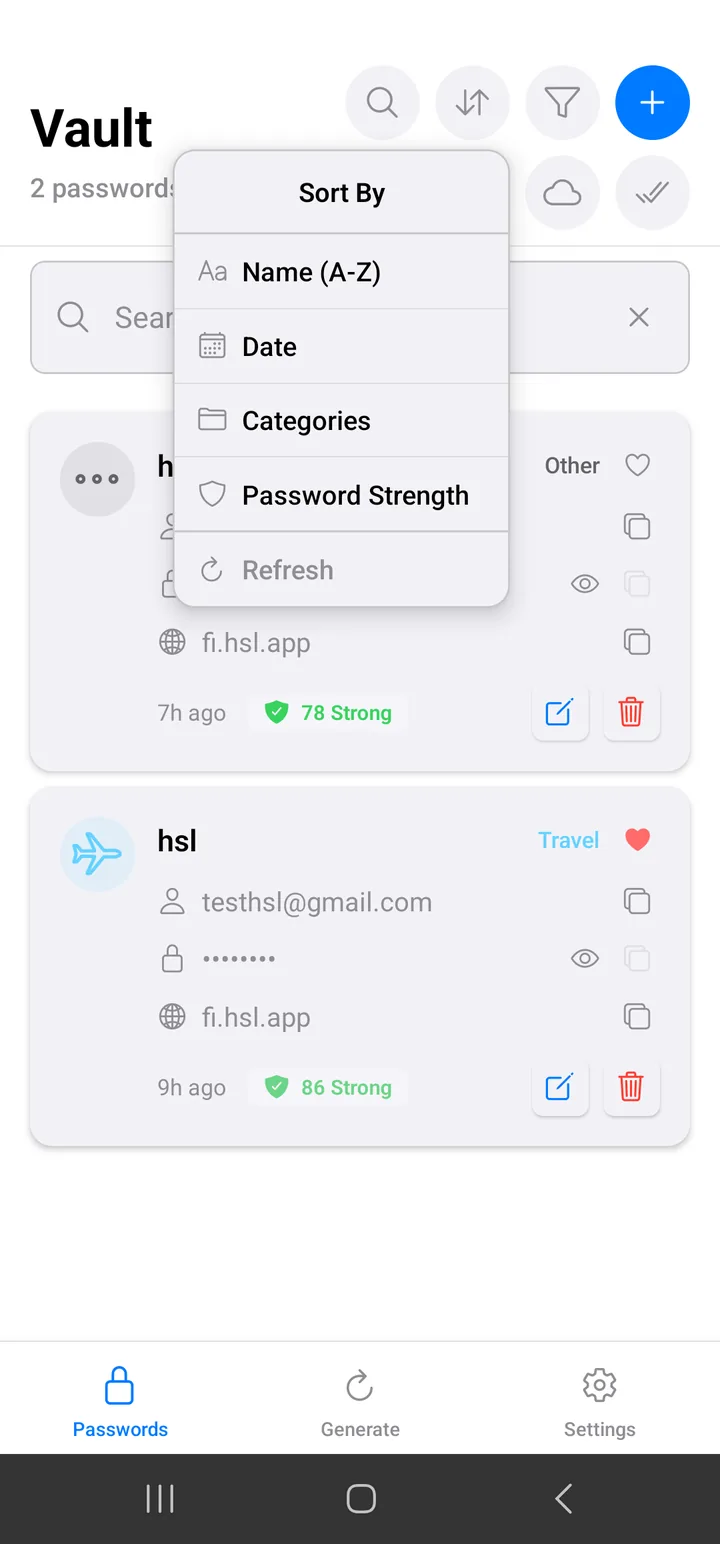
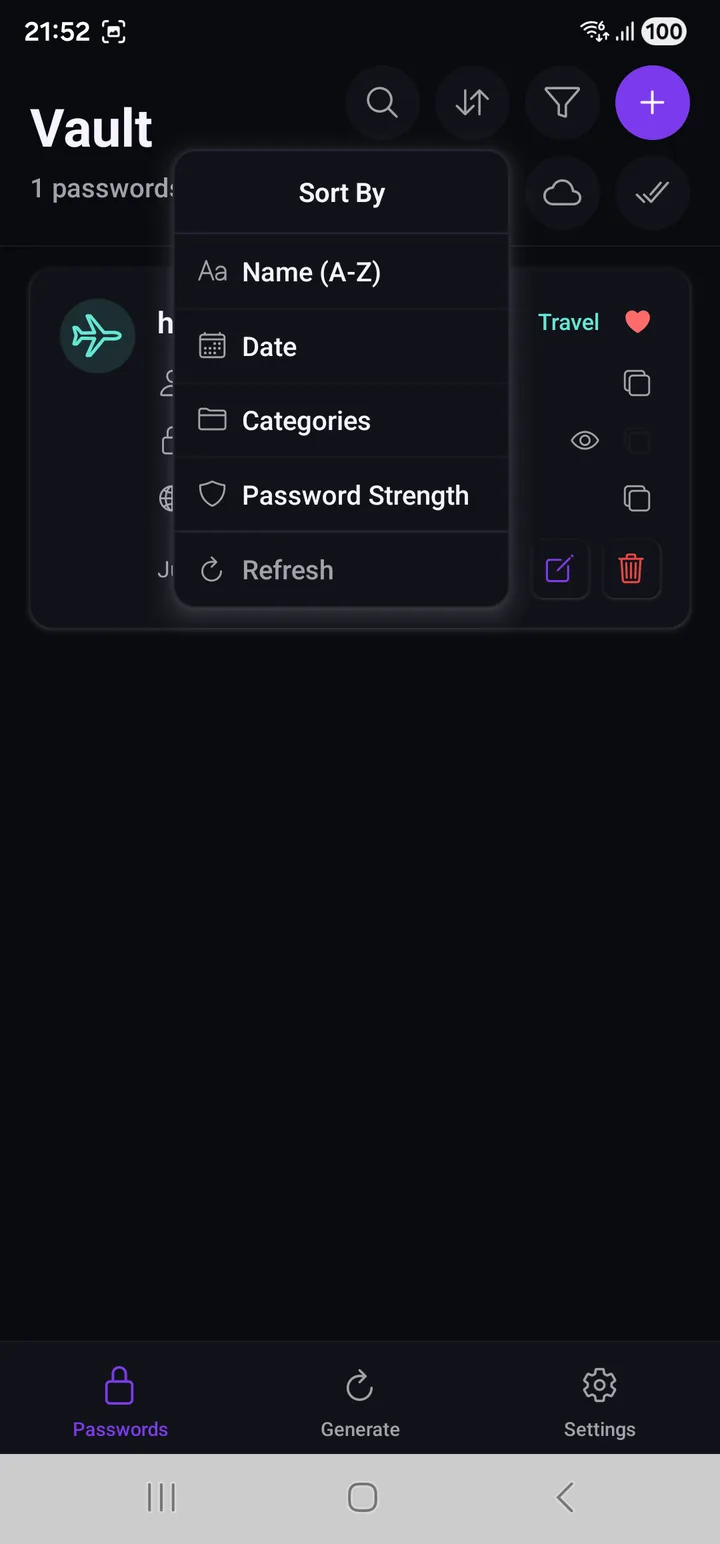
Five entries, and the first four are the sort itself:
| Option | Use it when |
|---|---|
| Name (A–Z) | You know what the entry is called |
| Date | You are looking for something you added recently |
| Categories | You want everything of one kind together |
| Password Strength | Start here for a clean-up — the weakest float to the top |
| Refresh | Not a sort. Re-reads the list from storage |
Each sort has a reverse: choosing the one already active flips it, so Name gives you A–Z then Z–A, and Date gives you newest then oldest.
Filter
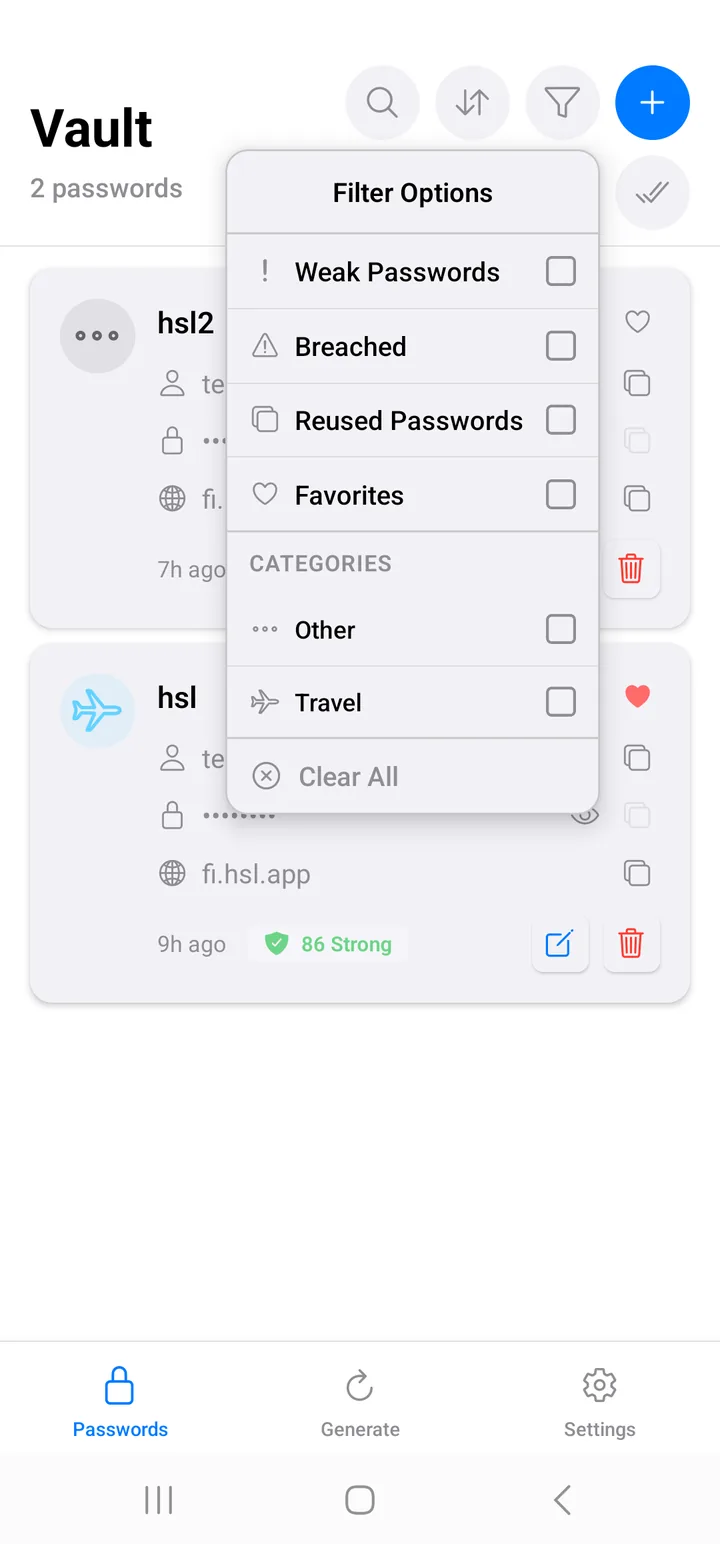
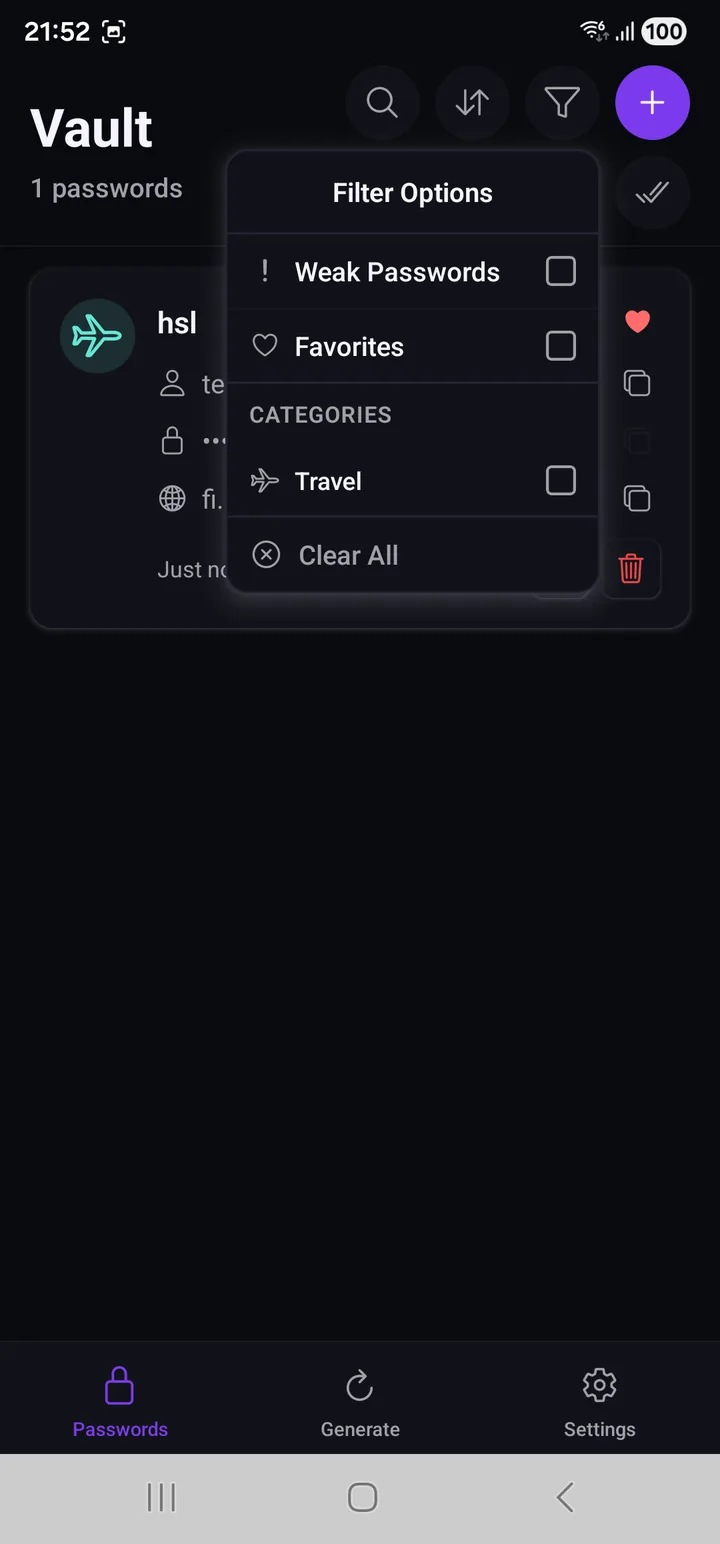
Filters are how you find work to do rather than a specific entry:
- Weak Passwords — the ones worth regenerating first.
- Favorites — your own shortlist.
- Categories — the section below the line lists only the categories you have actually used, so it grows with your vault rather than showing you a menu of empty boxes.
They combine, and Clear All resets everything.
Adding an entry
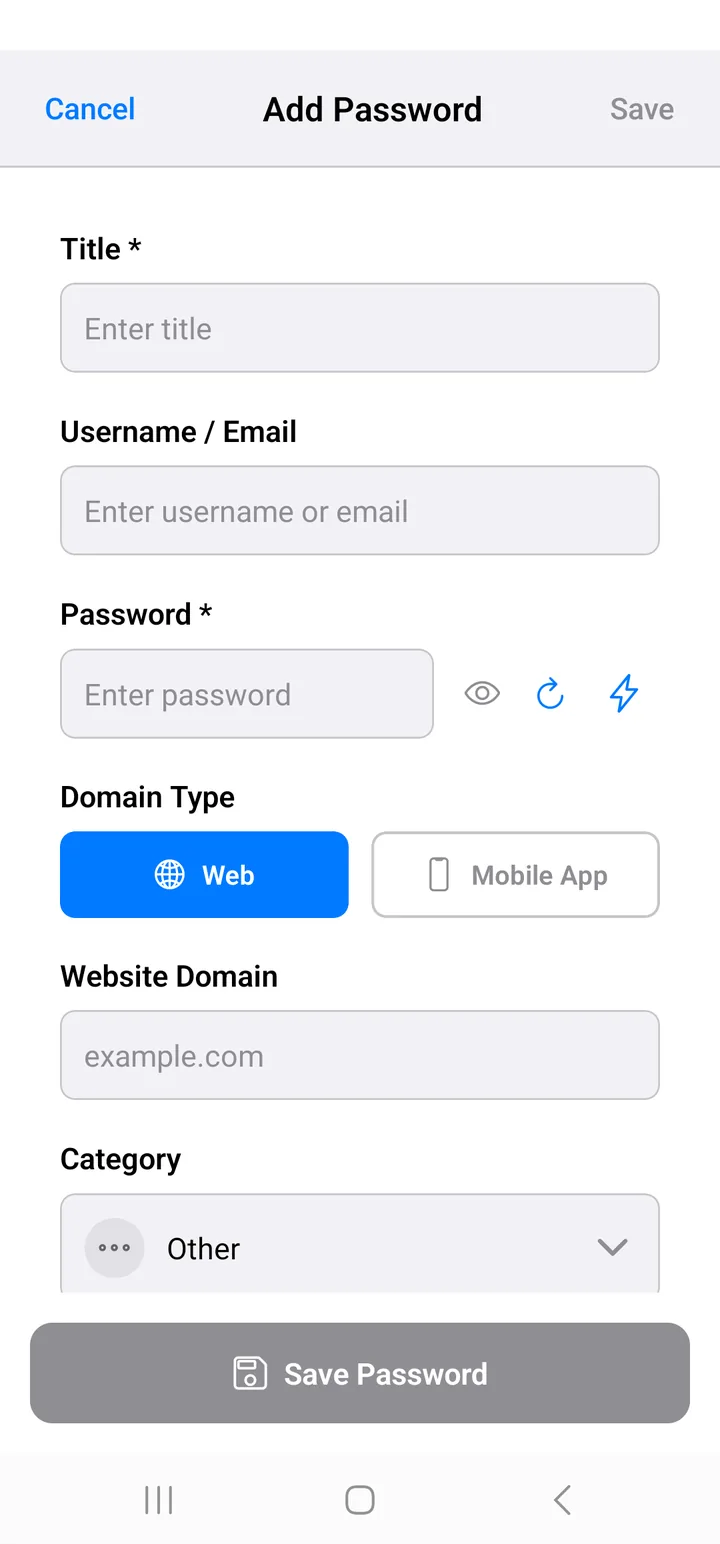
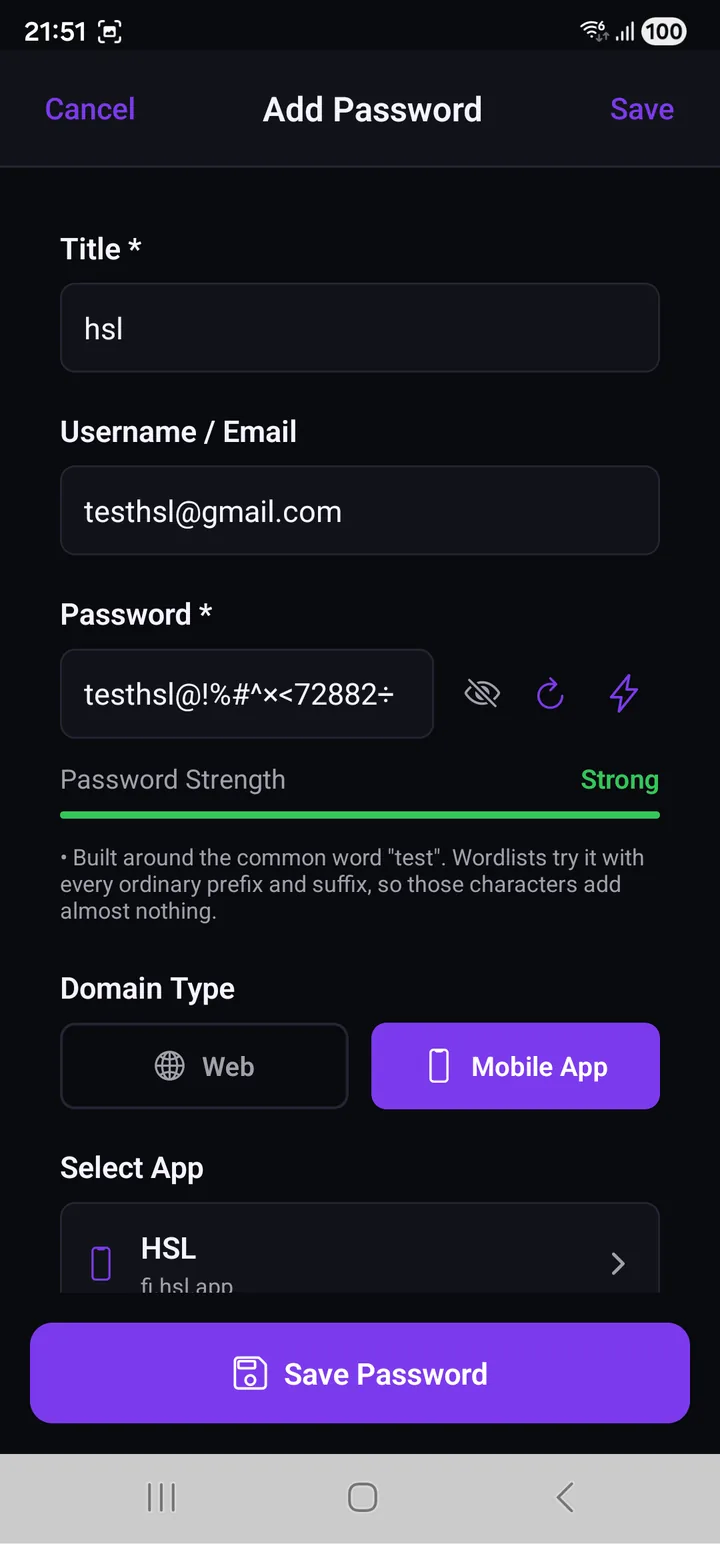
Title and Password are required — they carry the ✱. Everything else is optional, but one of them changes how well the app works for you.
The password field carries three controls: an eye to reveal what you typed, a ↻ to regenerate, and a ⚡ for a quick generated password without leaving the form.
Under it, the strength bar does something more useful than colouring itself green. It tells you why:
• Built around the common word "test". Wordlists try it with every ordinary prefix and suffix, so those characters add almost nothing.
That verdict sat under a password the bar still rated Strong. Read the sentence, not the colour.
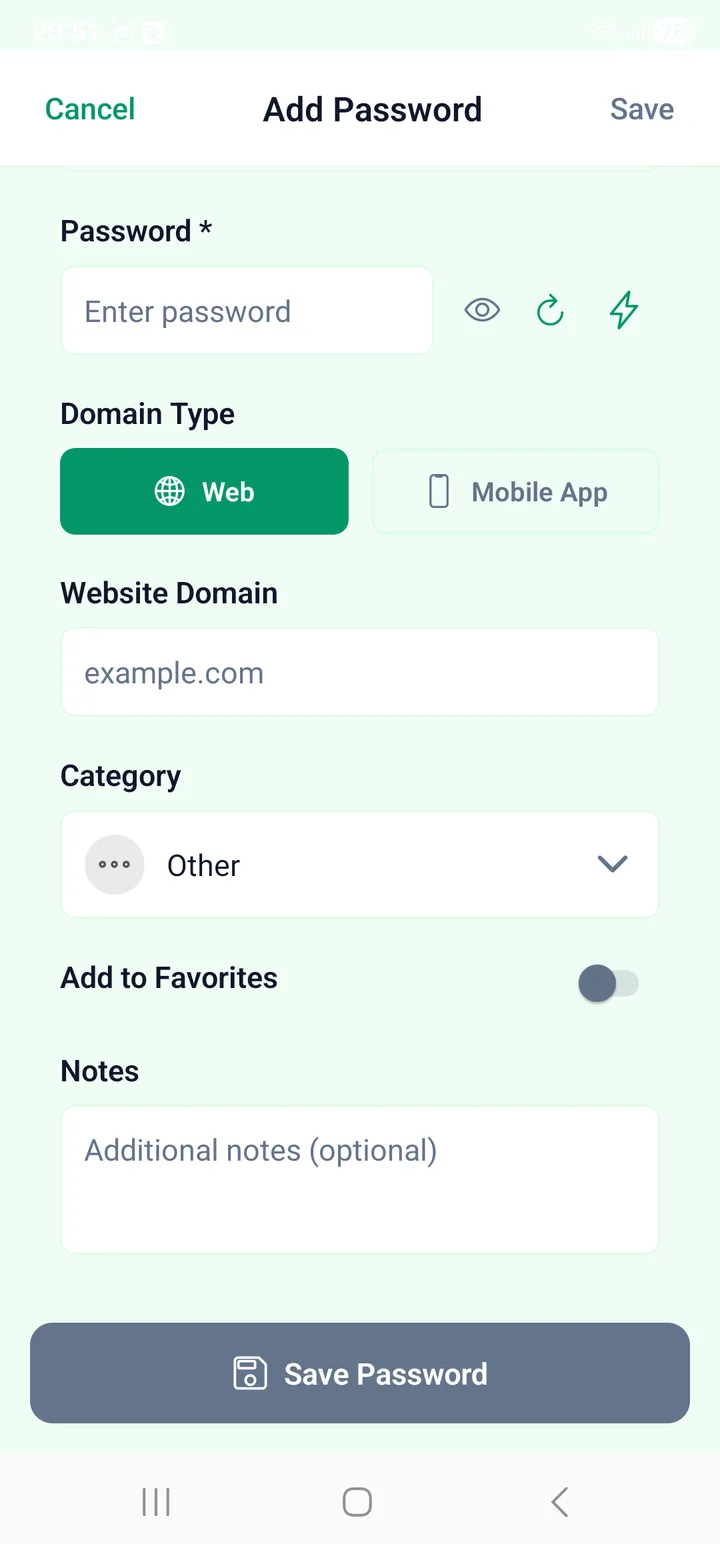
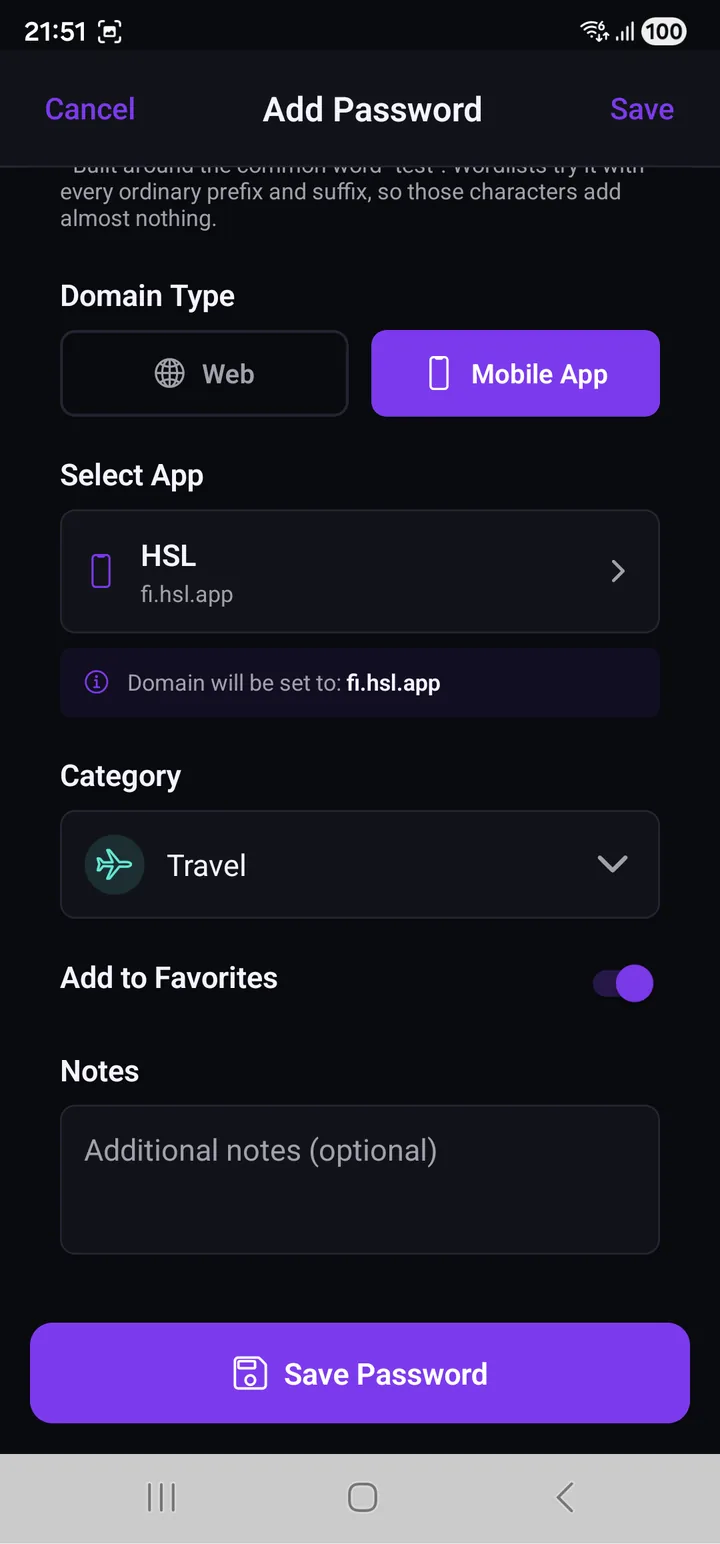
| Field | Notes |
|---|---|
| Title ✱ | What you will search for later. "Gmail", not "Google account 2019". |
| Username / Email | What gets filled into the username box. |
| Password ✱ | Type it, or generate one — see Generating passwords. |
| Domain Type | Web or Mobile App. This is the important one. |
| Website domain | For Web: example.com. |
| Select App | For Mobile App: pick from the apps installed on your phone. |
| Category | For organising, and for the category filter. |
| Add to Favorites | Pins it to the Favorites filter. |
| Notes | Anything else. Encrypted like the rest of the entry. |
Why the domain field matters more than it looks
Autofill matches on domain. If the domain is wrong or missing, the app has no way to know the entry belongs to the login box you are looking at, and it will not offer it.
Two habits save a lot of confusion later:
- Fill the domain in when you create the entry, not when autofill fails.
- For an app rather than a website, use Mobile App and pick it from the
list. The app then writes the identifier for you and shows you what it chose —
Domain will be set to:
fi.hsl.app. Typing that by hand is how it ends up subtly wrong.
Subdomains like mail.example.com only match if subdomain matching is on, in
Settings → Autofill Management.
Saving asks for your passcode
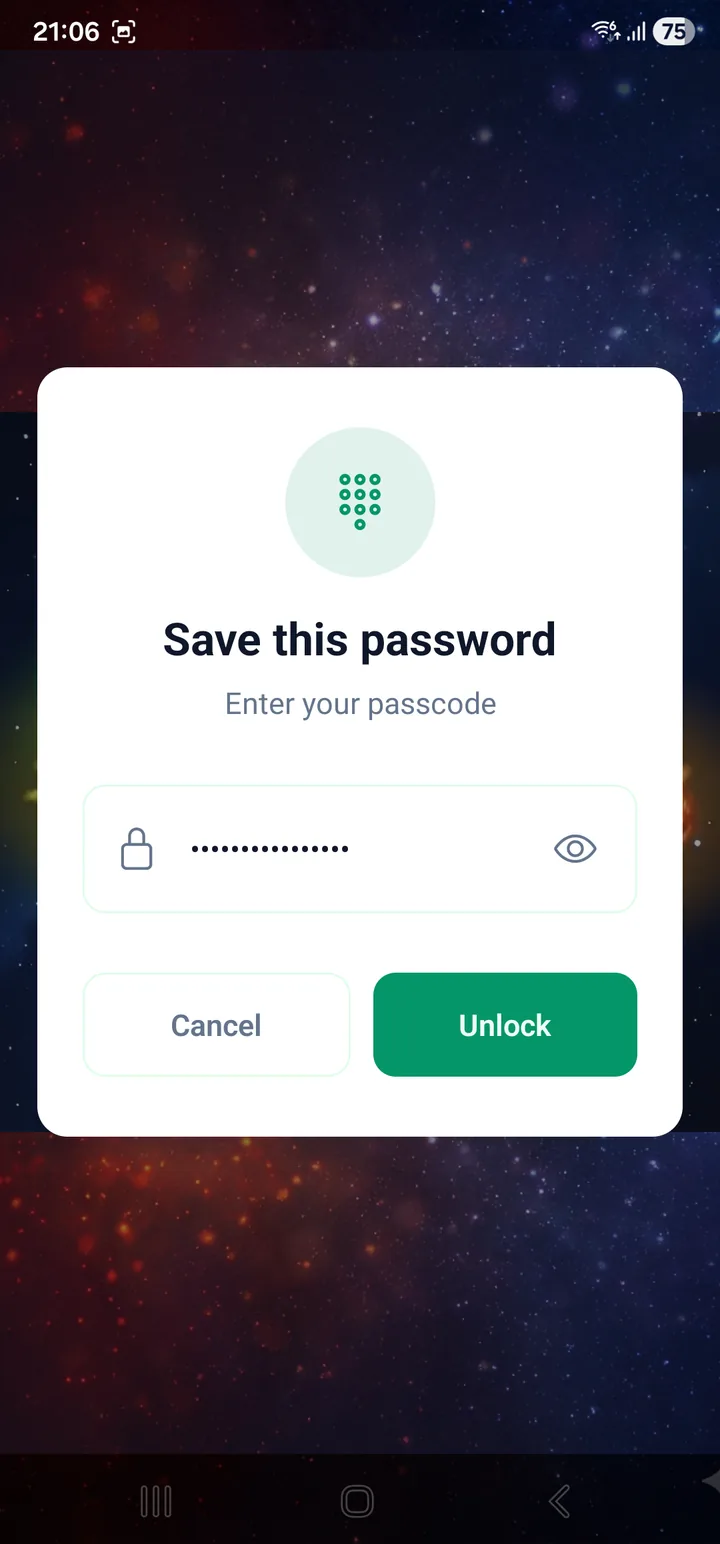
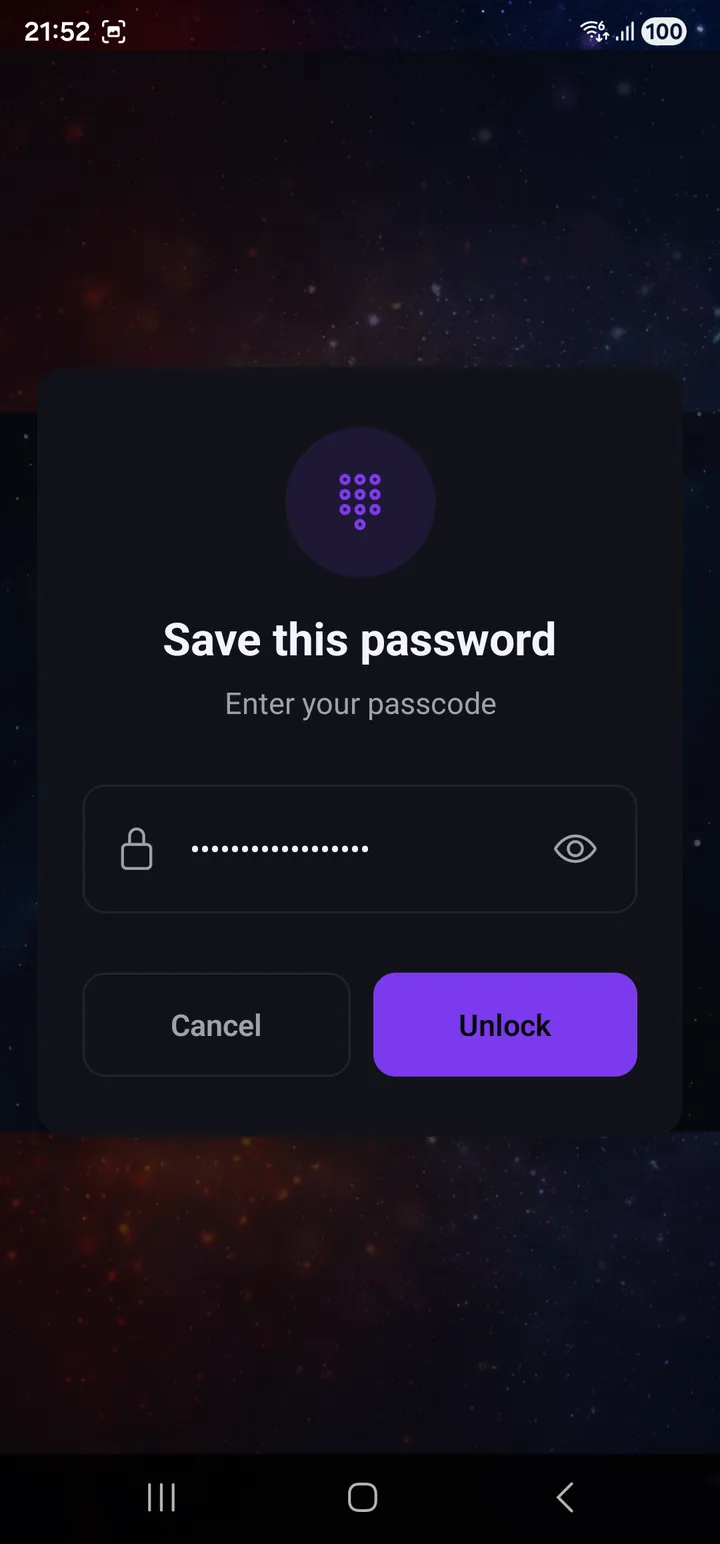
Writing to the vault means encrypting, and encrypting means building the key — so the app asks for the passcode at the moment you save, not once per session.
There is no "unlocked for five minutes" mode. That is the same property that makes the vault worth having.
Editing an entry
The ✏️ on the card opens the entry in the same form you filled in to create it, with your values already in it.
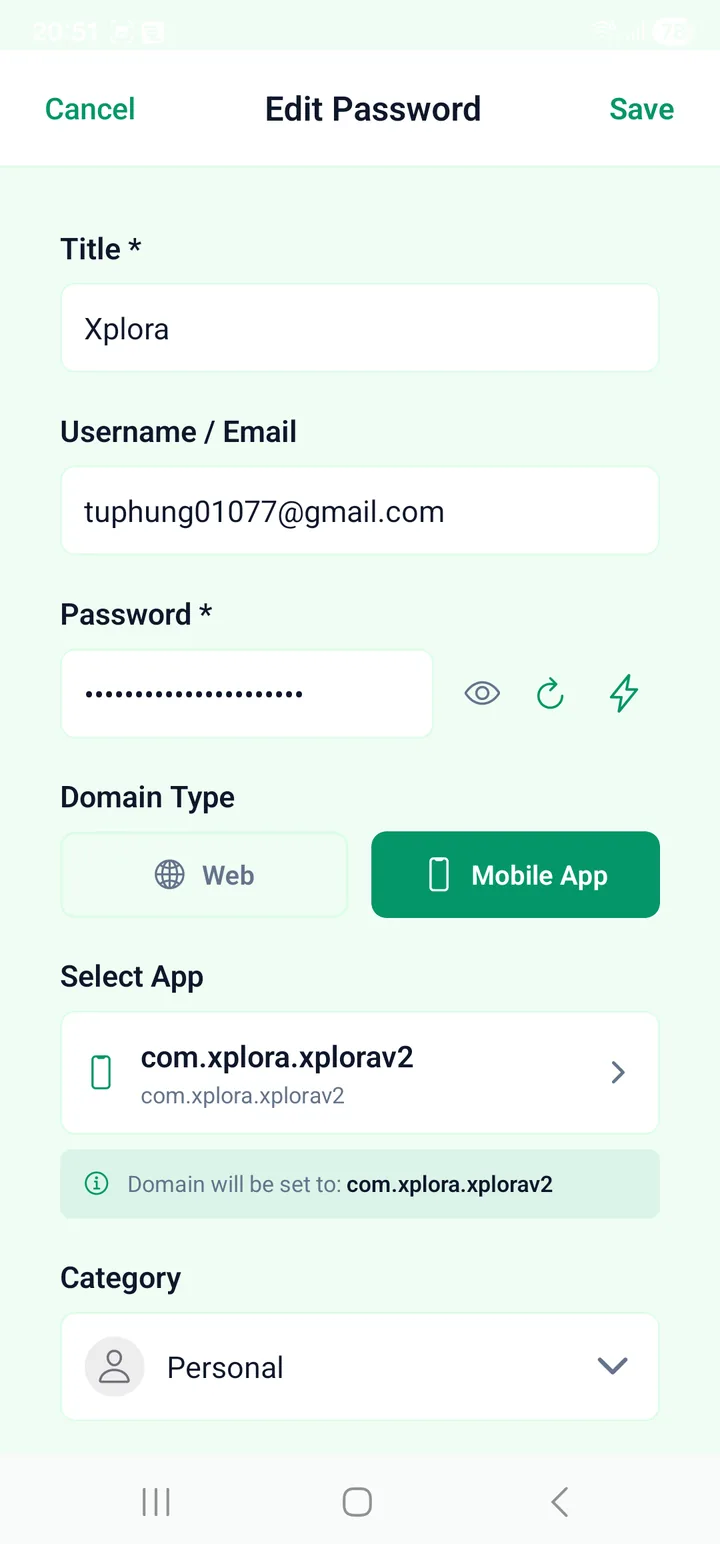
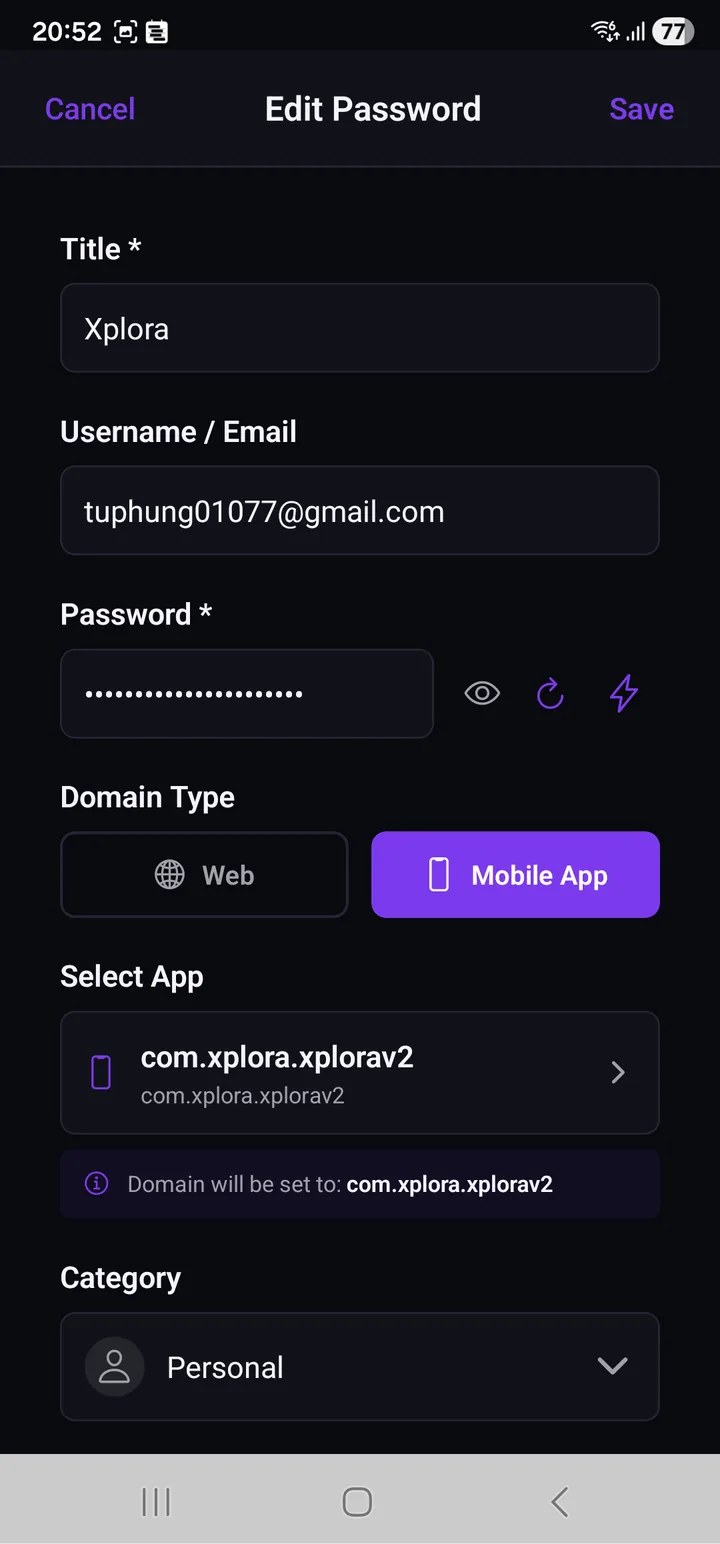
Cancel and Save are in the header. Save stays greyed out until something has actually changed, and Cancel asks before throwing changes away — the Android back button and the back-swipe go through the same question.
There is no delete button on this screen, on purpose. Delete used to sit in the top right, which is the corner your thumb goes to in order to confirm something. Deleting is done from the list instead.
What it asks for depends on what you changed
| You changed | The app asks for |
|---|---|
| The password | Your fingerprint or face, then your passcode |
| Anything else — title, username, domain, category, notes, favourite | Your fingerprint or face |
A new password has to be encrypted, and encrypting needs the key your passcode builds. Renaming an entry never touches the ciphertext, so it never needs the key.
That cuts one way you might not expect: if the phone has no working fingerprint or face unlock, a metadata-only save is refused outright, while changing the password still works — that path can fall back to the passcode, and the shorter one has nothing to fall back to.
The old password is kept
When you change a password, the one it replaced is written to that entry's history — the last ten — and the history panel further down the form can put an old one back in the field. It is a normal edit from there: the app asks for the passcode again, because a restored password is still a password being written.
Leaving the password box empty is not a way to clear it. An empty field means "unchanged", and the stored password stays exactly as it was.
Deleting several at once
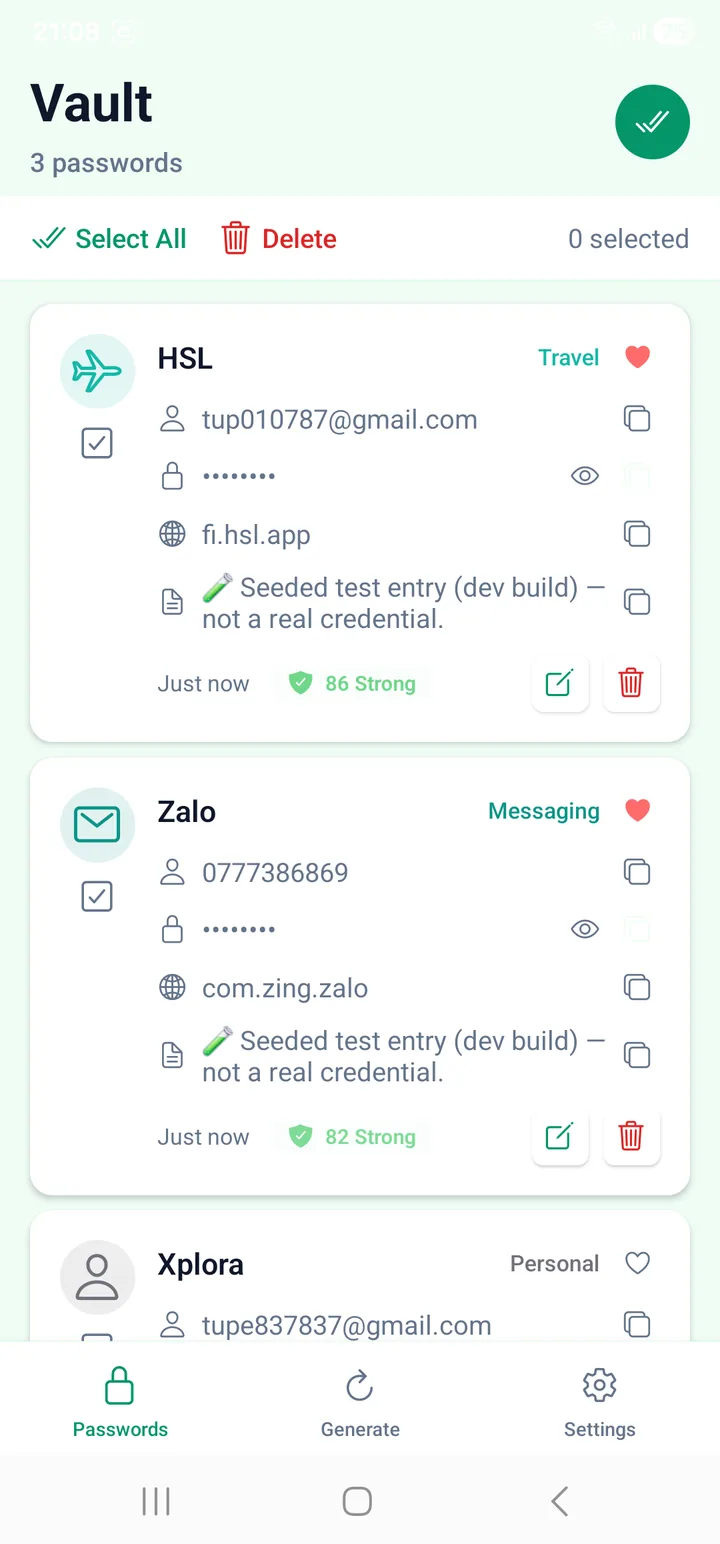
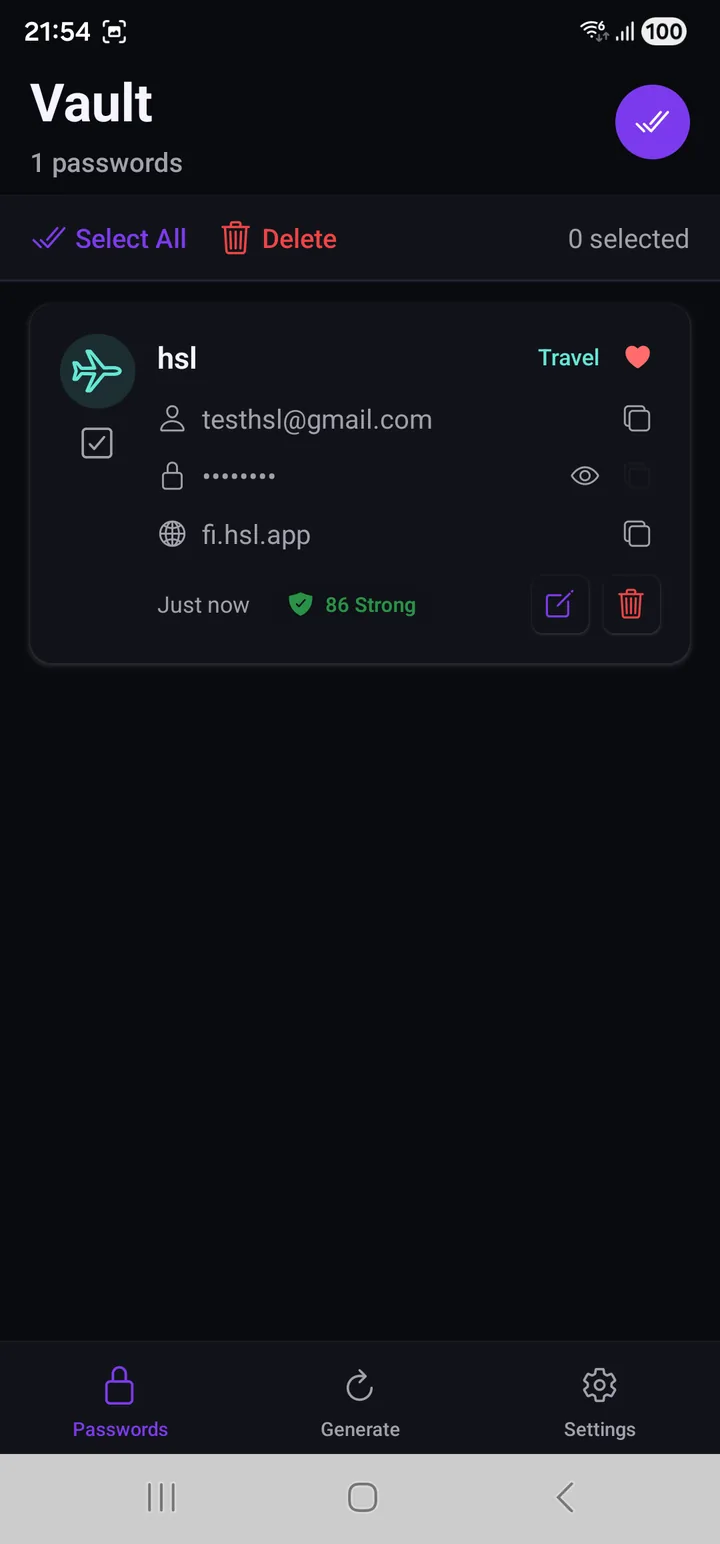
Button 8 turns on selection mode. The bar that appears offers Select All and Delete, with a running count of what you have ticked.
That is the whole of it — selection mode is for deletion. Re-filing entries into a category, or changing favourites, is done one entry at a time from the card.
There is no bin to recover from. On a vault only you can open, a deleted entry is gone from our side too.
Export, import and backup
Buttons 5, 6 and 7 — and the one thing you must know about all three:
On every tier. These files protect you against losing data on the phone you still have — a deletion by accident, a bad import, a vault reset. They are not a way to move to a new phone, and no setting makes them one.
Read Backups and exports before you rely on one.
Export
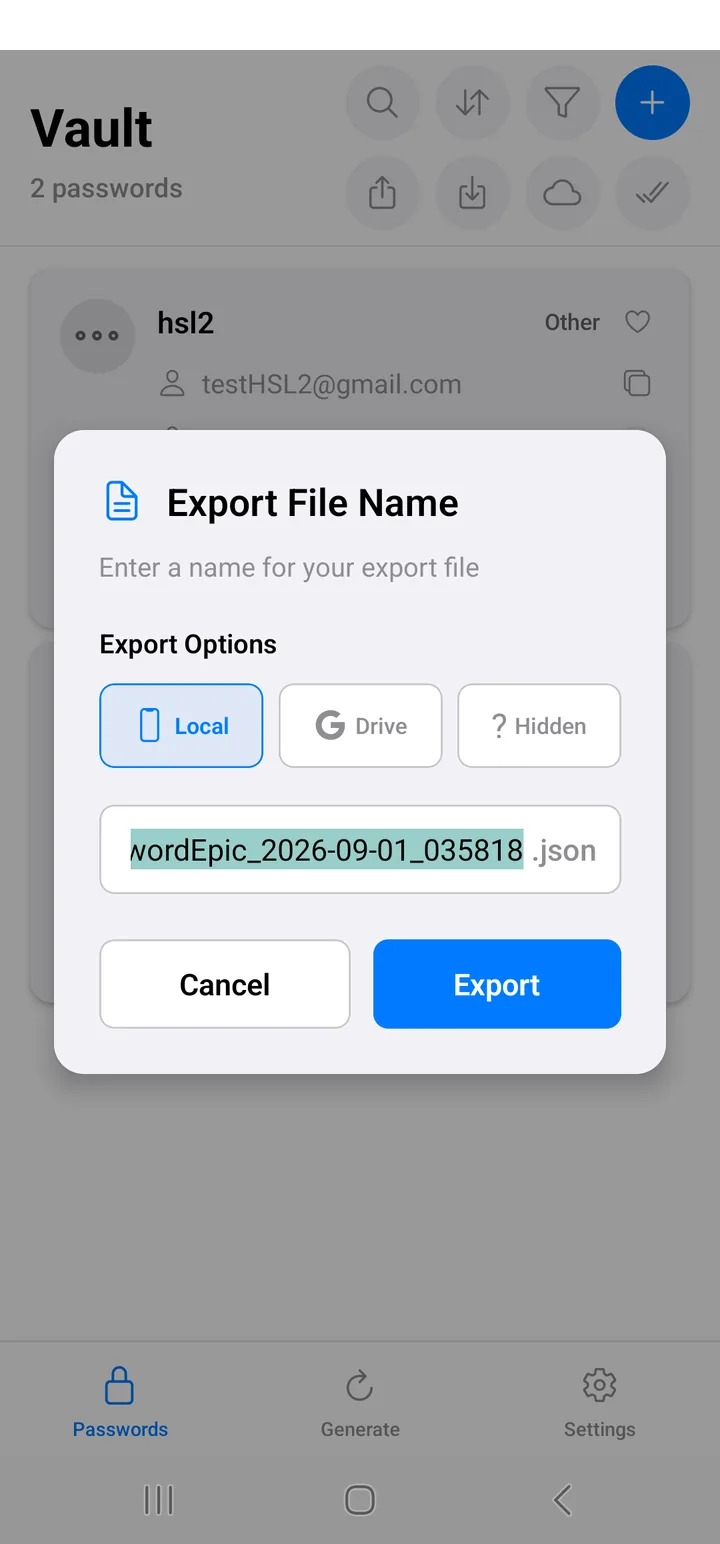
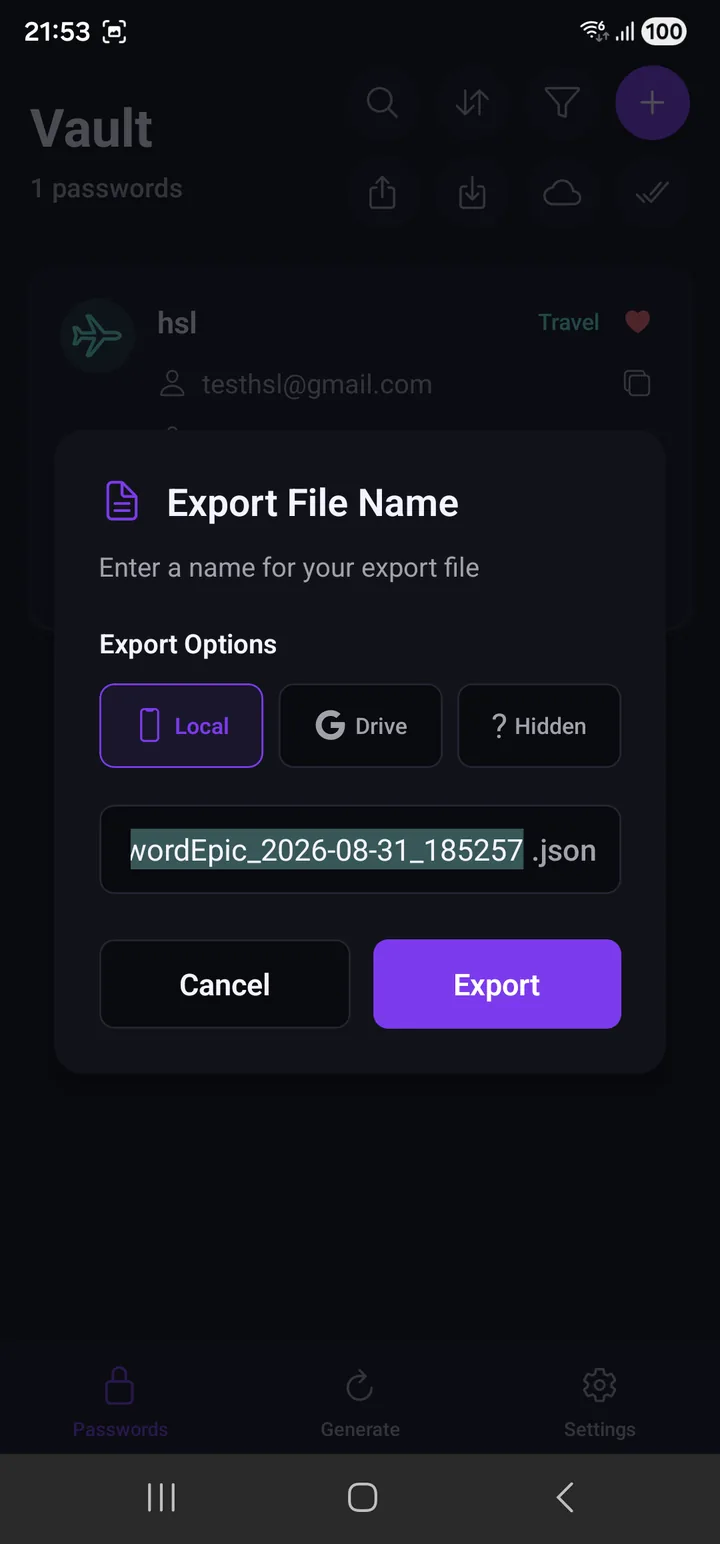
You name the file and choose one of three places. The name is filled in for you
as PasswordEpic_<date>_<time>.json, with the date part selected so you can
type over it.
| Destination | Who can see the file |
|---|---|
| Local | You, and anything on the phone with storage access |
| Drive | You, in My Drive, like any other file you own |
| Hidden | Only this app. It is not listed in your Drive |
Import
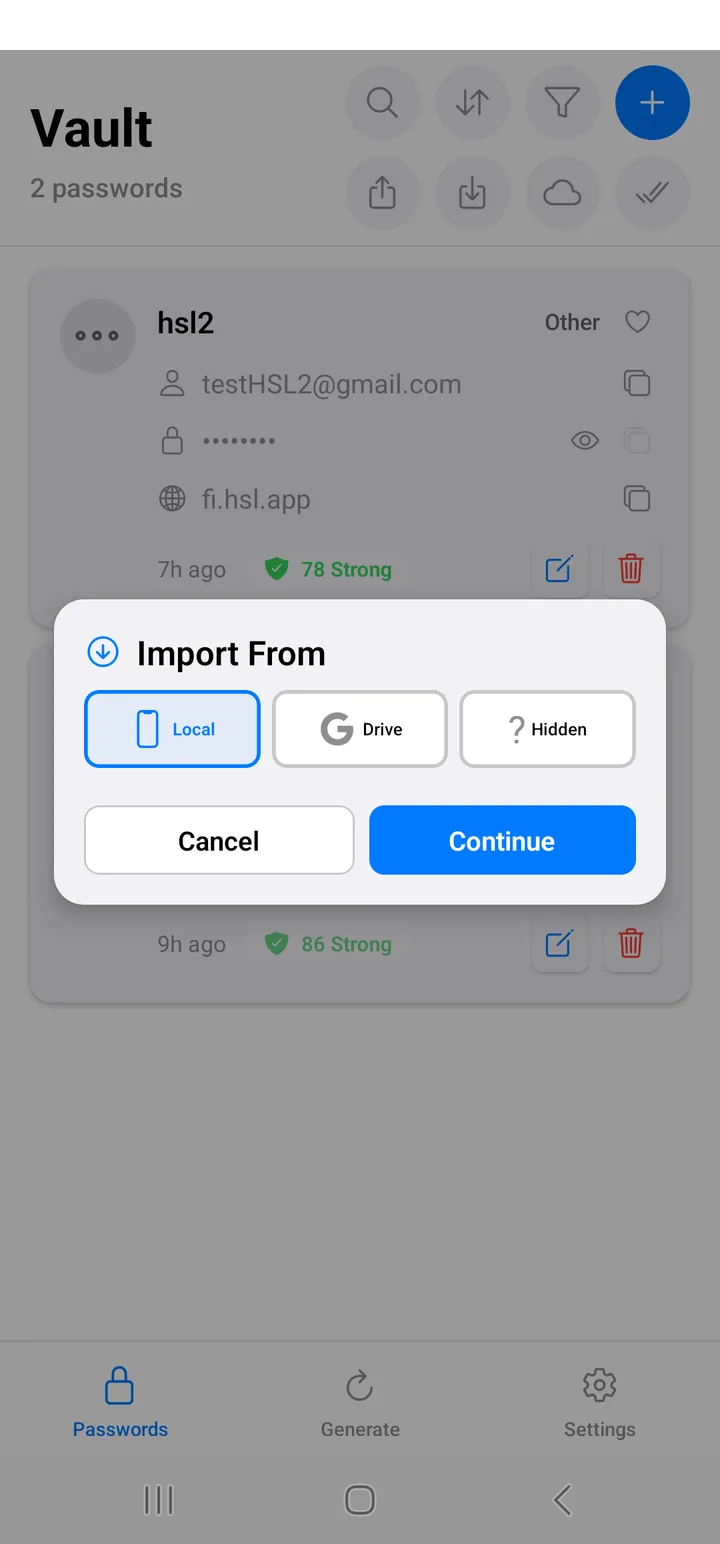
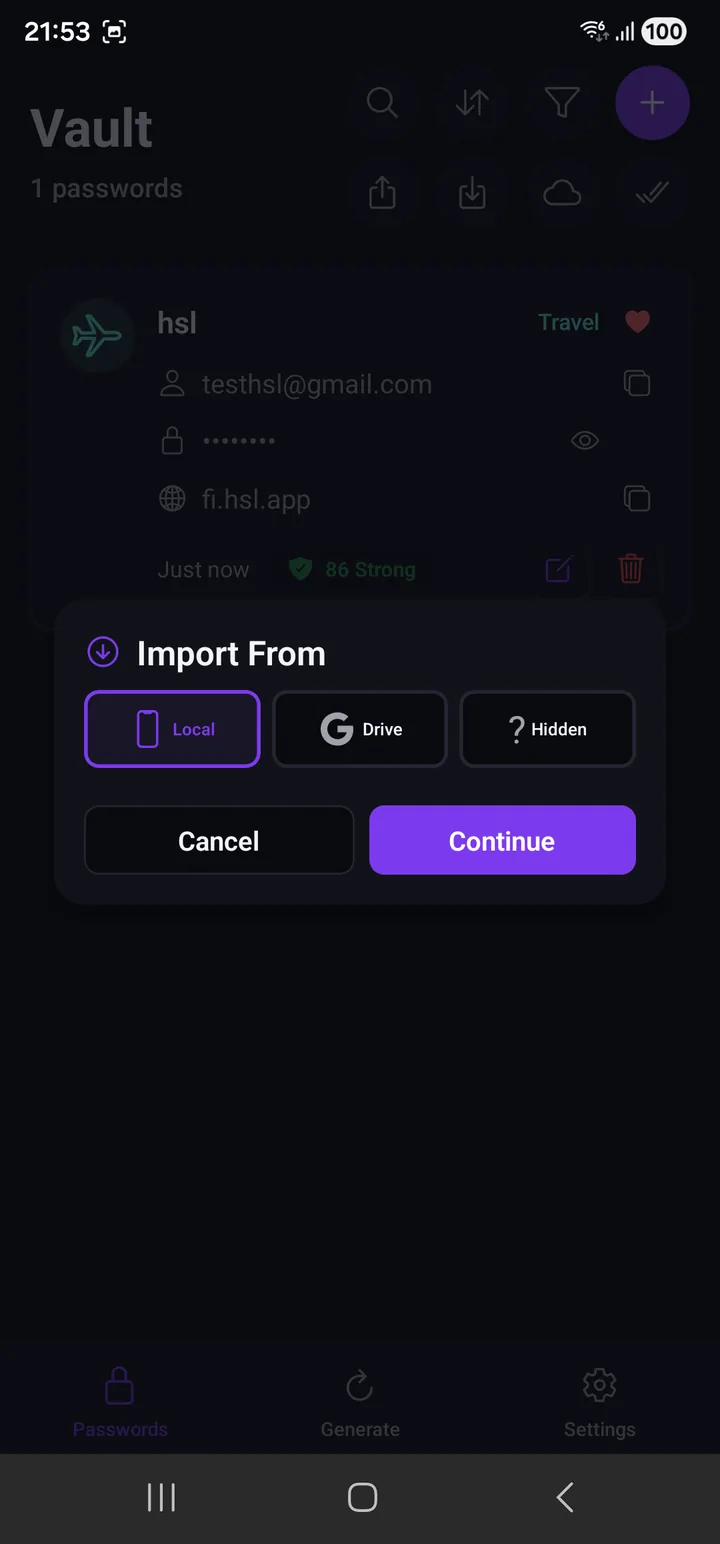
The same three places, so a file you exported anywhere can be brought back the same way.
Backup and restore
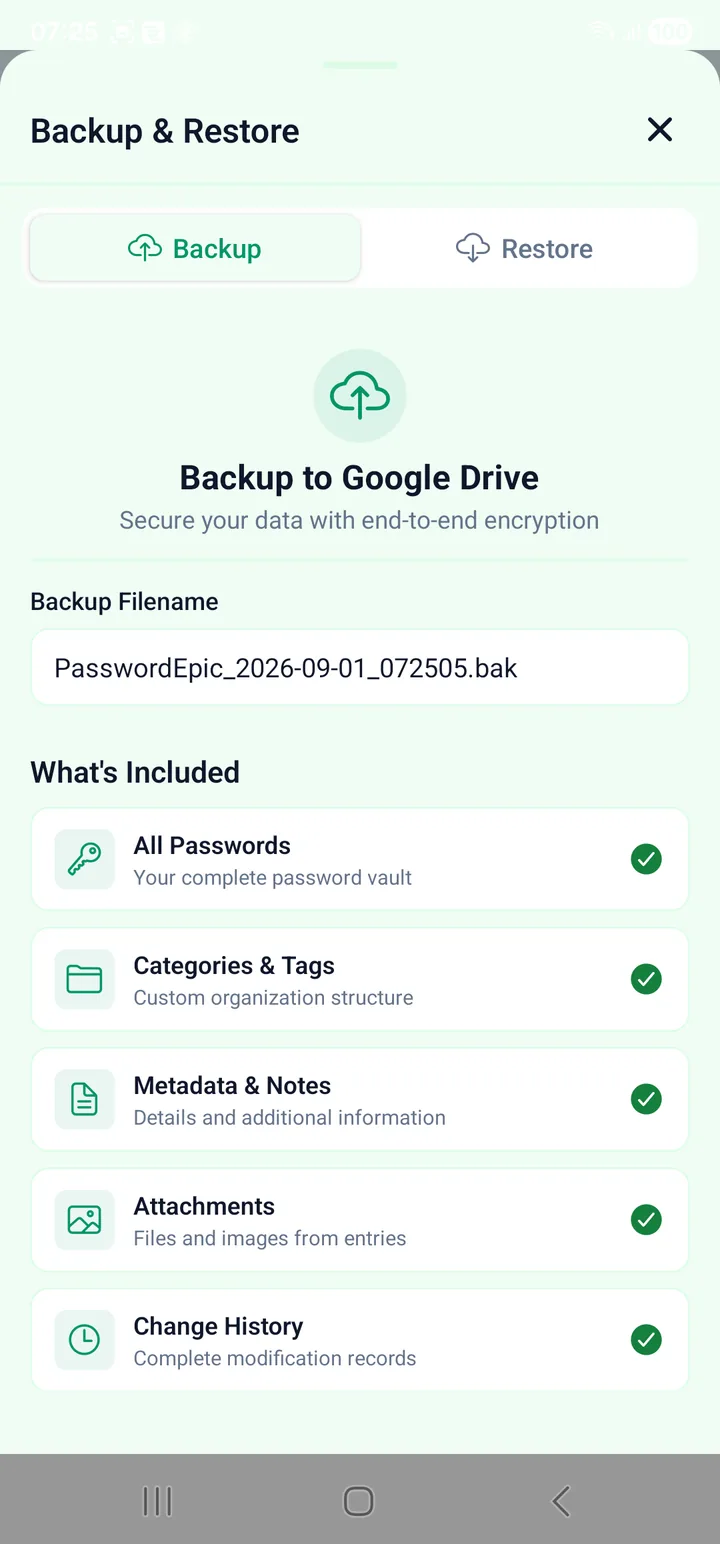
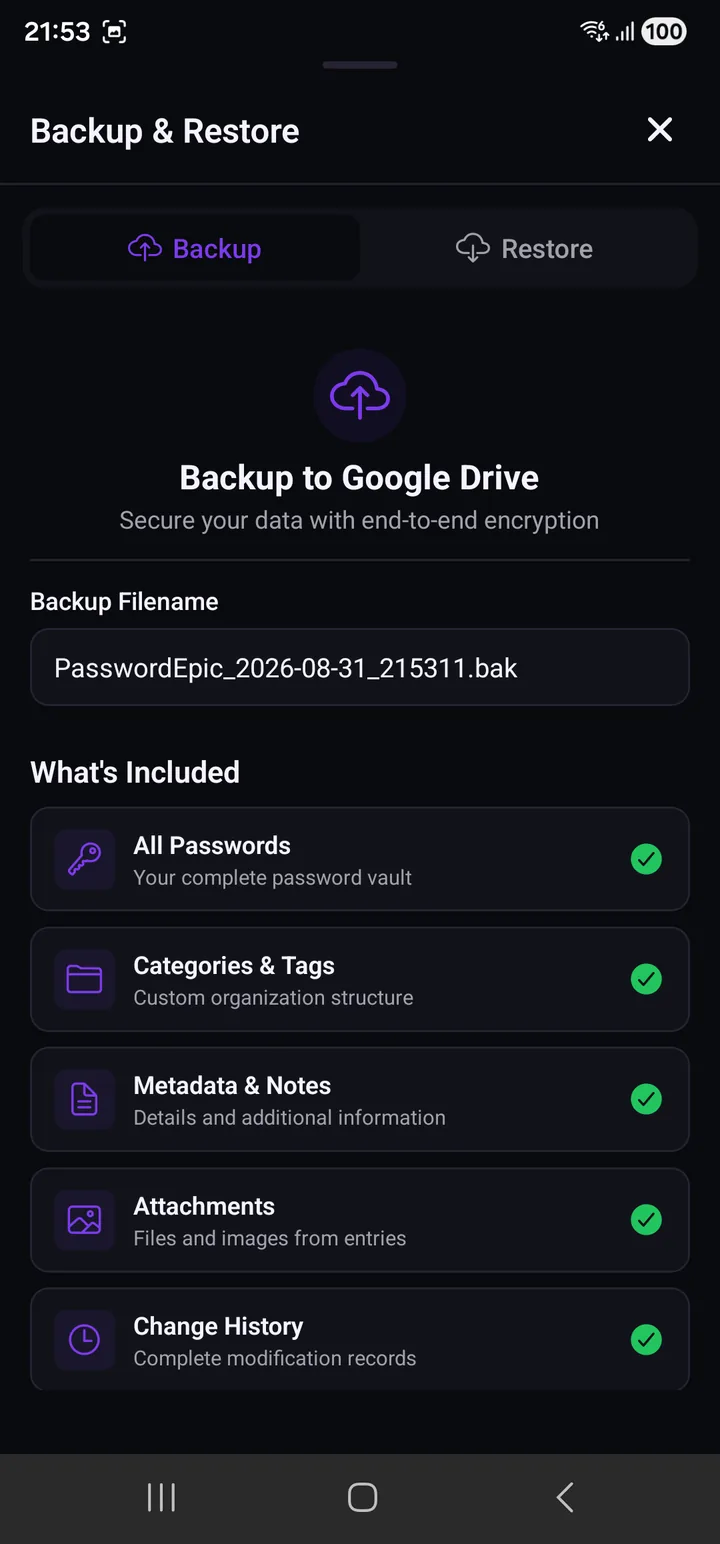
Backup does not ask where to put the file — it always uses the hidden area, and
names it PasswordEpic_<date>_<time>.bak. What's Included is not a set of
choices but a statement of scope:
All passwords · Categories & tags · Metadata & notes · Attachments · Change history.
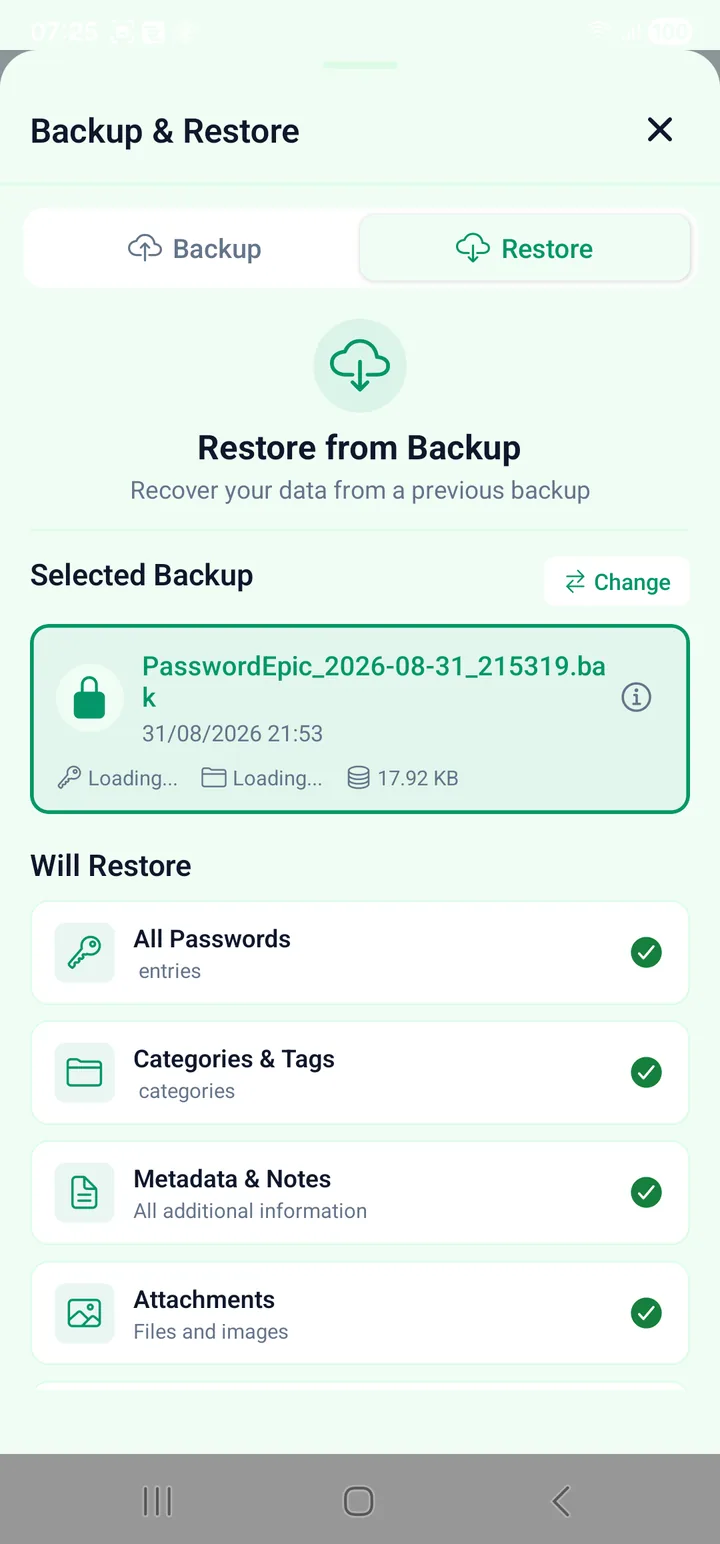
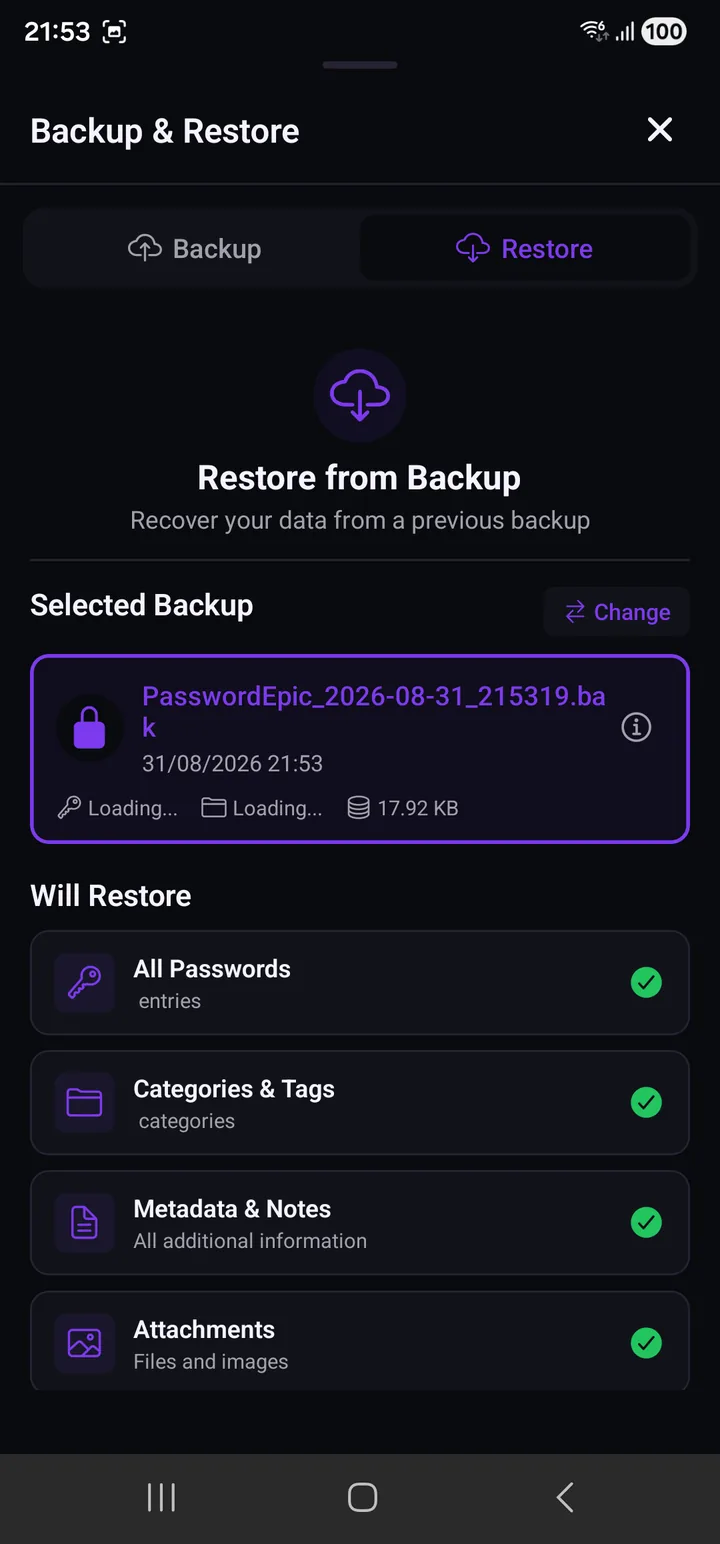
Restore shows you the file it is about to use — name, date, size — with Change to pick a different one, and the same list under Will Restore so there is no ambiguity about what is about to be written over what.
We never receive any of these files. They go to your Google account, not ours. The app asks Google for two narrow permissions only — its own private folder, and files it created itself. Neither one lets it look at the rest of your Drive.
The hidden area is the default for backups because a backup is not a document — it is not something you want to trip over in a folder listing, rename by accident, or share by mistake.
If something is missing
An entry that will not open, or a list that looks wrong, is covered in Common problems.
Read next
- Generating passwords — the ten templates, and which to use
- Settings — every switch, and what it changes
- Setting up autofill — so you stop typing passwords entirely