Settings
Five sections, in this order: Security, Advanced Security, Zero-Knowledge Encryption, General, Support — plus two items at the bottom, one of which deletes everything. This page covers all of them, in order.
At the top sits your account card: the Google account you signed in with, and a shield if the device has passed its checks.
Security
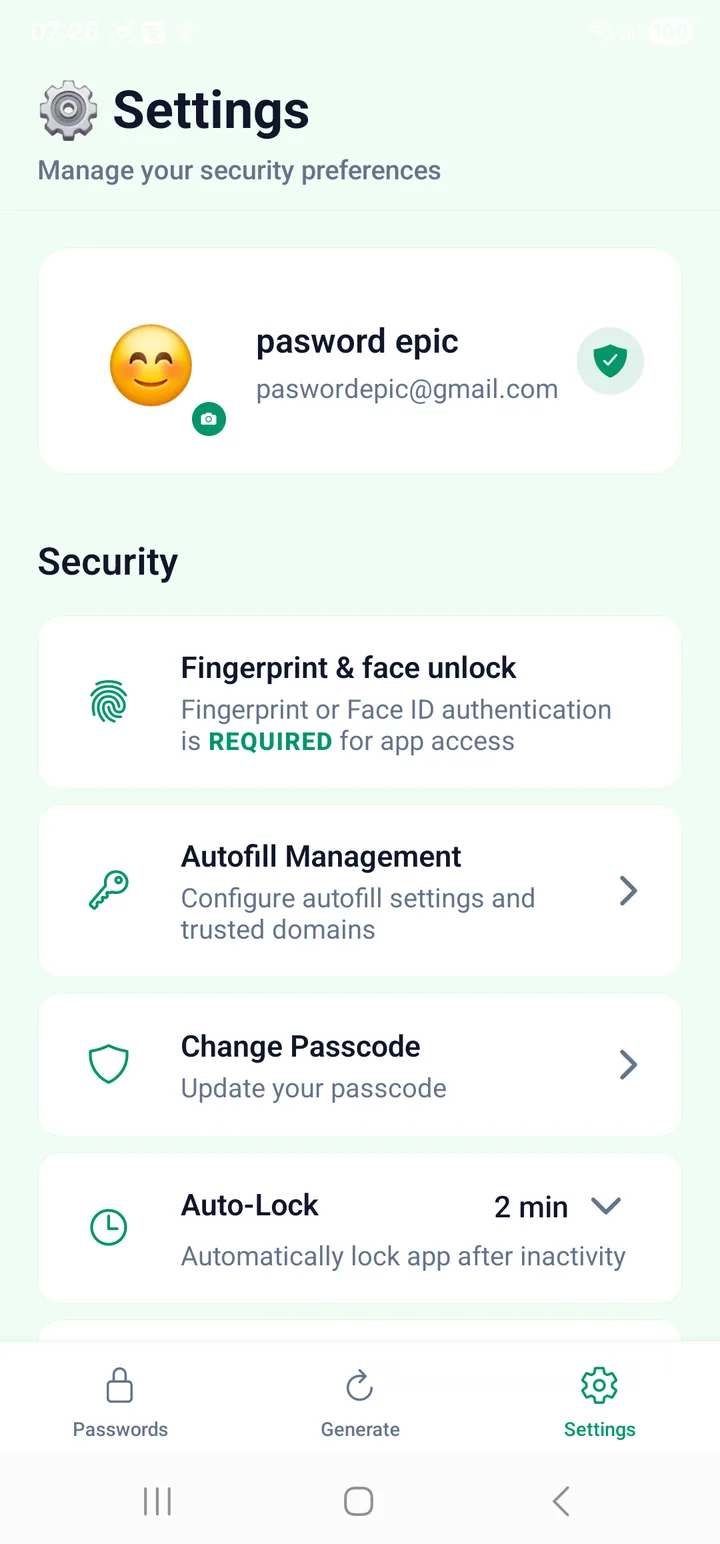
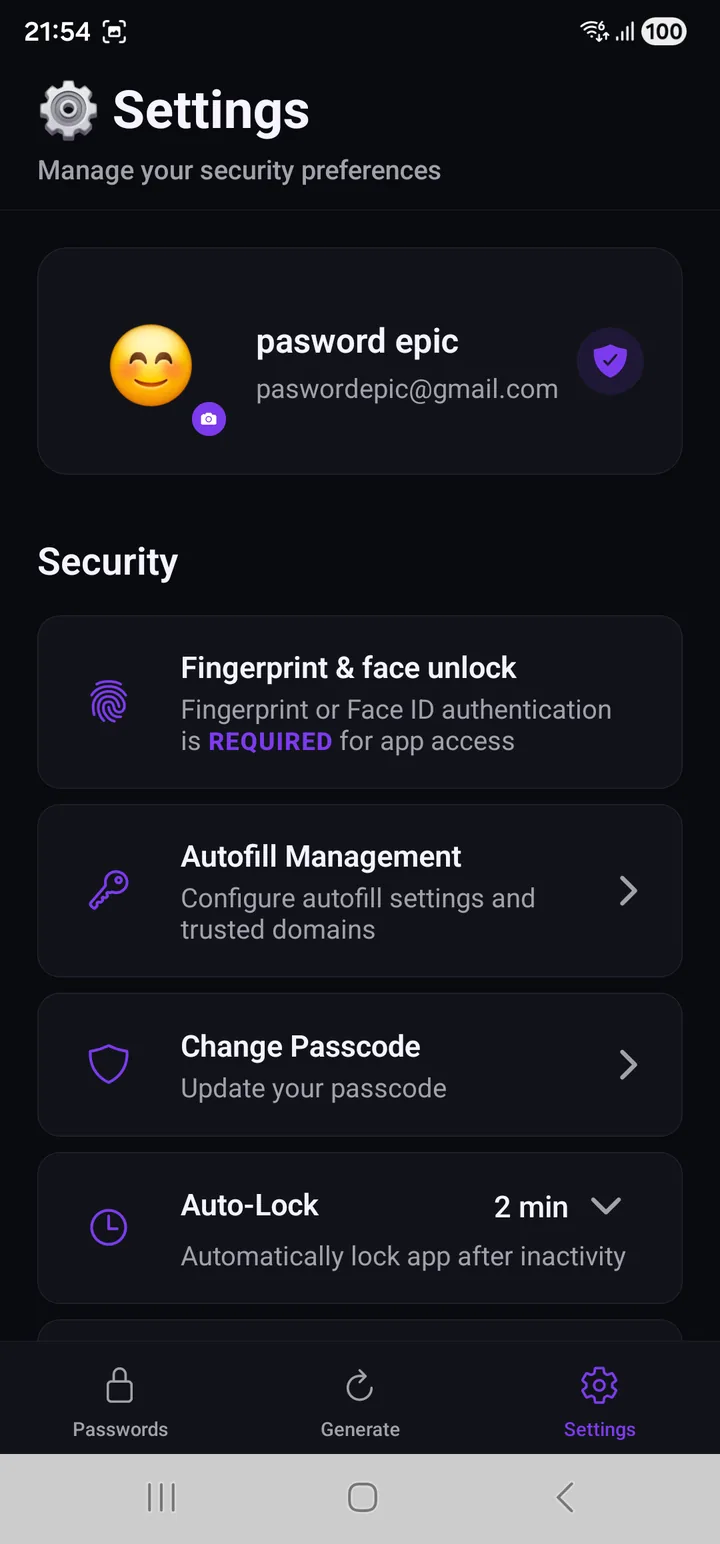
Fingerprint & face unlock
Note the wording on this row: authentication is required for app access. It is not a convenience toggle you can turn off to save a step.
It replaces the typing, not the passcode. Your DEK is still built from your passcode; biometrics unlock a stored copy of that step. If a biometric read fails, you enter the passcode — which is why forgetting it is still permanent.
If your phone has no biometric hardware, or none enrolled, enrol one in your phone's own settings first.
Autofill Management
Opens a screen with three tabs — Service, Domains, Stats — covered in full in Setting up autofill.
In short: Service turns it on and off, Domains is the trusted-domain list, and Stats counts what has actually been filled.
Change Passcode
Changes the one secret you type. You verify yourself first.
This is cheaper than it sounds and you should use it more freely than you probably do. It re-wraps a machine-generated secret; the DEK itself does not change, so not one stored password is re-encrypted.
If you ever think somebody watched you type, change it. The whole flow, with what happens to your export files, is further down this page.
Auto-Lock
Locks the app after a period of inactivity — 2 minutes by default.
Shorter is safer; long enough that you are not fighting it is the one you will actually keep.
Screen Protection
Always enabled, and the row says so rather than offering a switch. Tap it to verify it is active.
Screenshots and screen recording of the app are blocked. What that does and does not cover is in Setting up autofill.
Advanced Security
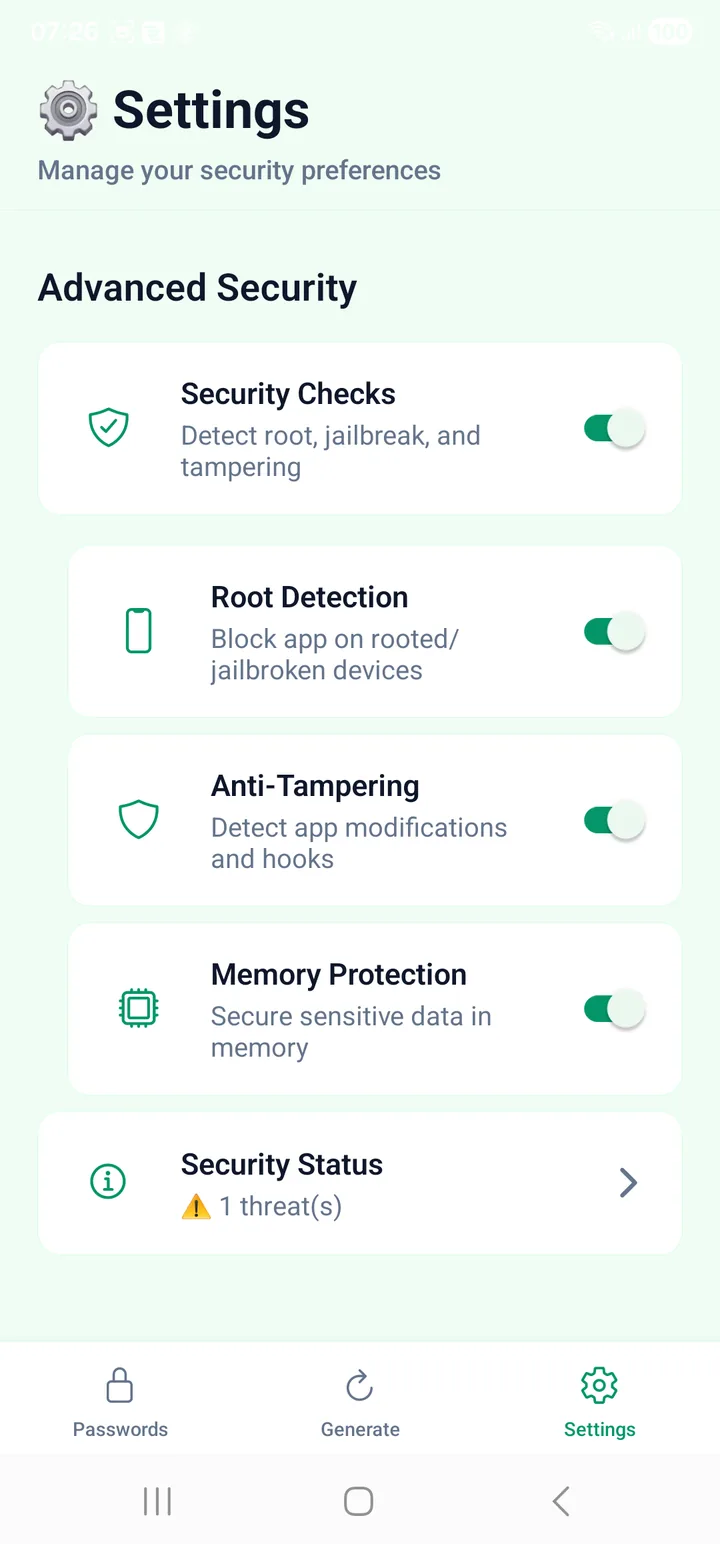
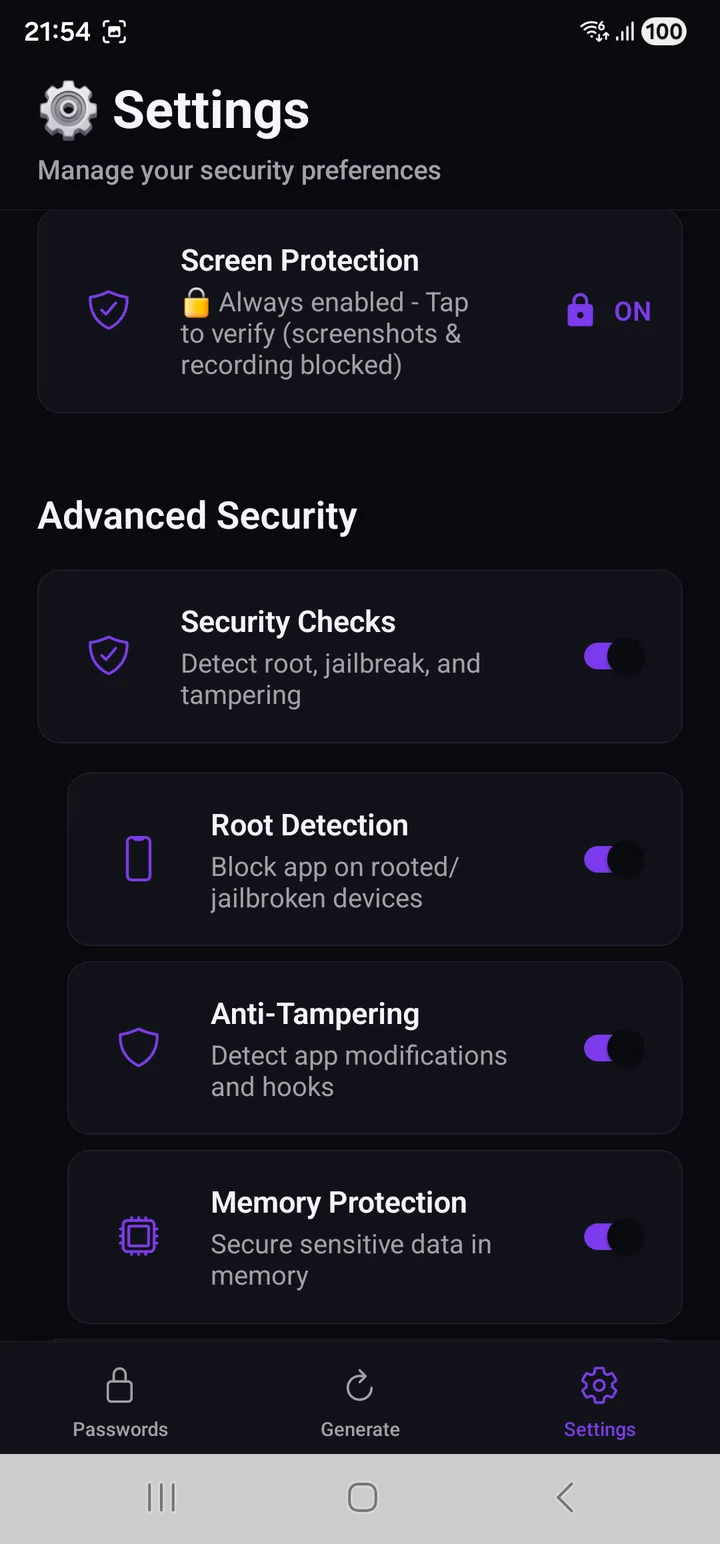
Four switches, all about the device rather than the data:
| Switch | What it watches for |
|---|---|
| Security Checks | The master switch for the three below |
| Root Detection | The phone's built-in restrictions having been removed |
| Anti-Tampering | The app having been modified, or a tool hooked into it |
| Memory Protection | Keeping sensitive values out of reach while in use |
On a rooted phone, other apps can read this app's memory — including your passcode as you type it. These are why the paid tiers refuse to run there.
Security Status
A live count. No threats detected is what you want to see. Anything else names what it found, and tapping through gives you the detail:
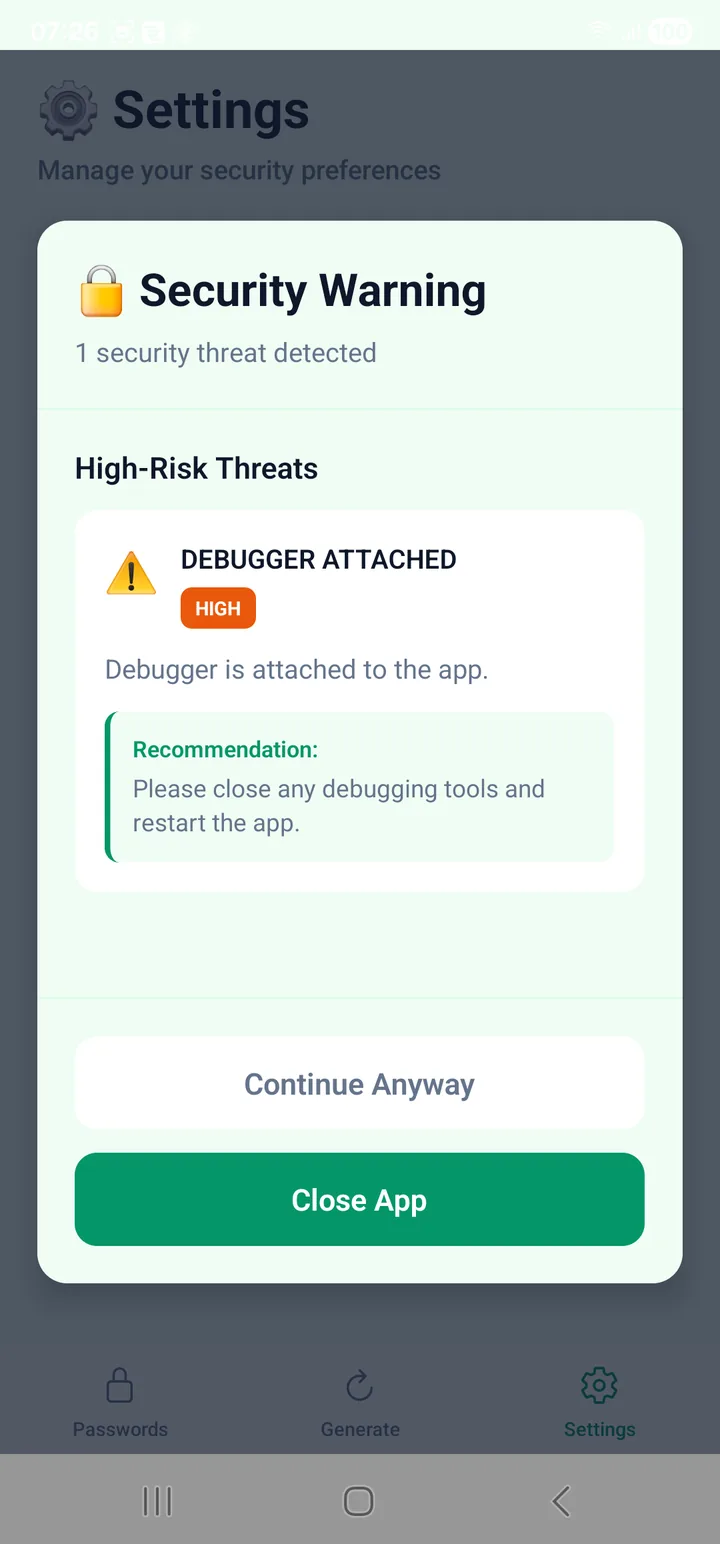
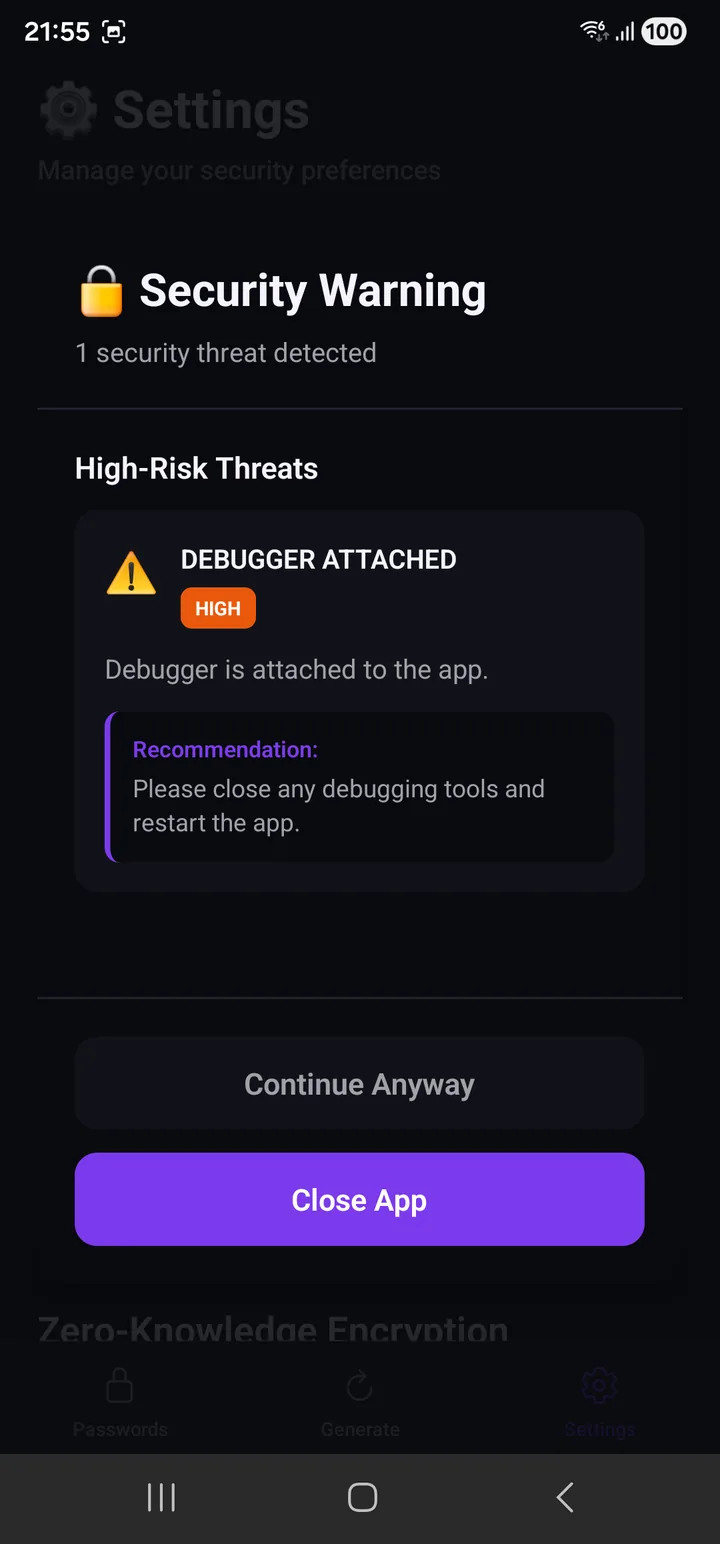
Each finding carries a severity, a plain sentence about what it means, and a recommendation. Continue Anyway is offered, and Close App is the default — which is the right way round for a vault.
This same machinery has a use nobody expects, which is how to inspect a second-hand phone before buying it.
Zero-Knowledge Encryption
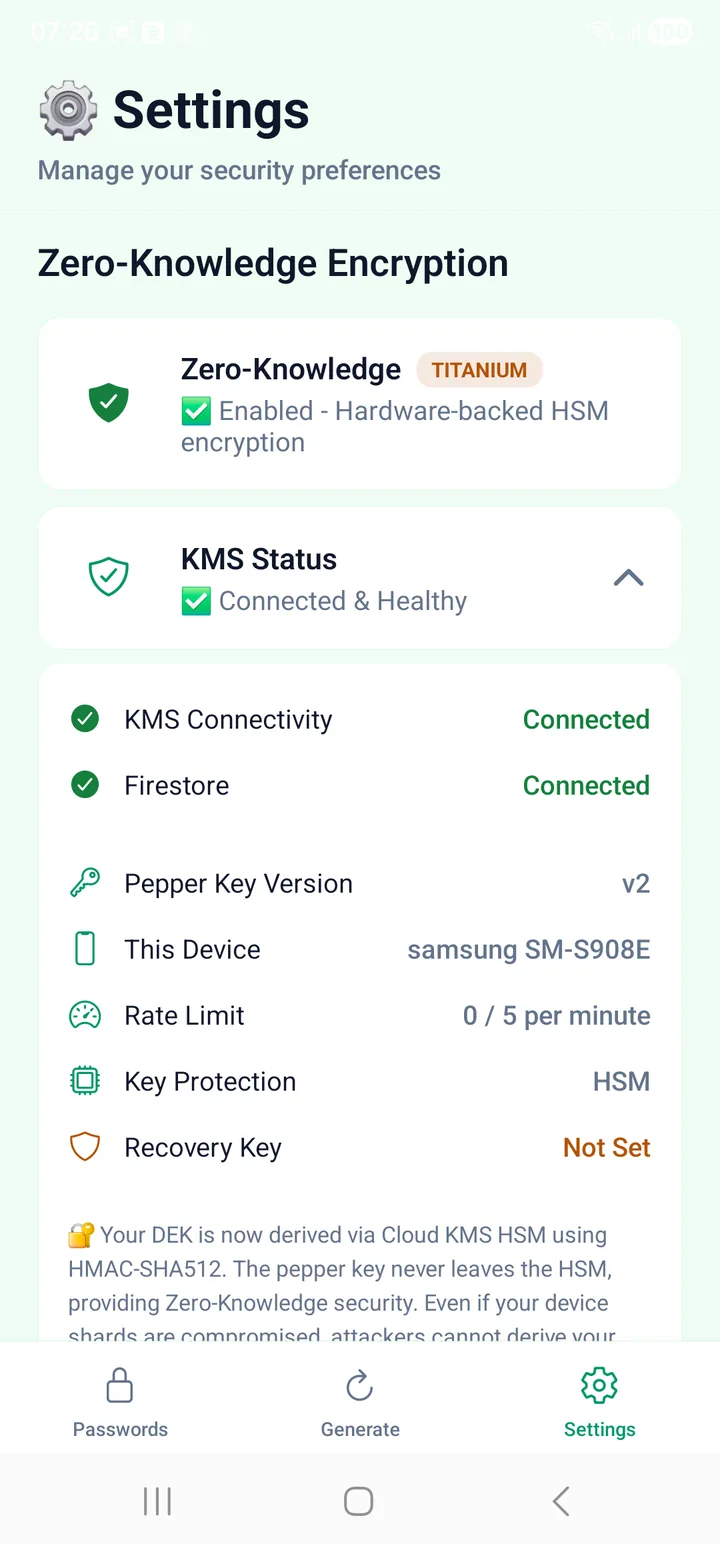
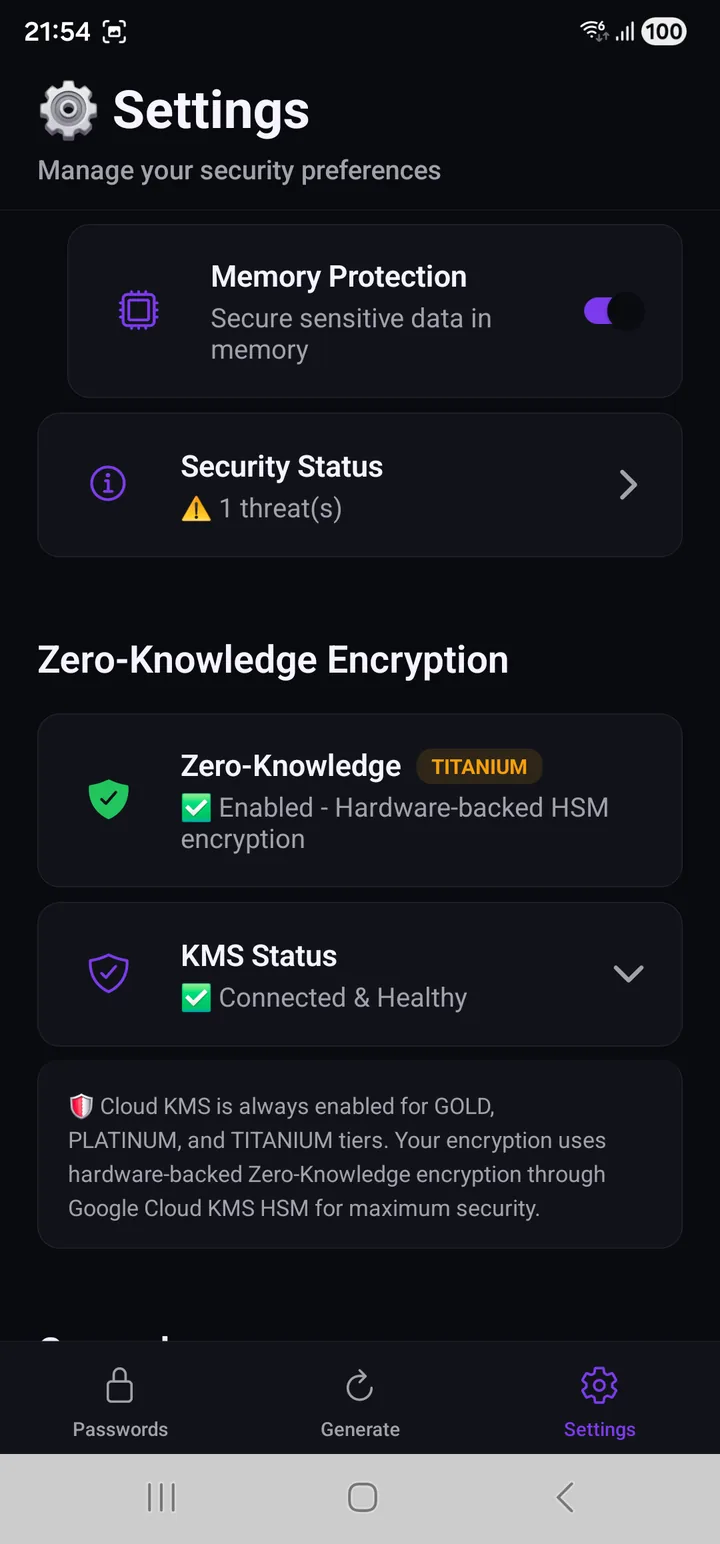
The Zero-Knowledge row carries your tier as a badge. This is where you read which engine is protecting you; the tier itself is chosen when you first create your passcode, not here.
On Gold and above this is always on and cannot be turned off — part of your key is computed inside a Google Cloud hardware module, using a secret that never leaves it. The note on the screen says exactly that, and names the three tiers it applies to.
KMS Status tells you what that connection is doing:
| Status | Meaning |
|---|---|
| Connected & Healthy | Normal |
| Degraded (using cache) | Reachable but unhappy; the app is coping |
| Not initialized | Not set up yet |
| Disabled | Silver only |
The full comparison is in Security tiers.
General
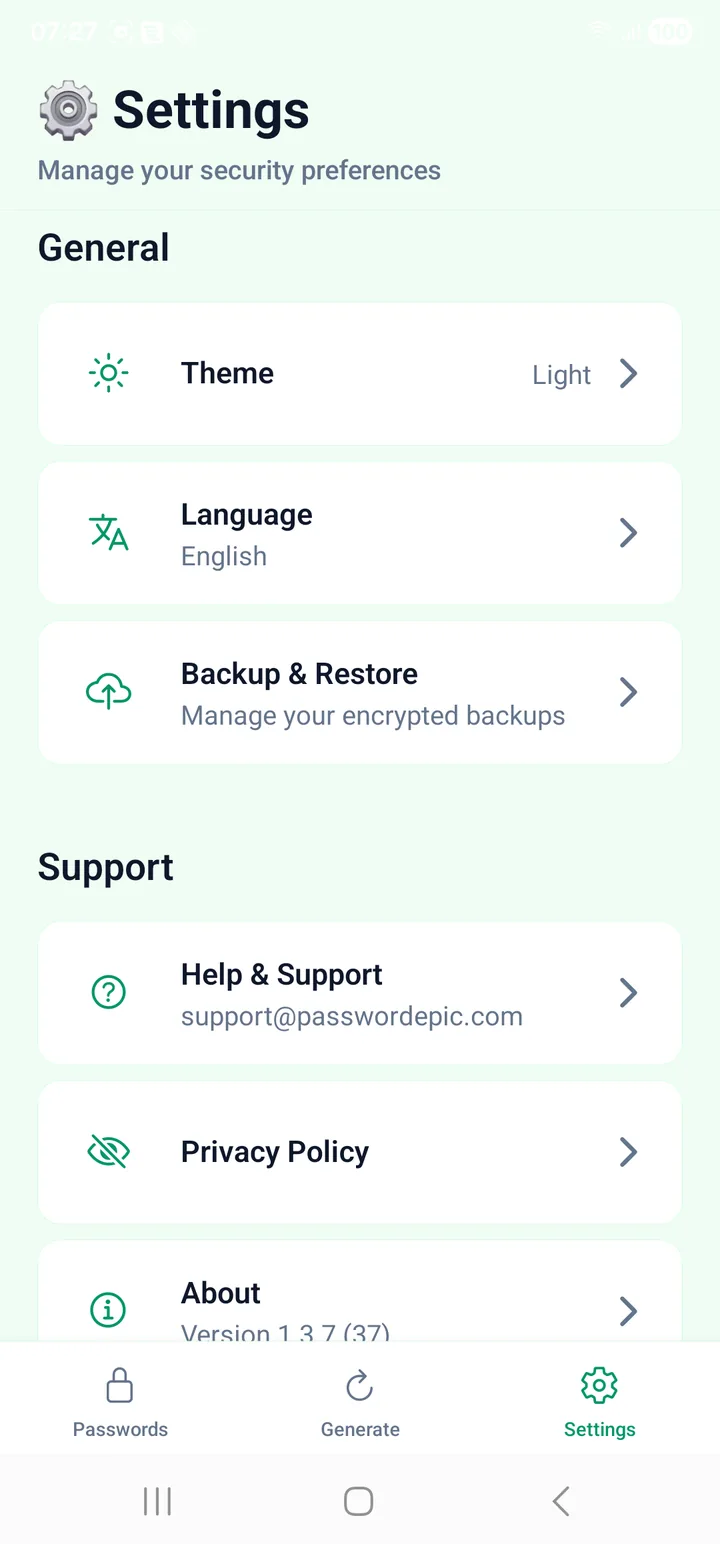
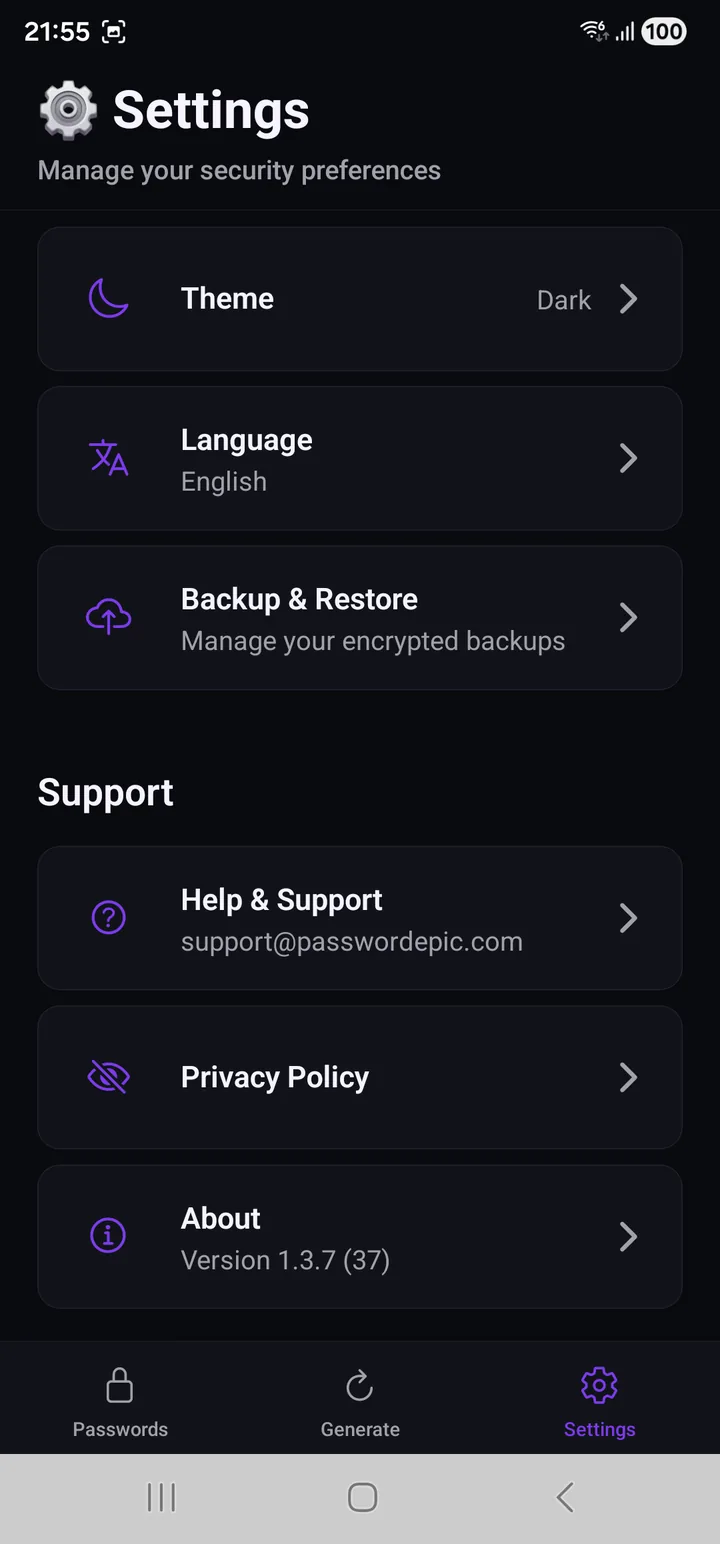
| Item | |
|---|---|
| Theme | Light, Dark, or System |
| Language | English and Vietnamese |
| Backup & Restore | The same sheet as button 7 in the vault |
Theme is the same app either way — the same screens, the same words, and the five keys that give the tiers their names:
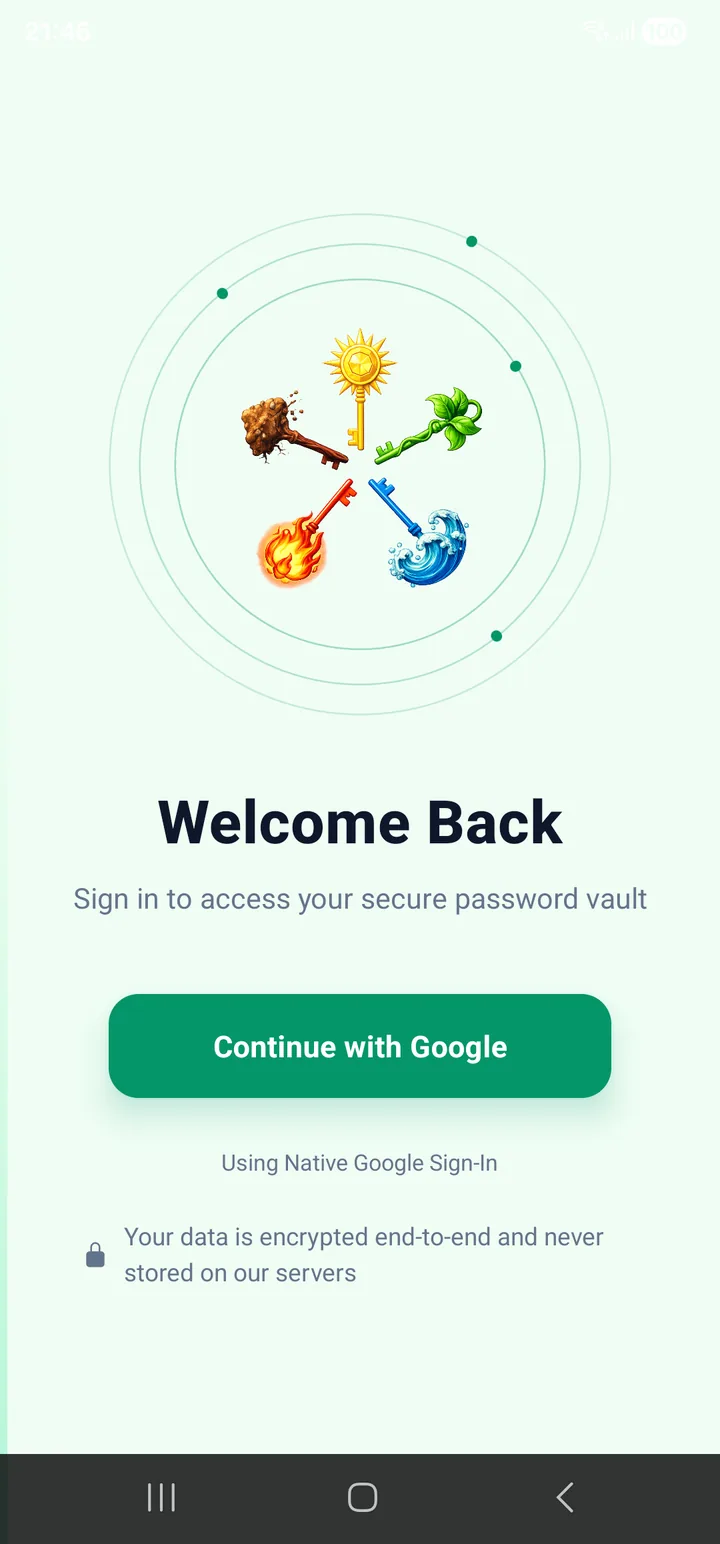
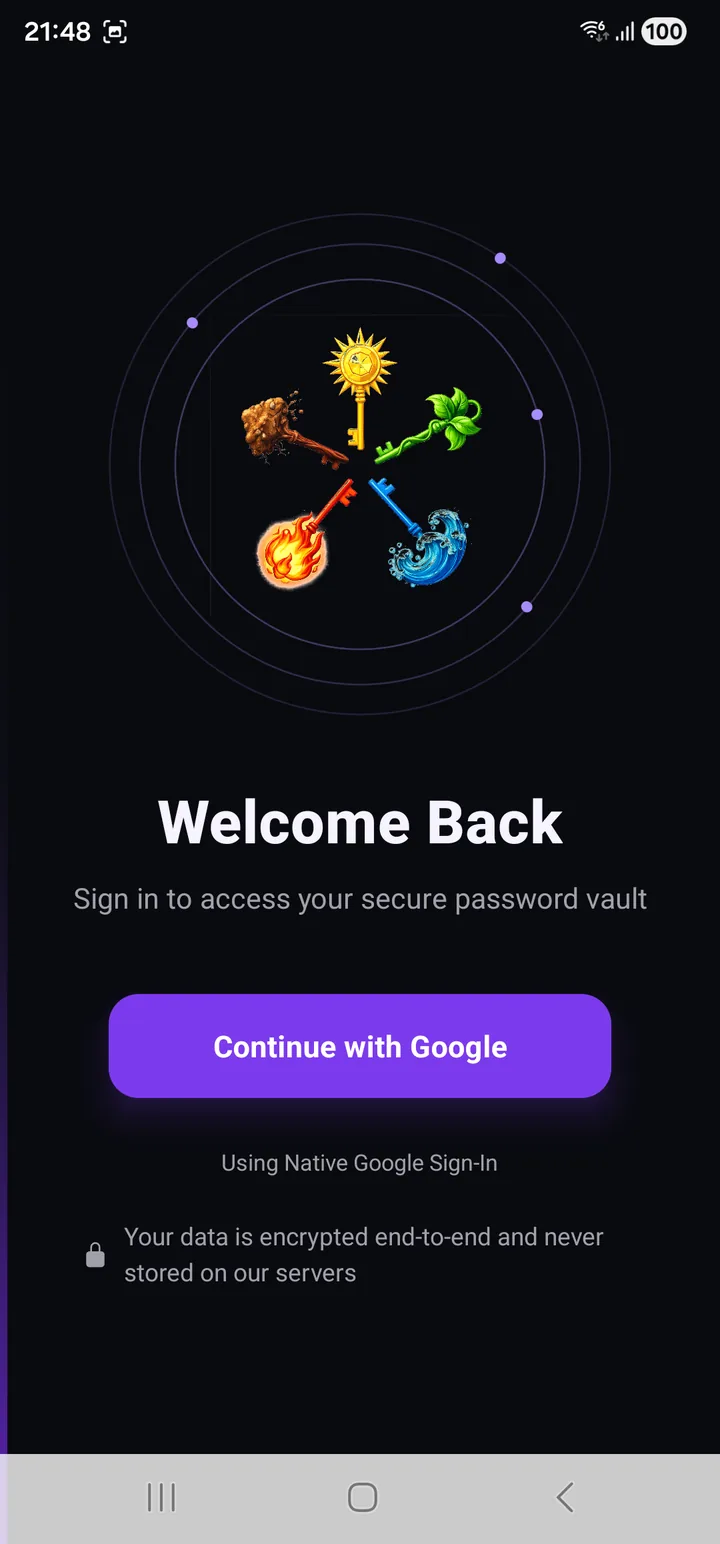
System follows your phone, which is the setting most people want and forget they set.
On any tier. It protects you against losing data on the phone you still have. Backups and exports explains why, and what to do instead.
Support
- Help & Support —
support@passwordepic.com. A real address; see Support. - Privacy Policy — the same one on this site.
- About — the version and build number. Worth quoting if you write to us.
Sign Out
Signs you out and revokes autofill immediately — the service stops answering requests rather than carrying on with a stale session.
Your vault stays on the device. Signing out is not deleting.
Reset Account
The last item, and the only one that destroys anything.
Reset Account deletes your vault and your account data from our servers. There is no queue, no retention window, no support ticket, and no way back — not for you, and not for us.
That is the same property that stops anyone else reading your vault. It cuts both ways, and this is the moment it cuts your way.
Use it when you are leaving, or when you need to free the account from a device you no longer have. Not to fix a glitch.
Changing your passcode
Worth walking through, because it is the one flow where the app tells you something surprising about your own data.
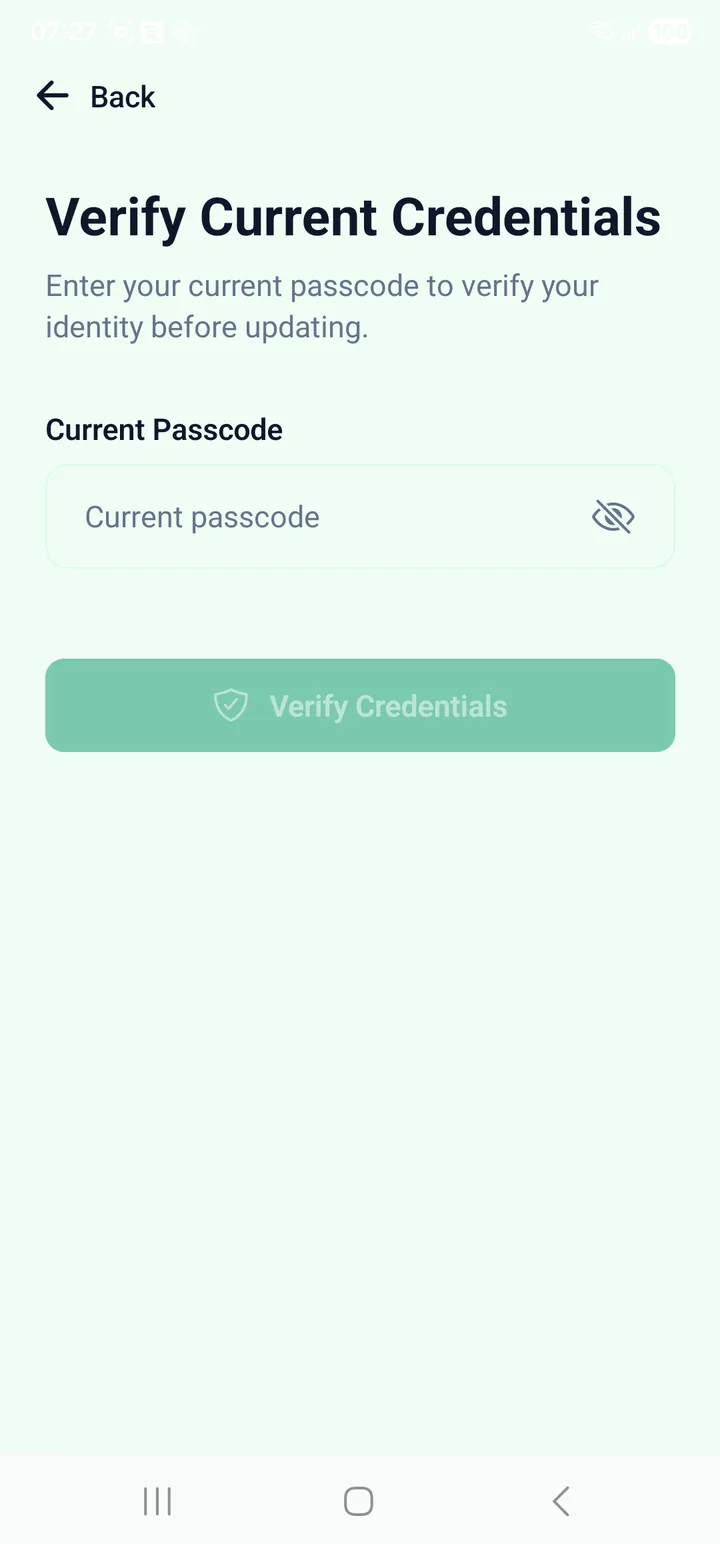
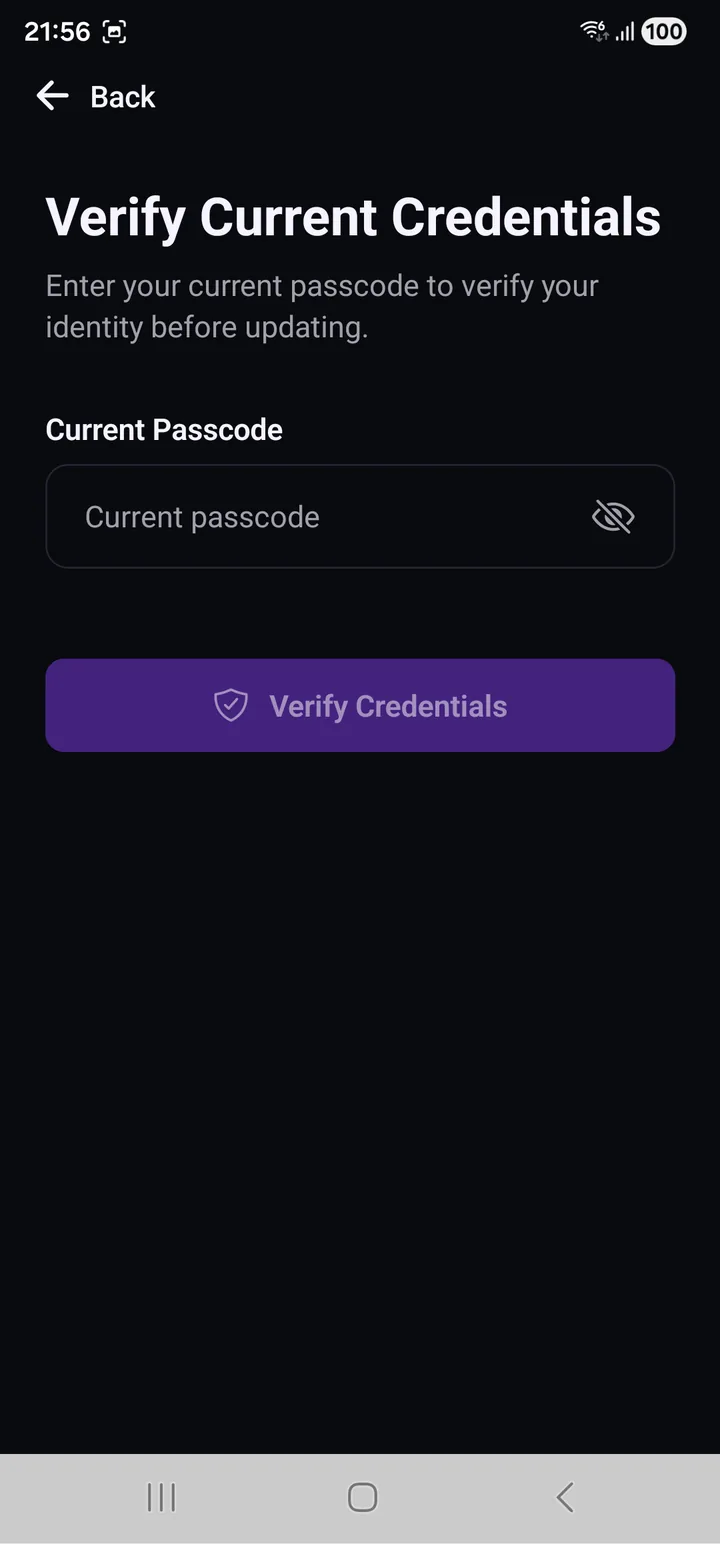
First you prove you are you, with the passcode you have now.
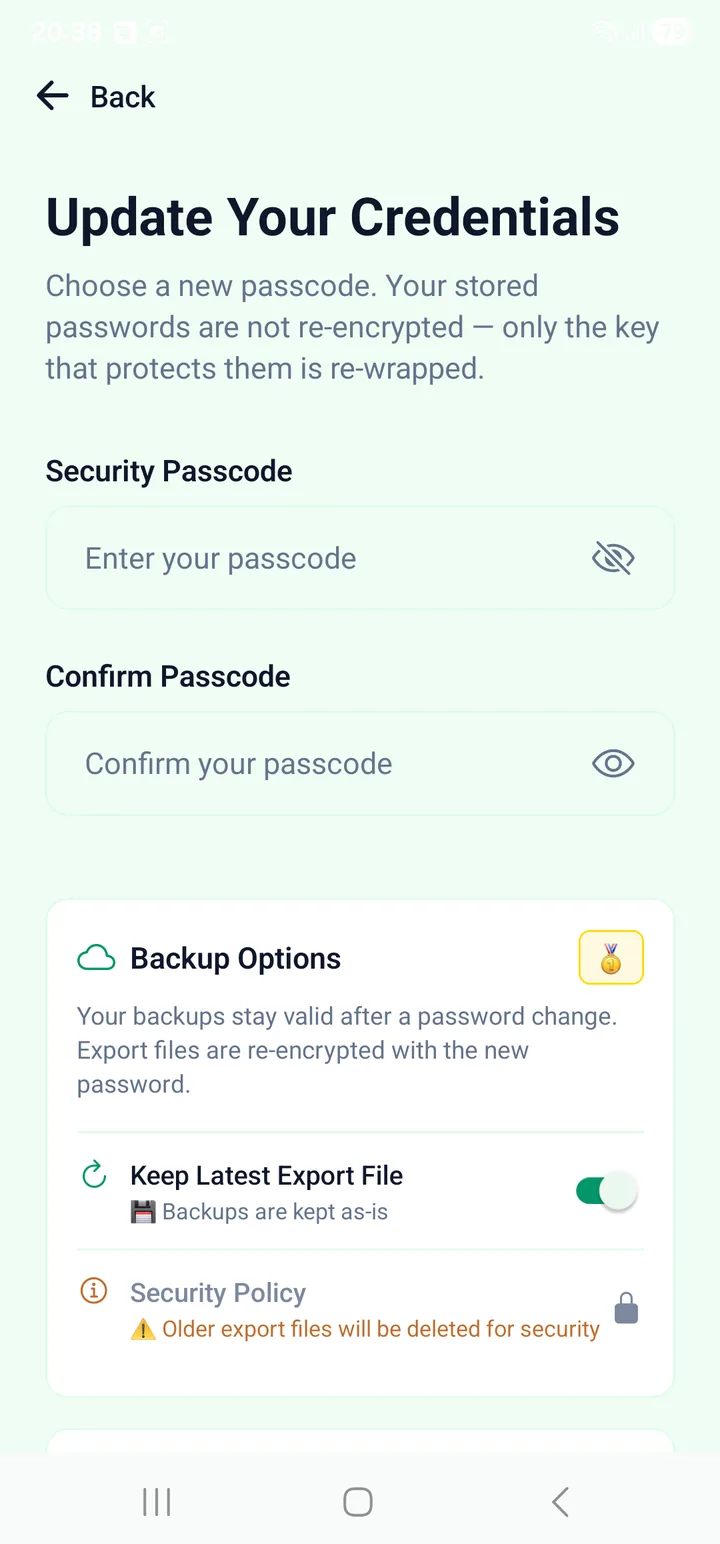
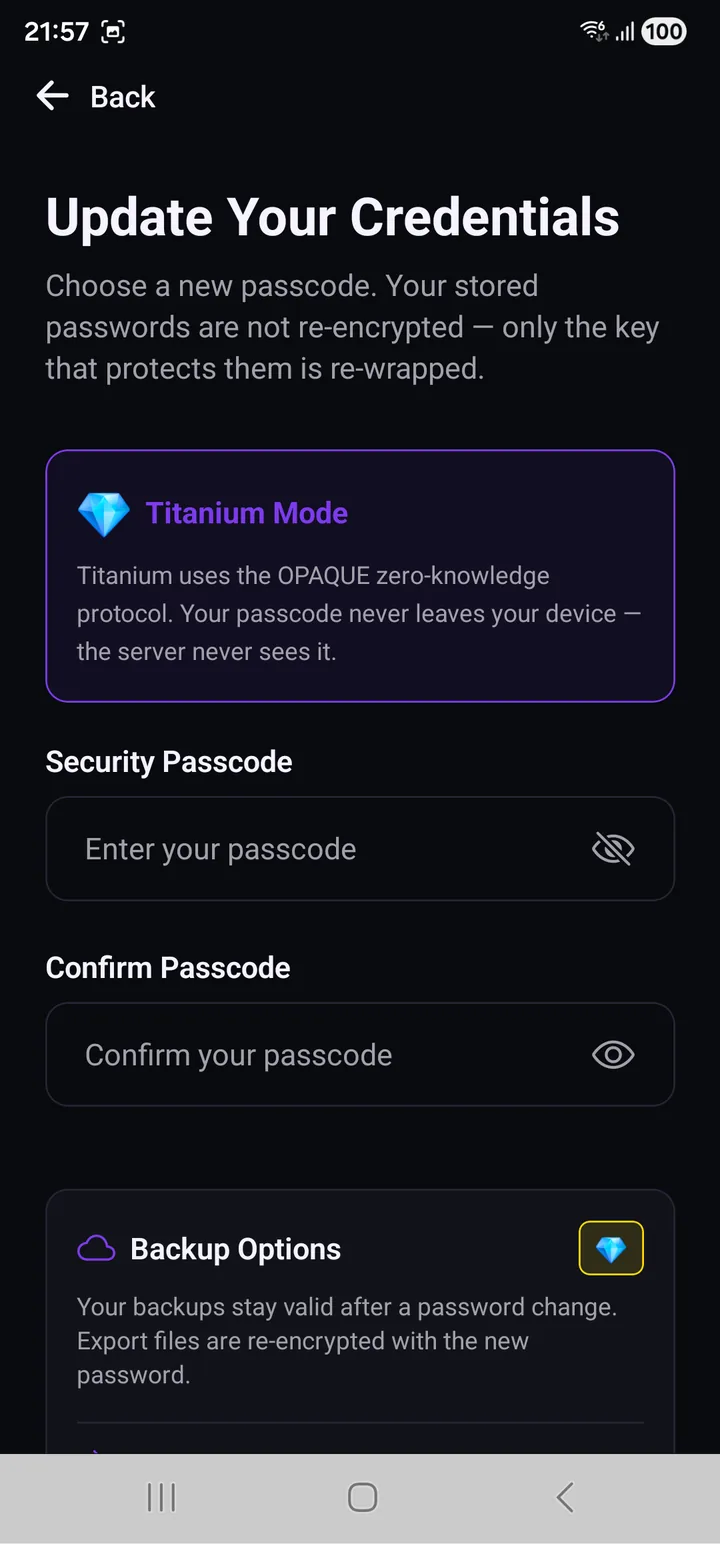
Then the new one — and read the sentence under the heading:
Your stored passwords are not re-encrypted — only the key that protects them is re-wrapped.
That is why changing your passcode is cheap. Nothing in the vault is touched. See Your passcode for what is actually happening underneath.
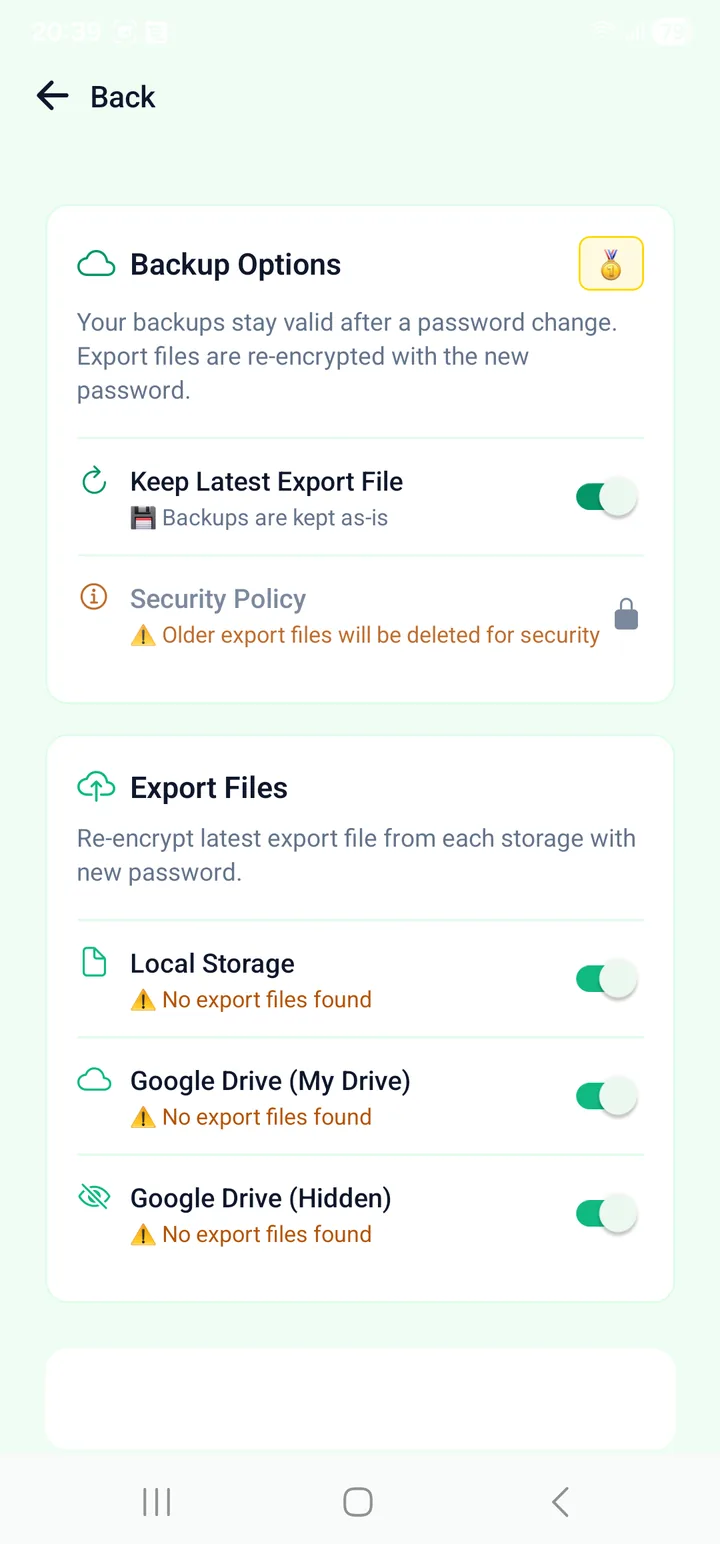
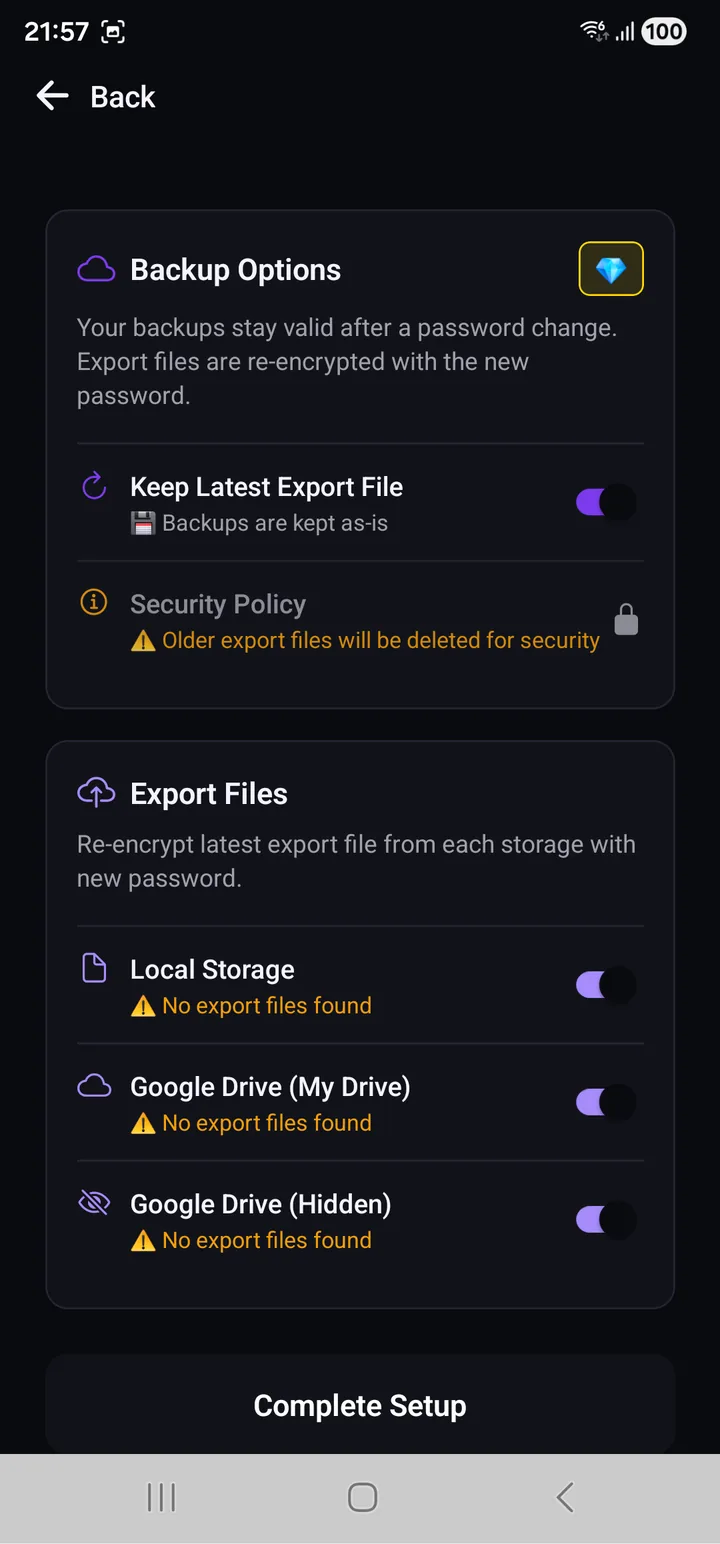
Your export files are a different matter, because they carry their own copy of the protection. The app offers to re-encrypt the latest export in each of the three places with the new passcode, and warns you plainly that older export files will be deleted — an export protected by a passcode you have just replaced is a loose end, not a backup.
Read next
- Your vault — the main screen, button by button
- Generating passwords — the ten templates
- Common problems — what the error messages mean